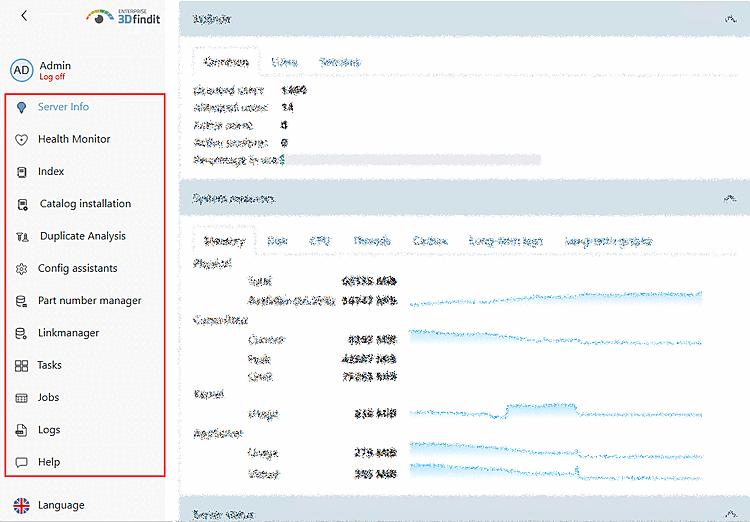
Table of Contents
- 2.1. Logging
- 2.2. Server Info
- 2.3. Health Monitor
- 2.4. Index
- 2.5. Catalog Installation
- 2.6. Duplicate analysis
- 2.7. Part Number Manager
- 2.8. Link Manager
- 2.9. Tasks
- 2.10. Jobs
- 2.11. Pipelines
- 2.12. Reports
- 2.13. Logs
- 2.14. Rights
- 2.15. Help
- 2.16. Language
In the PARTapplicationServer Dashboard, you can perform a wide range of administrative tasks.
PARTadmin -> Category: AppServer Client [AppServer client] -> Diagnosis [Diagnostic] dialog box -> Click " "
![[Note]](https://webapi.partcommunity.com/service/help/latest/pages/jp/partsolutions_user/doc/images/note.png)
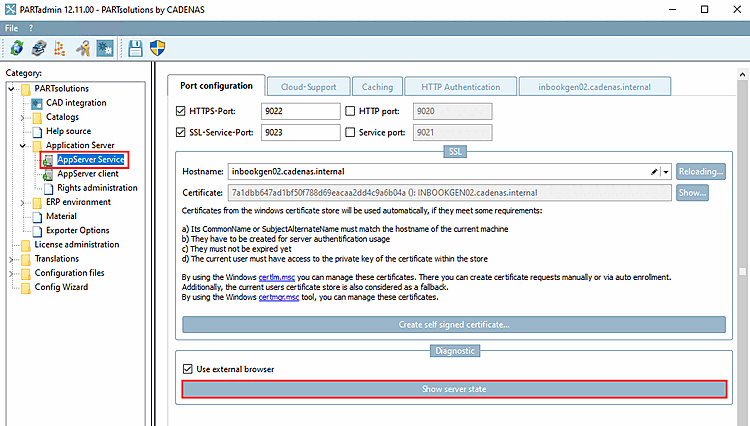
-> The PARTapplicationServer dashboard will open. (Immediately after the initial setup, you can use it to test whether the server is accessible.)
!["Server Status [Server state]" without administrative privileges](https://webapi.partcommunity.com/service/help/latest/pages/jp/partsolutions_user/doc/resources/img/img_7cf99ff588a9473b96c3e67e777dac5f.png)
!["Server Status [Server state]" with administrative privileges](https://webapi.partcommunity.com/service/help/latest/pages/jp/partsolutions_user/doc/resources/img/img_bd5cac8a8ba84380a991ed85d0bcbd2c.png)
After logging in as an administrator, all menu sections of the dashboard are displayed (or, more specifically, those activated for the logged-in user under "Rights Management" [Rights administration] ):