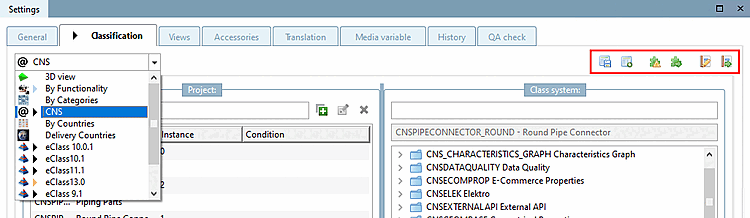
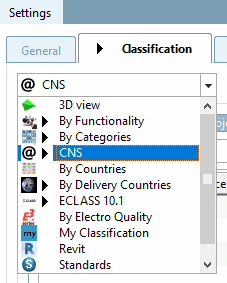
Rider Classification: All classifications like By Categories, By Countries, By Functionality, Delivery Countries, ECLASS, Standards, CNS, etc. can be reached according to Selection of the Classification tab page. In the list box below you can see all installed classifications. (The menu item Classification is either selected after selecting the file
categories.prjin the catalog folder or displayed at the project level.)The black arrow
 in the Classification tab means that for the
selected project. In the list box
underneath it then also appears again in the classifications,
that have been set. It can also be bluish or reddish if the
classification was created based on mappings (see below).
in the Classification tab means that for the
selected project. In the list box
underneath it then also appears again in the classifications,
that have been set. It can also be bluish or reddish if the
classification was created based on mappings (see below).
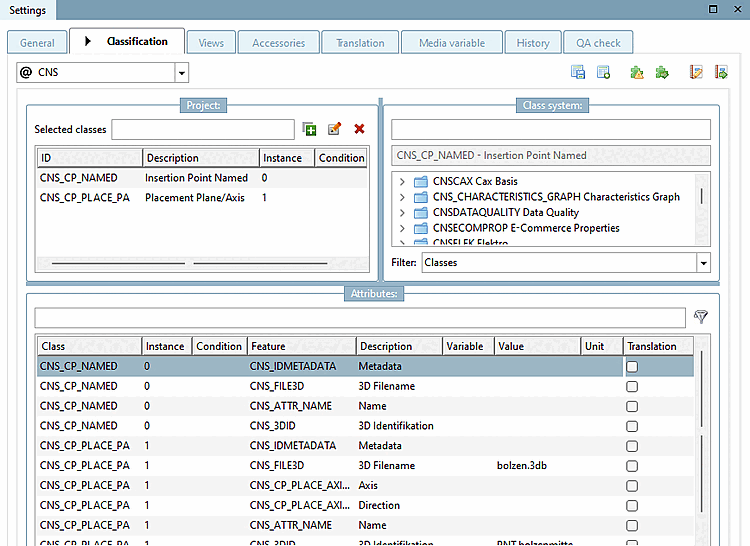
Classifications consist of classes ( Classification system [Class system] dialog area) and characteristics ( Characteristics [Attributes] dialog area). If you select a project in the project selection [Project selection], the classes and attributes assigned to this project are displayed under Selected classes and under Characteristics [Attributes].
Projects can be classified manually in this view (see Section 5.12.6, “Assignment of classes and features (Tabbed page "Classification") ”), but it is usually more time-saving to use a variety of different functions.
For example, templates can be created, which are then used for classification. See Section 5.12.9, “Classifying: Use of templates and plugins”.
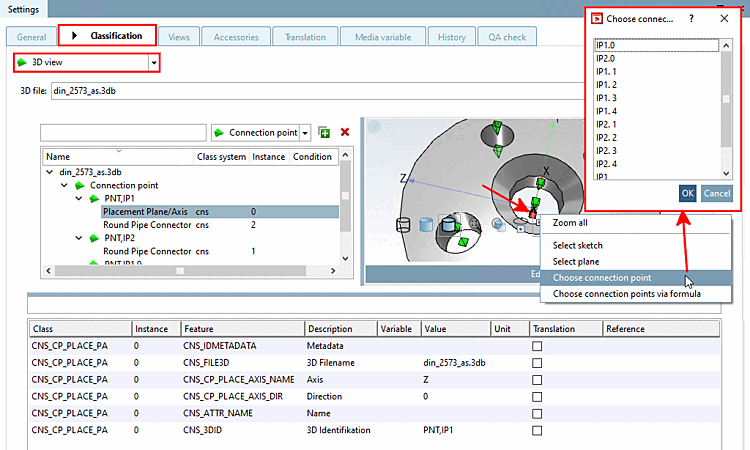
As the classification of connection points plays an important role, this area has a central place under Tabbed page Classification > List field selection 3D view. Connection points are displayed in the preview [Preview] and can be selected directly. See Section 5.12.5, “Classify connection points ”.
These can also be selected in the preview [Preview] using the context menu command Select connection point [Choose connection point].
 Check classification with plug [Check classification with plugins] ins (see Section 5.12.9, “Classifying:
Use of templates and plugins”)
Check classification with plug [Check classification with plugins] ins (see Section 5.12.9, “Classifying:
Use of templates and plugins”)
 Edit classification with plug [Edit classification with plugin] in (see Section 5.12.9, “Classifying:
Use of templates and plugins”)
Edit classification with plug [Edit classification with plugin] in (see Section 5.12.9, “Classifying:
Use of templates and plugins”)
 Manage templates (see Section 5.12.9, “Classifying:
Use of templates and plugins”)
Manage templates (see Section 5.12.9, “Classifying:
Use of templates and plugins”)
 Execute template (see Section 5.12.9, “Classifying:
Use of templates and plugins”)
Execute template (see Section 5.12.9, “Classifying:
Use of templates and plugins”)
![Tabbed page "Classification [Classification]"](https://webapi.partcommunity.com/service/help/latest/pages/jp/ecatalogsolutions/doc/resources/img/img_080cae791c8e4e0d88b7b14482890423.png)
![[Tip]](https://webapi.partcommunity.com/service/help/latest/pages/jp/ecatalogsolutions/doc/images/tip.png)