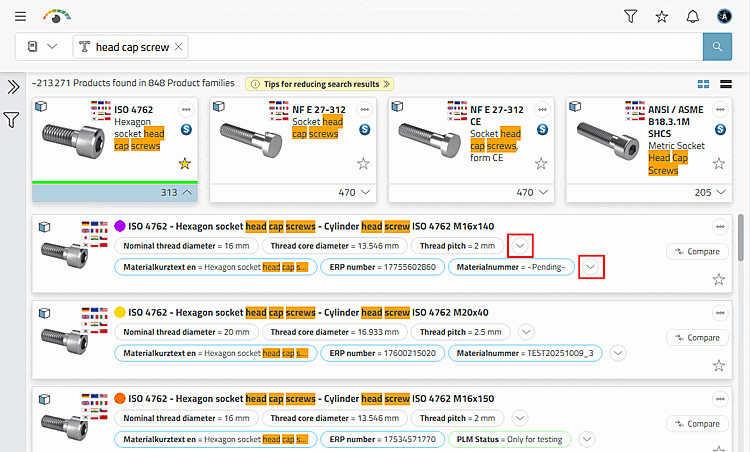
Configuration parameters of a product (a characteristic) are displayed as small, clickable labels below the product (values such as width, diameter, height, length or ERP parameters such as "released").
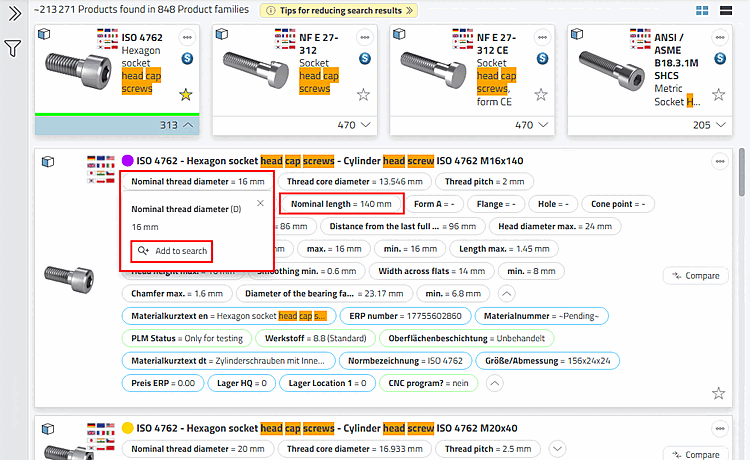
Clicking on a value adds it directly to the current search, allowing you to quickly reduce it to the desired value.
The labels work both in the list view and in the detailed view within the grid display.
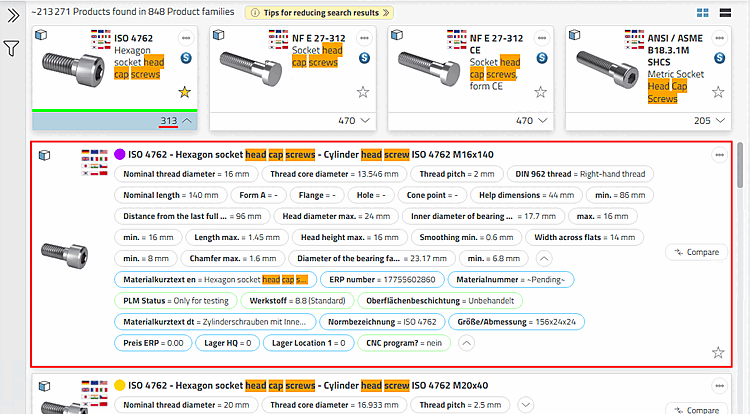
The individual variables with values are displayed in two lines (characteristic attribute table and ERP variables).
Click on the arrow buttons to see all variables.
Click on a variable field and then on .
-> The displayed characteristics (lines) are filtered immediately.
Carry out the process several times with the desired filter values if necessary.
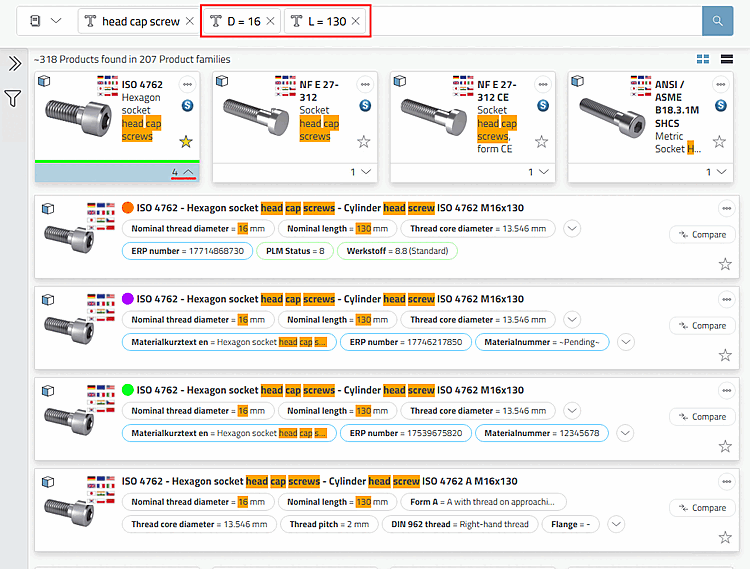
-> The variable values are automatically transferred to the search input field and the search is executed again.
-> In this example, with 2 clicks in the result, there are now only 4 instead of the original 313 values.