Chapter 2. V12.14 2.19. AppServer Dashboard: Update Manager –
Save Assignment Status Locally |  |
| Prev | Next |
![[Note]](https://webapi.partcommunity.com/service/help/latest/pages/jp/partwarehouse/doc/images/note.png)
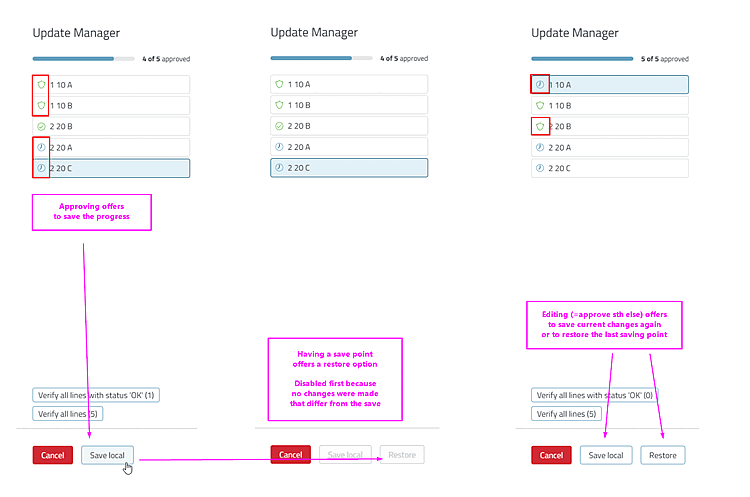
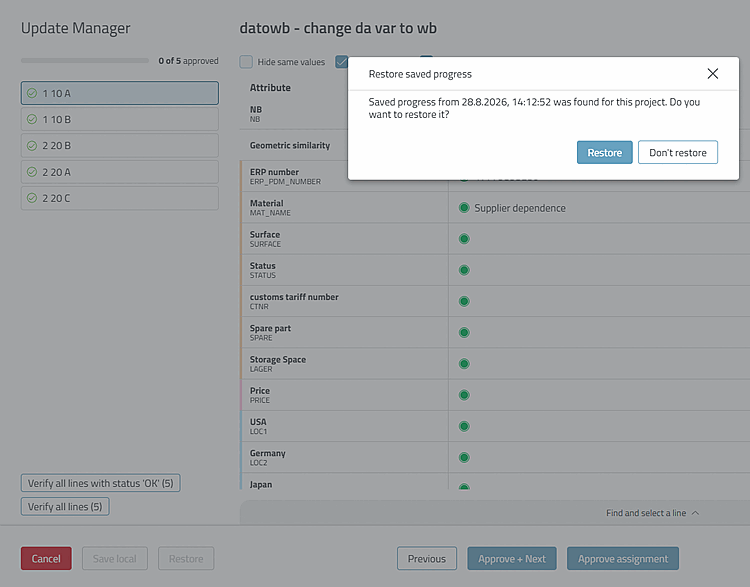
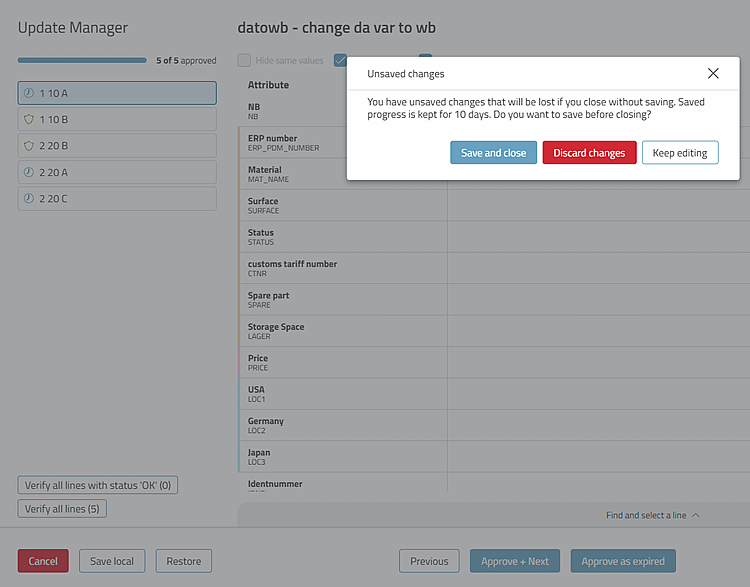
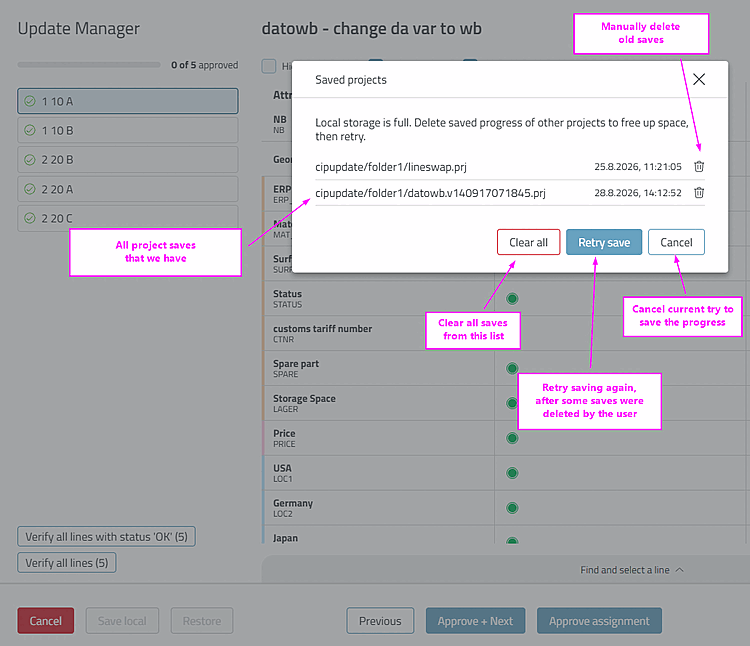
You do not have to complete an assignment in the Update Manager in a single session. Click “Save local” to save your current progress locally in the browser, and click “Restore” to restore it—even the next time you open the project.[15]
Described in detail in the chapter " Section 5.17.3, “ Catalog Update with ERP Integration - Resolve Assignment Issues Using Update Manager (via Dashboard > Link Manager) ” in ENTERPRISE 3Dfindit (Professional) - Administration.