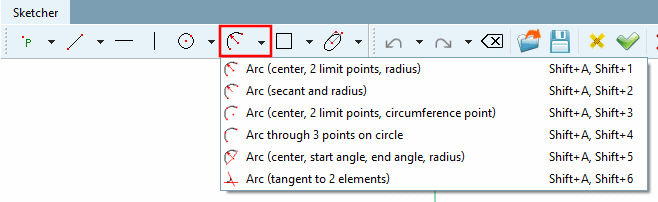
 Arc (center, 2 limit points, radius)
Follow the instructions of the status line:
Select arc start (via point) [Choose arc start (by point)]: The point does not have to be on the arc!
An imaginary line through center point and clicked point limits the arc on the arc start.
Select the end of the arc (above the point) [Choose arc end (by point)]: The point does not have to be on the arc!
An imaginary line through center point and clicked point limits the arc on the arc end.
If the start and end of the start are defined, temporary auxiliary lines are displayed to define the radius. As soon as the radius is selected, these lines disappear again.
Select rad [Choose radius] ius: As soon as the arc start and end have been determined, the arc "hangs" on the cursor. The radius is determined by clicking the mouse; it does not matter whether the point is on the arc segment or outside it. Only the distance to the center point is decisive.
Arc over center point, 2 limiting points and radius [Arc (center, 2 limit points, radius)]: Draw an arc
→ The individual parameters are displayed in the Edit element docking window, where they can be adjusted.
 reverse direction [Reverse direction]:
If necessary, also change the orientation of [Edit element] the
Arc.
reverse direction [Reverse direction]:
If necessary, also change the orientation of [Edit element] the
Arc.
Arc over center point, 2 limiting points and radius [Arc (center, 2 limit points, radius)]: Parameters adjusted
Define arc via the starting point [Start point] and end point [End point] of a secant and a radius
Follow the instructions of the status line:
→ The individual parameters are displayed in the Edit element docking window, where they can be adjusted.
reverse direction [Reverse direction]:
If necessary, also change the orientation of [Edit element] the
Arc.
 Arc (center, 2 limit points, circumference point)
![[Note]](https://webapi.partcommunity.com/service/help/latest/pages/jp/partwarehouse/doc/images/note.png)
Note Arc over center point, 2 limiting points and radius [Arc (center, 2 limit points, radius)] (see above) and arc over center point, point on circumference and 2 limiting points [Arc (center, 2 limit points, circumference point)] (present function) are similar.
In the first case the radius is directly determined, in the second case indirectly by a reference point on the arc.
Follow the instructions of the status line:
Select arc start (via point) [Choose arc start (by point)]: The point does not have to be on the arc!
An imaginary line through center point and clicked point limits the arc on the arc start.
Select the end of the arc (above the point) [Choose arc end (by point)]: The point does not have to be on the arc!
An imaginary line through center point and clicked point limits the arc on the arc end.
If the start and end of the start are defined, temporary auxiliary lines are displayed to define the radius. As soon as the radius is selected, these lines disappear again.
Select point on radius [Choose point on radius]: As soon as the start and end of the arc have been determined, the arc "hangs" on the cursor. Click the mouse to select a point on the radius; it does not matter whether the point is on the arc segment or outside it. Only the distance to the center point is decisive.
Arc over center point, point on circumference and 2 limiting points [Arc (center, 2 limit points, circumference point)]: Draw an arc
→ The individual parameters are displayed in the Edit element docking window, where they can be adjusted.
reverse direction [Reverse direction]:
If necessary, also change the orientation of [Edit element] the
Arc.
Arc over center point, point on circumference and 2 limiting points [Arc (center, 2 limit points, circumference point)]: Result
Arc over center point, point on circumference and 2 limiting points [Arc (center, 2 limit points, circumference point)]: Parameters adjusted
 Arc through 3 points on circle
Specify arc with the help of three points. The center point is automatically calculated.
Follow the instructions of the status line:
→ The individual parameters are displayed in the Edit element docking window, where they can be adjusted.
If the points were fixed, you must make them accessible with Convert to formula point [Change into formula point]. Alternatively, you can also assign a new point using Reassign reference point [New allocation of reference point] (if already present in the sketch history [Sketch history] ).
Convert to formula point [Change into formula point] / reassign reference point [New allocation of reference point]
 Arc (center, start angle, end angle, radius)
Determine arc via start angle [Start angle] and end angle [End angle] and radius [Radius].
Once the start angle [Start angle] and end angle [End angle] have been selected, temporary guide lines are displayed to define the radius. As soon as the radius is selected, these lines disappear again.
Follow the instructions of the status line:
Arc over center point, start angle, end angle and radius [Arc (center, start angle, end angle, radius)]: Create arc
→ The individual parameters are displayed in the Edit element docking window, where they can be adjusted.
reverse direction [Reverse direction]:
If necessary, also change the orientation of [Edit element] the
Arc.
Arc over center point, start angle, end angle and radius [Arc (center, start angle, end angle, radius)]: Adjust parameters
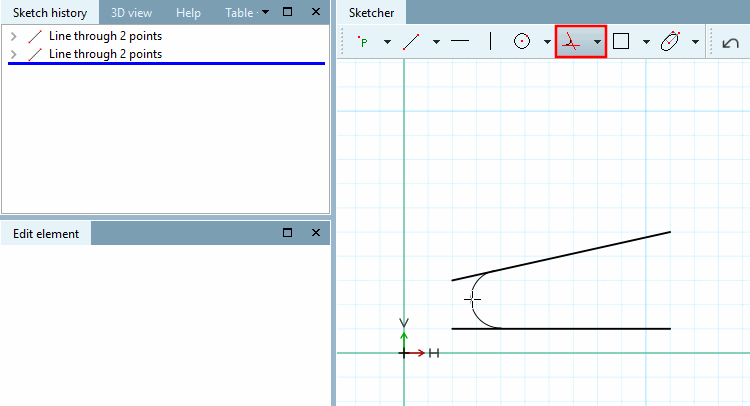
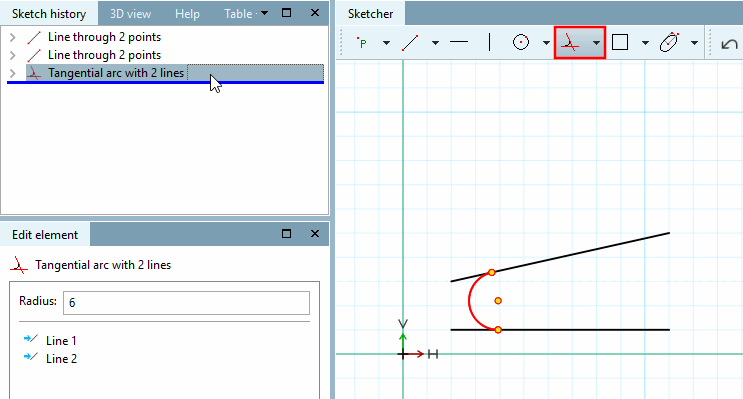
Create an arc between two objects (line, circle or arc).
Follow the instructions of the status line:
-> The radius is displayed in the Edit element docking window. If necessary, changes to the lines must be made directly in the sketch history [Sketch history].
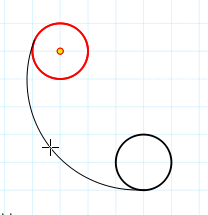
Arc on circle or arc works analogously.
![Arc over center point, 2 limiting points and radius [Arc (center, 2 limit points, radius)]: Draw an arc](https://webapi.partcommunity.com/service/help/latest/pages/jp/partwarehouse/doc/resources/img/img_f455d342dd1f4a8e91093aff1a9e4505.png)
![Arc over center point, 2 limiting points and radius [Arc (center, 2 limit points, radius)]: Result](https://webapi.partcommunity.com/service/help/latest/pages/jp/partwarehouse/doc/resources/img/img_efd6527a44184b7880ee2b6fddb31d05.png)
![Arc over center point, 2 limiting points and radius [Arc (center, 2 limit points, radius)]: Parameters adjusted](https://webapi.partcommunity.com/service/help/latest/pages/jp/partwarehouse/doc/resources/img/img_cfdd1e2e4d3a48d996f88451a1c83045.png)

![Arc over secant and radius [Arc (secant and radius)]: Create arc](https://webapi.partcommunity.com/service/help/latest/pages/jp/partwarehouse/doc/resources/img/img_1b497077dd664ca882da5ff103df22f1.png)
![Arc over secant and radius [Arc (secant and radius)]: Adjust parameters](https://webapi.partcommunity.com/service/help/latest/pages/jp/partwarehouse/doc/resources/img/img_dab8b8621f814142ba97bb190fc33e36.png)
![Arc over center point, point on circumference and 2 limiting points [Arc (center, 2 limit points, circumference point)]: Draw an arc](https://webapi.partcommunity.com/service/help/latest/pages/jp/partwarehouse/doc/resources/img/img_a4dfd6d1047b47fc85fe411dc1974491.png)
![Arc over center point, point on circumference and 2 limiting points [Arc (center, 2 limit points, circumference point)]: Result](https://webapi.partcommunity.com/service/help/latest/pages/jp/partwarehouse/doc/resources/img/img_1035878c0ba14c129d410d3fe8e797ed.png)
![Arc over center point, point on circumference and 2 limiting points [Arc (center, 2 limit points, circumference point)]: Parameters adjusted](https://webapi.partcommunity.com/service/help/latest/pages/jp/partwarehouse/doc/resources/img/img_0b42eea9f9dc4c17b48d49d40e31cfd8.png)
![Arc over 3 points on circumference [Arc through 3 points on circle]: Create arc](https://webapi.partcommunity.com/service/help/latest/pages/jp/partwarehouse/doc/resources/img/img_d87b061eaf0f4c4b834aa743a747bac0.png)
![Arc over 3 points on circumference [Arc through 3 points on circle]: Adjust parameters](https://webapi.partcommunity.com/service/help/latest/pages/jp/partwarehouse/doc/resources/img/img_c1b5b12f6bf44284b8cf37eed058b89f.png)
![Convert to formula point [Change into formula point] / reassign reference point [New allocation of reference point]](https://webapi.partcommunity.com/service/help/latest/pages/jp/partwarehouse/doc/resources/img/img_0876a76d76274c2f8d5fc968dfa8bc19.png)
![Arc over center point, start angle, end angle and radius [Arc (center, start angle, end angle, radius)]: Create arc](https://webapi.partcommunity.com/service/help/latest/pages/jp/partwarehouse/doc/resources/img/img_9835f448233f4f7f8df1613d4d395213.png)
![Arc over center point, start angle, end angle and radius [Arc (center, start angle, end angle, radius)]: Adjust parameters](https://webapi.partcommunity.com/service/help/latest/pages/jp/partwarehouse/doc/resources/img/img_fc5d9fdcbfa3400fb02c9a5c5df96a7a.png)