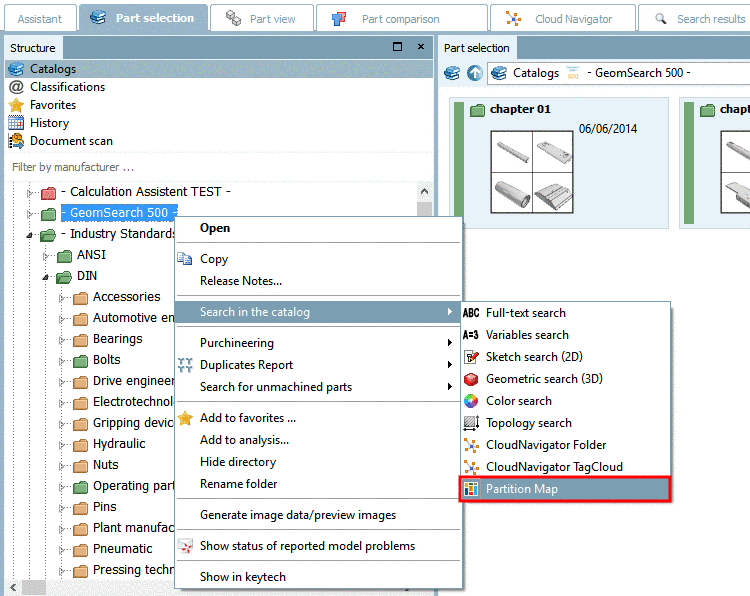
 |
For Search results there is the new search method Partition Map. Hereby the results are partitioned in rectangles.
In order to see the Partition Map click on the respective icon.
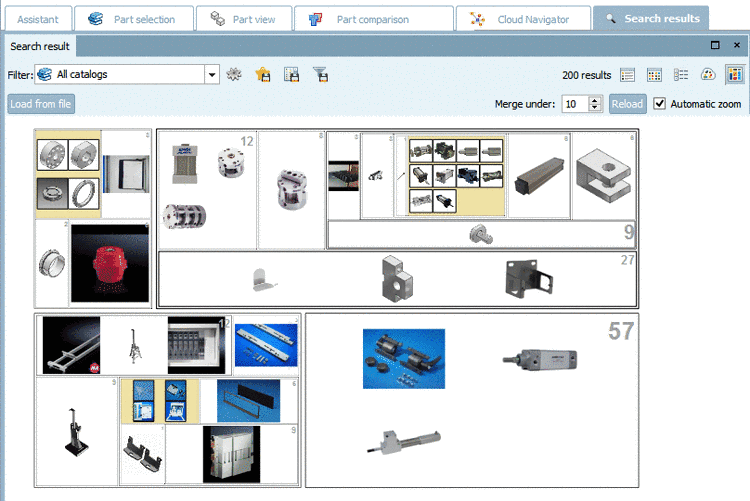
At first the main level is displayed, always four cluster with four representatives each. So you have 16 options. When clicking on a cluster you see further images and automatically zoom in, step by step down to the lowest level with parts. In each cluster the number of contained results is displayed in the top right corner.
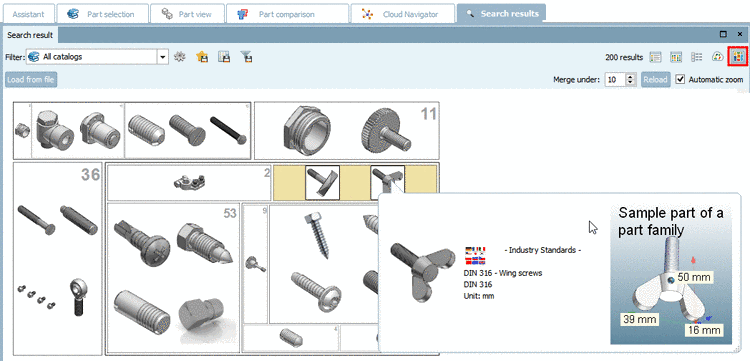
On the lowest level, in the "Partition Map" as well, you can call up the 3D view via mouseover or open the part in the "Part view" via context menu command as usual.
Partition Map is using clusters.
You can create clusters yourself (for own parts catalogs for example) via PARTadmin -> Index administration -> Geometrical search index -> Create cluster (context menu command in the desired catalog).
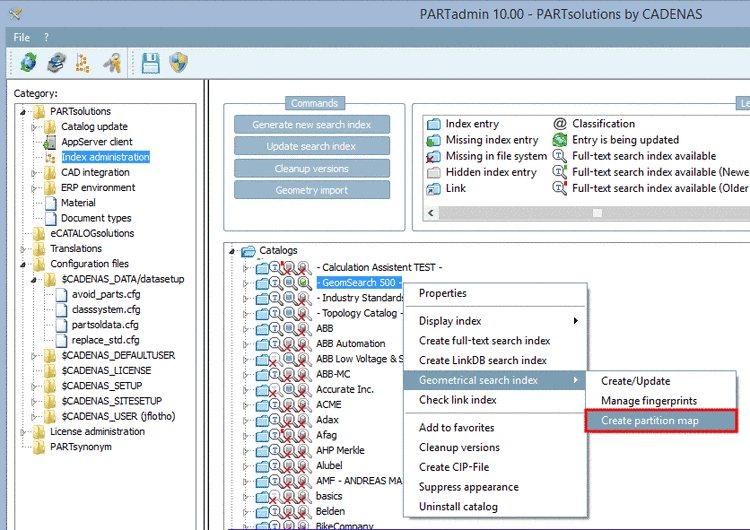
Afterwards the respective context menu command in PARTdataManager is enabled, so that you can call up the Partition Map.