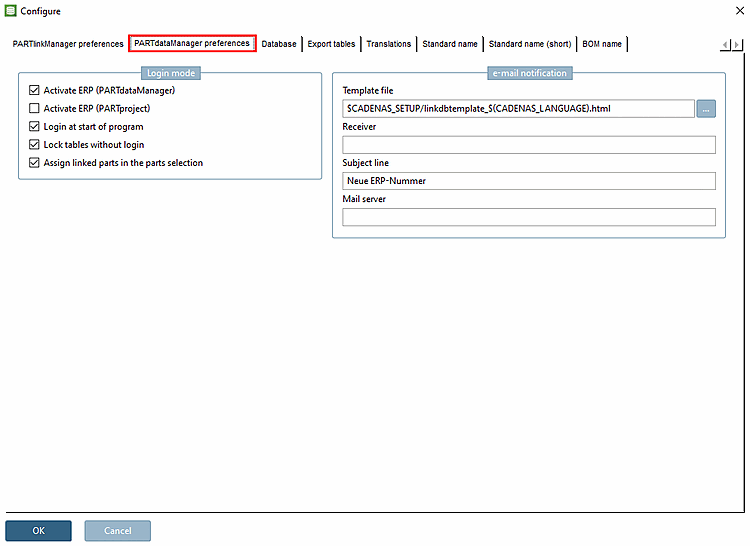
PARTlinkManager -> Extras menu -> Configure ERP environment -> Configure dialog window -> Tab page PARTdataManager Settings [PARTdataManager preferences] -> Login mode section
![PARTlinkManager -> Extras menu -> Configure ERP environment -> Tab page PARTdataManagerSettings [PARTdataManager preferences] -> Login mode](https://webapi.partcommunity.com/service/help/latest/pages/jp/partwarehouse/doc/resources/img/img_a2abfcb97f0848d19fdfe847a2cd2d6b.png)
PARTlinkManager -> Extras menu -> Configure ERP environment -> Tab page PARTdataManagerSettings [PARTdataManager preferences] -> Login mode
You will find the following setting options in the Login mode section:
Activate ERP (PARTdataManager) ...must be activated to be able to work in the PARTdataManager be able to work with the ERP extension.
See Section 2.1.11, “PARTdataManager – ERP/PDM extensions ” in PARTsolutions - User.
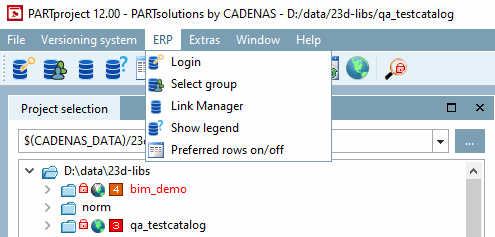
Activates the ERP menu in PARTproject.
Log in at program start [Login at start of program] PARTdataManager only opens after you have logged in ("Login..." window).
Lock tables without logging in [Lock tables without login] ....means that you always need to log in to work with PARTdataManager. If the option is not set, you can work in PARTdataManager without an ERP connection.
Mark linked parts in the part selection [Assign linked parts in the parts selection] :
Parts (and their superordinated directories), which have a link in the LinkDB, are marked in green. The other folders and projects are marked in red .
If this option is deactivated, then an unicolored index tree is displayed.
"Mark linked parts in the part selection [Assign linked parts in the parts selection] " deactivated: Result in PARTdataManager:
Details on the setting options for the catalog index can be found at Section 5.7.5.1, “ Roles: General " tab page ” and Section 5.7.5.3, “ Rollers: Tabbed page "Display" ”.
!["Mark linked parts in the part selection [Assign linked parts in the parts selection] " deactivated: Result in PARTdataManager:](https://webapi.partcommunity.com/service/help/latest/pages/jp/partwarehouse/doc/resources/img/img_9c9b6f56b50841078485f73b7a20c5fd.png)
![PARTlinkManager -> Extras menu -> Configure ERP environment -> Tab page PARTdataManagerSettings [PARTdataManager preferences] -> E-mail notification [e-mail notification]](https://webapi.partcommunity.com/service/help/latest/pages/jp/partwarehouse/doc/resources/img/img_5a28782679114e14b6ddb58a8ab889b7.png)
PARTlinkManager -> Extras menu -> Configure ERP environment -> Tab page PARTdataManagerSettings [PARTdataManager preferences] -> E-mail notification [e-mail notification]
Template file: With to select the desired template. Example:
$CADENAS_SETUP/linkdbtemplate_german.html.In PARTdataManager click on
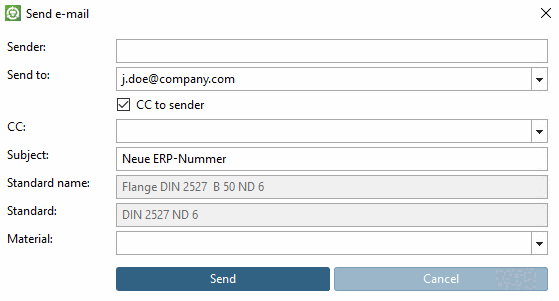
 Request an ERP number by e-mail [Request ERP number per e-mail], the Send e-mail dialog box appears.
In PARTdataManager click on
Request an ERP number by e-mail [Request ERP number per e-mail], the Send e-mail dialog box appears.Mail server: Mail server configured for your email distribution.