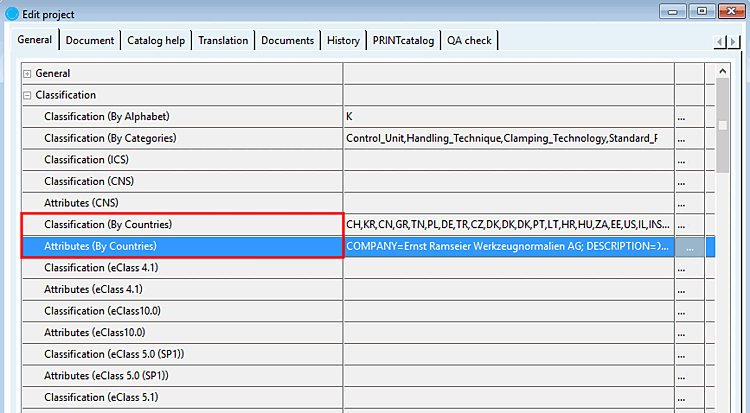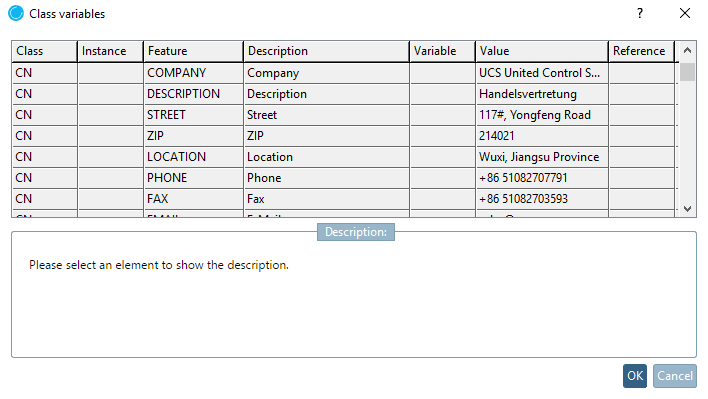
Editing a larger number of manufacturer address data directly in PARTproject is possible but tedious, see Classification (By Countries).
It is better to use the Manage address data function.
The function enables both the export of already existing address data and the import.
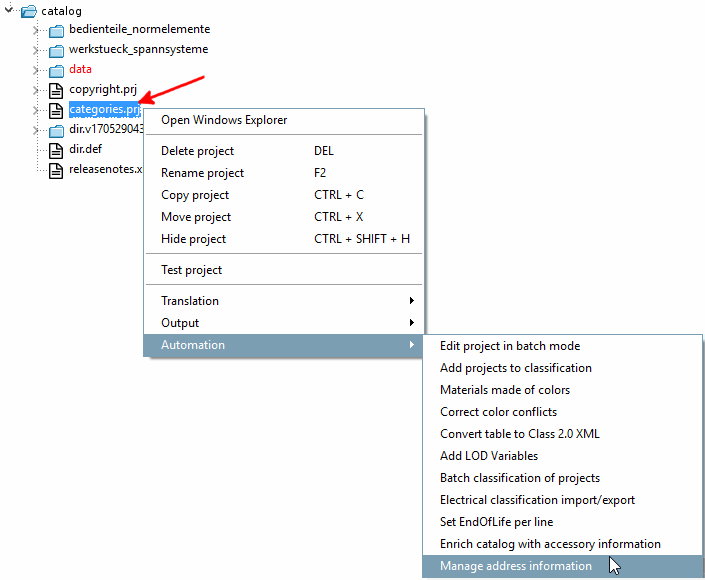
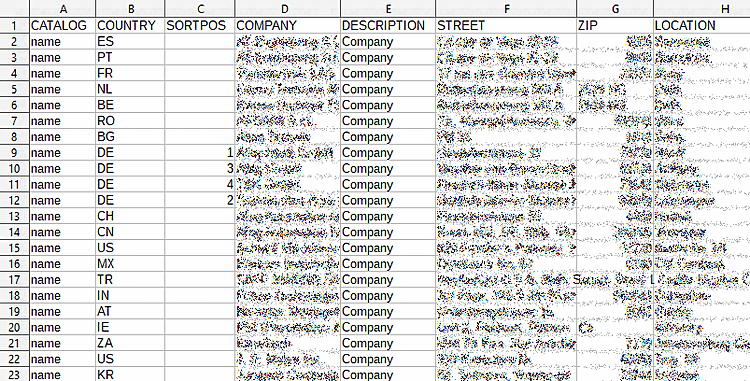
For initial filling, it is best to carry out an export beforehand in order to obtain the table structure. (In the index tree
categories.prjselected -> under Automation context menu command Manage address data )Provide a CSV file with the desired address data.
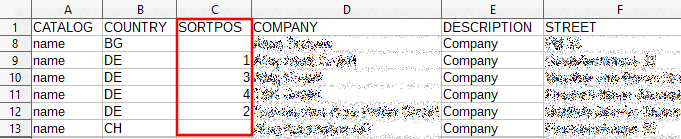
Following columns are supported:
CATALOG; COUNTRY; SORTPOS; COMPANY; DESCRIPTION; STREET; ZIP; LOCATION; PHONE; FAX; EMAIL; URL; NAME
Example header and first line:
"CATALOG"; "COUNTRY"; "SORTPOS"; "COMPANY"; "DESCRIPTION"; "STREET"; "ZIP";
 "LOCATION"; "PHONE"; "FAX"; "EMAIL"; "URL";
"NAME"
"name"; "DE"; "1"; "Company"; "Hauptsitz"; "Müllerstraße 2"; "72172";
"Irgendwo";"+49 1111 793-0";"+49 1111 793-33";"info@company.com";"http://www.com.de"/;
"Name"
"LOCATION"; "PHONE"; "FAX"; "EMAIL"; "URL";
"NAME"
"name"; "DE"; "1"; "Company"; "Hauptsitz"; "Müllerstraße 2"; "72172";
"Irgendwo";"+49 1111 793-0";"+49 1111 793-33";"info@company.com";"http://www.com.de"/;
"Name"
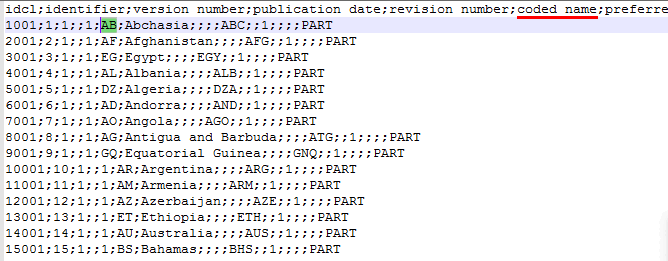
The country codes can be taken from
$CADENAS_DATA/datasetup/classsystem/by_countries/by_countries_default.csv(column 6).
![[Note]](https://webapi.partcommunity.com/service/help/latest/pages/jp/partwarehouse/doc/images/note.png)
Call up the Manage address data command in PARTproject, in your catalog at
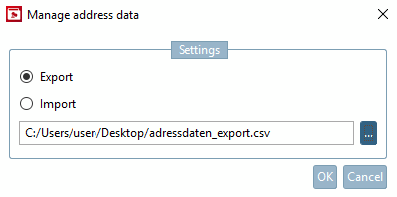
categories.prj.-> The dialog box of the same name with the Export and Import options opens. Click on the Browse button you can select the desired file.
After confirming with , the data is exported or imported. A confirmation prompt is displayed during the import, as existing data is overwritten.
After selecting
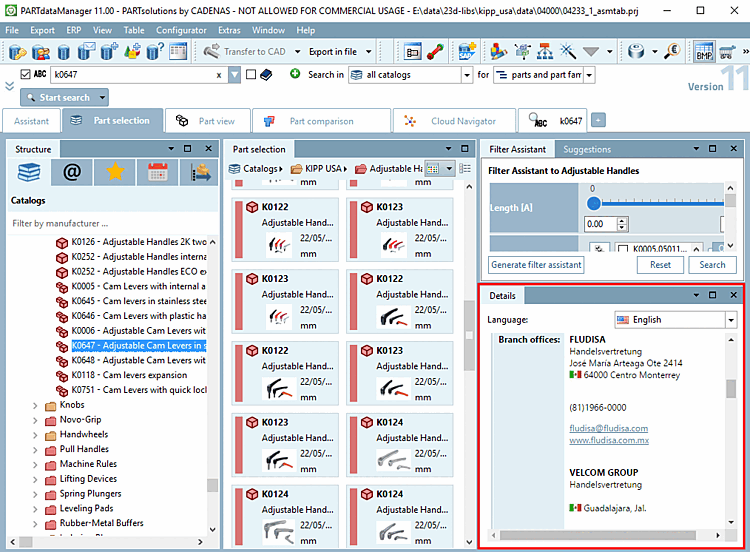
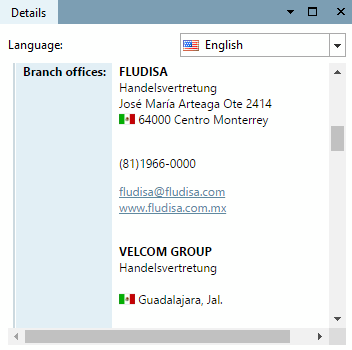
categories.prjyou have direct access under PARTproject -> tab page General -> Classification -> Classification (By Countries) and Characteristics (By Countries) you have direct access to the data.View the address data in PARTdataManager, in the docking window Details.