This section describes the individual buttons of the 3D toolbar in the 3D window in detail.

|
|
|
|
|
|
|
|
|
|
| |
|
|
The magnifying glass enables viewing parts in detail.
|
|
|
The animation (rotate part) can be turned on/off.
|
|
|
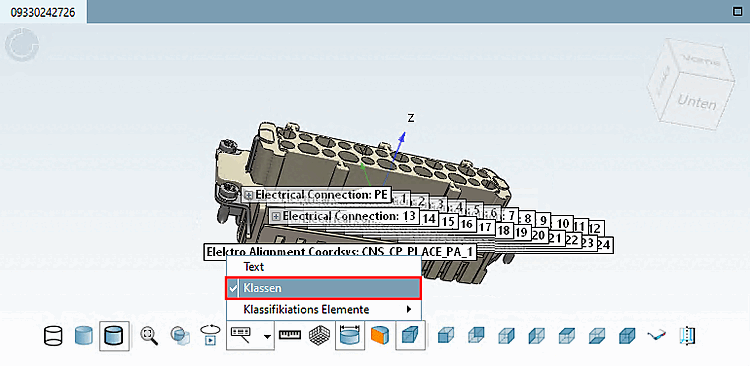
The submenu has the following items:
Classes and auxiliary geometries are not displayed together. If necessary, the other function is switched off. |
|
| |
|
|
Show dimensions [Show Dimensionings] See Section 2.1.7.6.5, “ Show Dimensionings ”. Views that contain a dimension can be recognized in the 3D toolbar by a corresponding icon with a dimension line . . |
|
| |
|
|
Perspective projection, Front view (Z), Rear view (-Z), Left view (-X), Right view (X), Top view (Y), Bottom view (-Y), Isometric view If dimensions have been created for a view by the manufacturer and Show dimensions [Show Dimensionings]
|
|
|
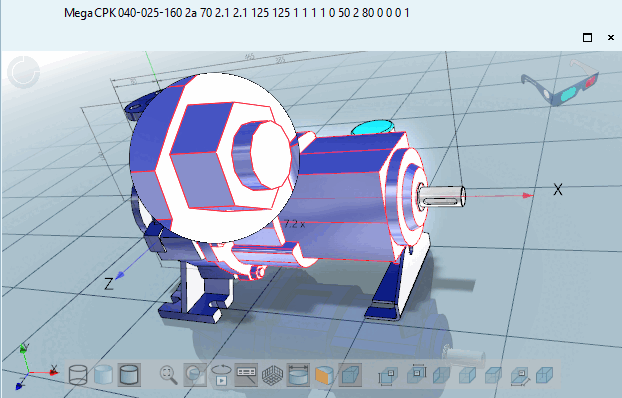
Part depiction in plastic 3D preview. The three-dimensional effect only takes place when using red-cyan glasses! The selected part is displayed in alignment to enhance the three-dimensional effect. The background is automatically darkened. The red/cyan effect option can be used regardless of the display mode (Lines [Lines], Hidden edges [Hidden lines], Shaded, etc.). |
|
|
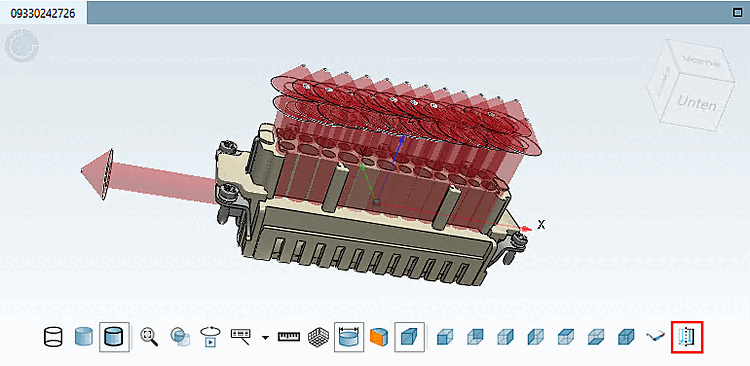
Classes and auxiliary geometries are not displayed together. If necessary, the other function is switched off. |





![[Note]](https://webapi.partcommunity.com/service/help/latest/pages/jp/partsolutions_user/doc/images/note.png)