|
If the preconditions for a geometric 3D similarity search are given, then in most cases this method will be used, because the result quality is unbeatable!
But what if you indeed exactly know what kind of part you need, but do not have a reference part for the search?
In this case search with a self created simple sketch! Everybody can use this method, not only engineers.
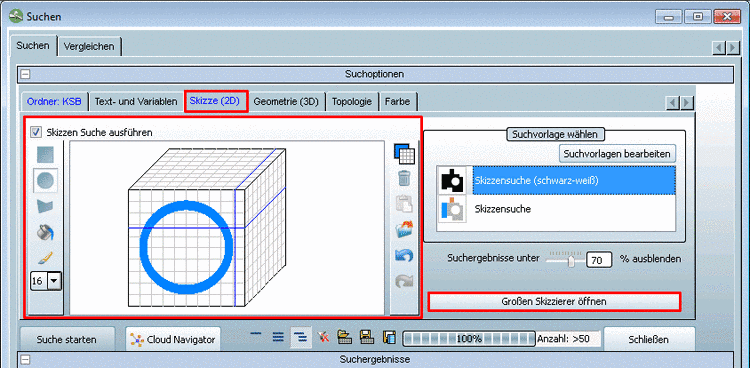
As of version 9.03 SP1 the 3-sided sketcher has been replaced by a 3-dimensional sketcher in cube form. Clicking on the desired side, the cube rotates it to the front. The crosshairs help keeping the correct relation of all views to each other.
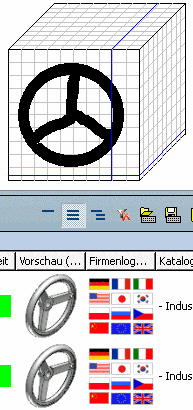
In many cases only one sketch is sufficient. For more complex parts you possibly need three sketches.
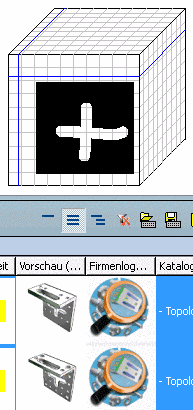
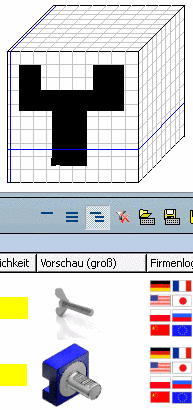
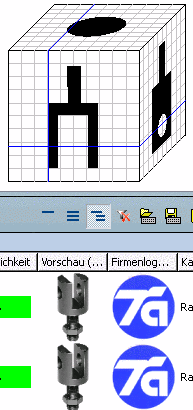
Open the work space with click on Sketch search (2D).
-> The Search dialog box with the Sketch (2D) index page opens.[70]
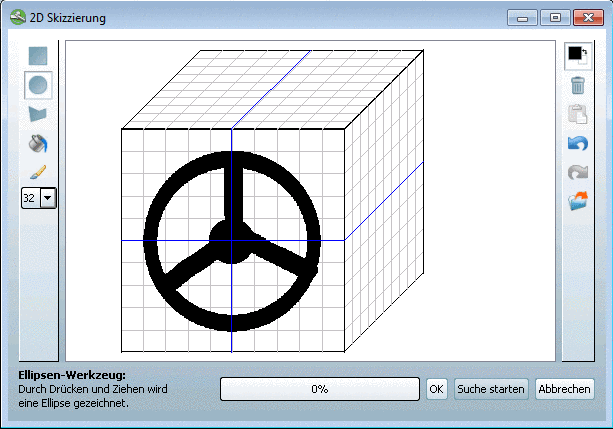
Use the small worksheet directly on the opened page or open the big worksheet with click on Open large sketcher.
In the 2D sketching dialog box click on the button.
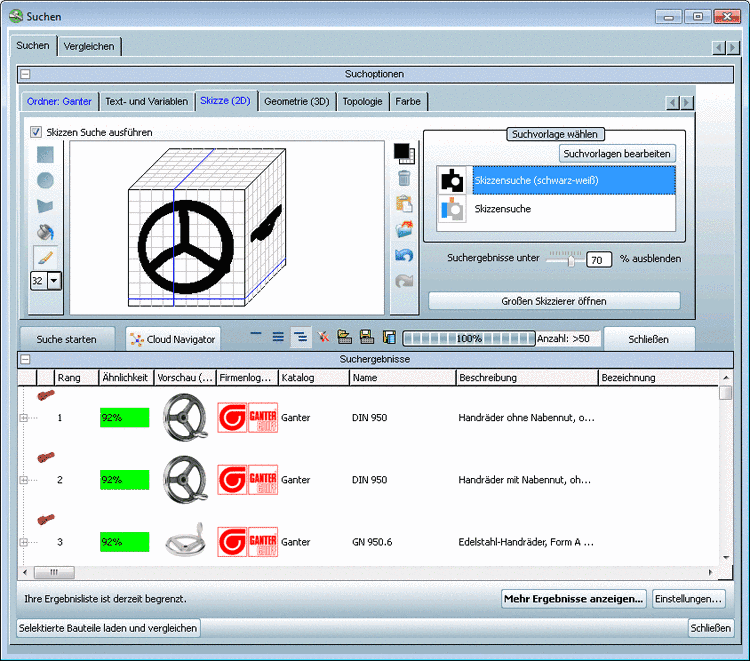
--> The search results are listed in the Search dialog box, in the Search results section.