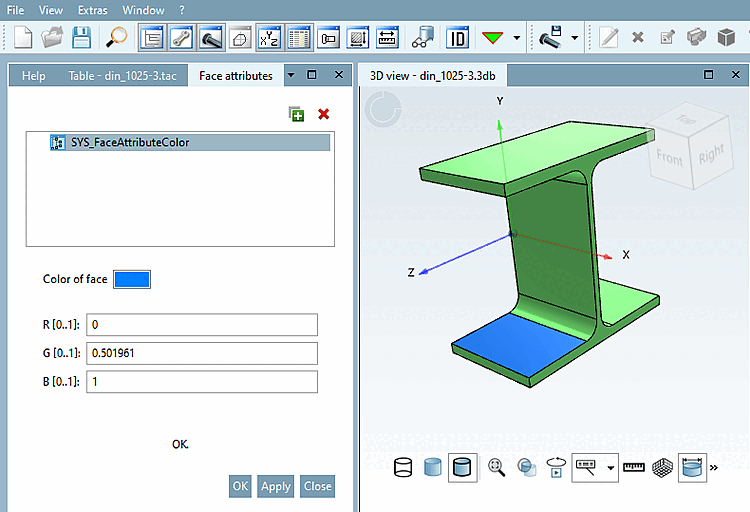
The following is an overview of the functions available in the Area attributes [Face attributes] docking window.
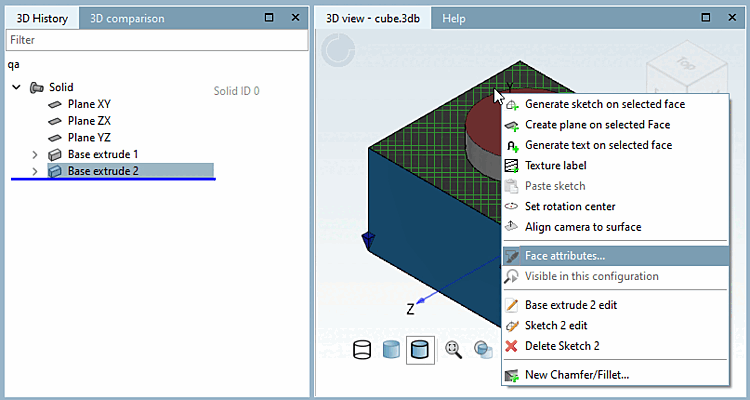
Right-click on an area > Area attributes [Face attributes] to open the Area attributes [Face attributes] docking window.
You can also select several areas at the same time by holding down the CTRL key.
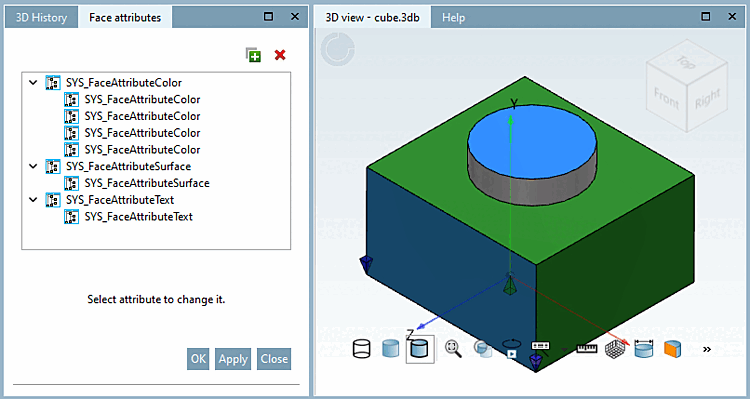
 Add any attribute via the plus
. A list and explanation of the individual area attributes
can be found in the section Section 7.7.1.4.4, “The area attributes in detail”.
Add any attribute via the plus
. A list and explanation of the individual area attributes
can be found in the section Section 7.7.1.4.4, “The area attributes in detail”.
 Delete the selected surface attribute (also
Multiple selection possible) from the area. There is no
Security prompt.
Delete the selected surface attribute (also
Multiple selection possible) from the area. There is no
Security prompt.
If a tree structure is displayed, please note that deletion is only possible at the level of the parent element.
Click on a free area next to the component or on Overview if you have already opened the Area attributes [Face attributes] docking window to view an overview of all the area attributes used.
Here you can make changes to the individual areas or for the entire type of an attribute. Please note! Changes cannot be undone once you have clicked on or . You can also delete individual attributes or all attributes of a type. The deletion takes place immediately without a confirmation prompt.
You can also assign new area attributes in the overview. You can recognize the selected area by a blue border. Alternatively, you can also simply click on the desired area in the 3D view.
In PARTproject, color [Color] and texture [Texture] values can be set for the entire part.
![Color and texture [Texture] in PARTproject](https://webapi.partcommunity.com/service/help/latest/pages/jp/partsolutions_user/doc/resources/img/img_784ae30c60f048a0b9649e096b36e1d4.png)
The set values are also displayed in PARTdesigner. In addition, individual areas can be colored differently if required.