
5.23.8.2.3. Request with attachment in the Part Number Manager plus LinkDB entry
5.23.8.2.3.1. Configuration |  |
| Prev | Next |
In the "VARS" block, set the "PARTREQUEST_CREATE" key to True (1). This writes the request to the DB.
[VARS]
PARTREQUEST_CREATE = 1
The "PARTREQUEST_UPDATE_STATE" key can be used to specify the LinkDB field that is to be updated when released by the person responsible for the part (e.g. the STATUS field). This must be specified as follows:
[VARS]
PARTREQUEST_UPDATE_STATE= %DBName%:%Feldwert%
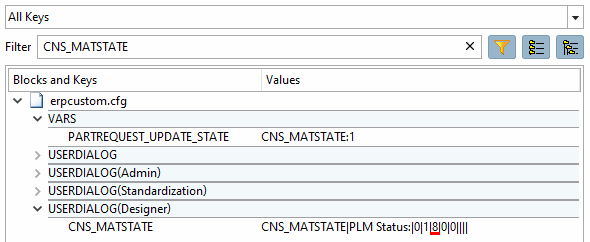
When the data record is assigned by the admin (key user), the default value "8" [~Pending~] (set in the USERDIALOG block) in the CNS_MATSTATE column is overwritten with the value "1" [Released].
[VARS]
PARTREQUEST_UPDATE_STATE= CNS_MATSTATE:1
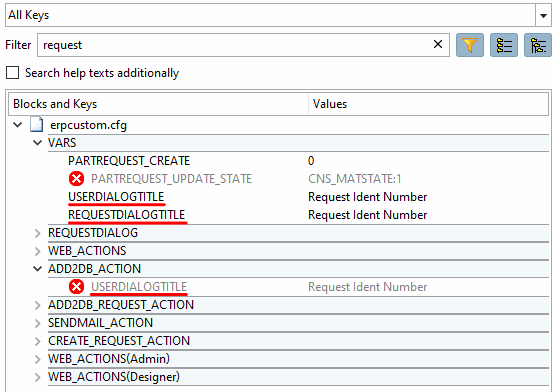
Using the USERDIALOGTITLE key, you can customize the title to be displayed.
[VARS]
USERDIALOGTITLE=User dialog title
Alternatively you can also
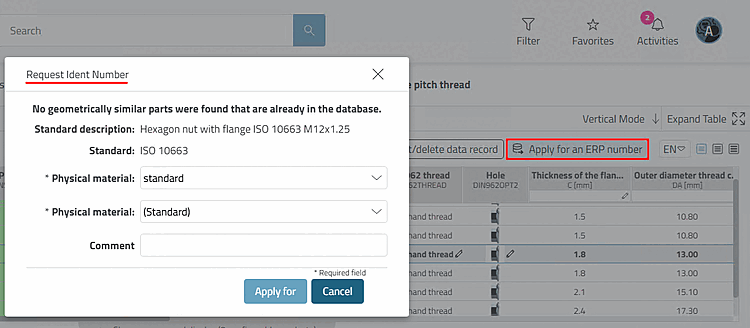
USERDIALOGTITLEthe key in the blockADD2DB_ACTIONuse.Using the REQUESTDIALOGTITLE key, you can also change the title of the dialog box that is opened by clicking the " " button.
[VARS]
REQUESTDIALOGTITLE=Request dialog title
The setting under WEB_ACTIONS is fundamental, both for users [here in the example role "Designer"] and for the administration or standardization body or key user (depending on the company workflow) [here in the example role "Admin"].
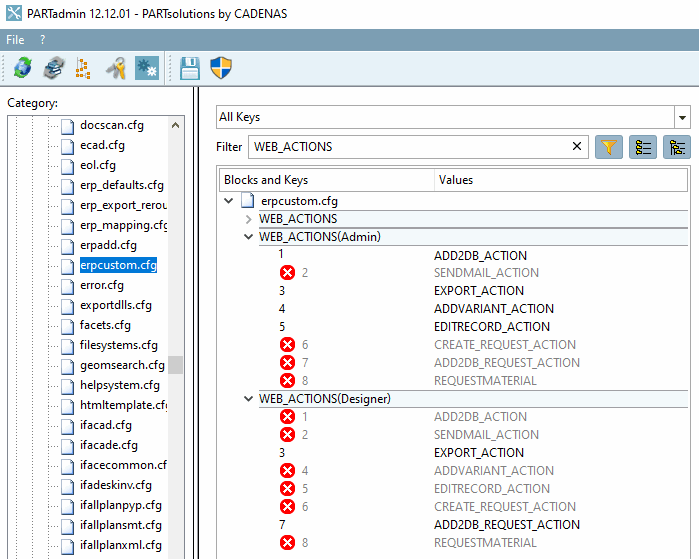
The user only has the ADD2DB_REQUEST_ACTION button (7) visible (and the export button). This calls up a creation dialog where the user can, for example, select the desired material and enter a comment.
[WEB_ACTIONS]
3= EXPORT_ACTION
7= ADD2DB_REQUEST_ACTION
The admin has the option of creating new rows (1), creating variants (4) or fully editing a data record using EDITRECORD_ACTION (5).
[WEB_ACTIONS]
1= ADD2DB_ACTION
3= EXPORT_ACTION
4= ADDVARIANT_ACTION
5= EDITRECORD_ACTION
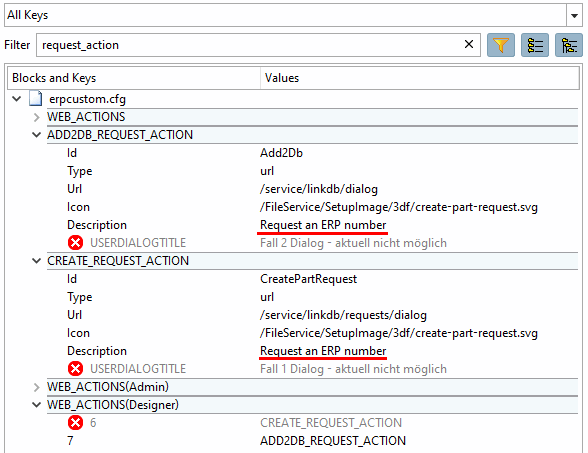
Specifications for the button or the function behind it are made via the block of the same name. For example, the displayed icon [Icon] or the label of the button [Description] is defined here.
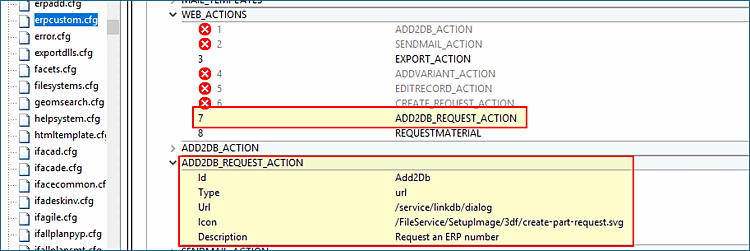
ADD2DB_REQUEST_ACTION - Button
 /
/ 
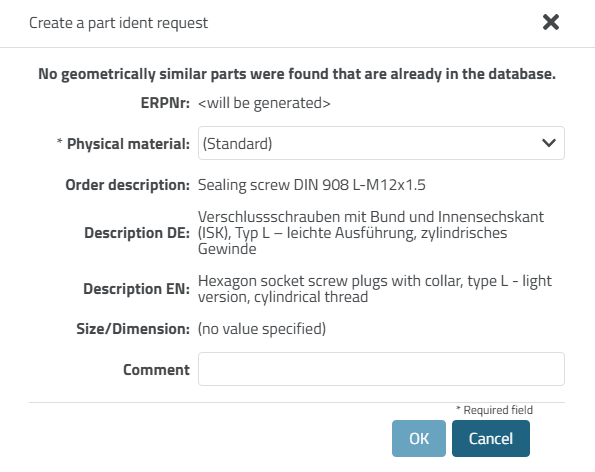
The button opens the following dialog:
Create a part ident request (de and en same display) - details can be found at Section 5.23.8.2.3.2, “Procedure”.
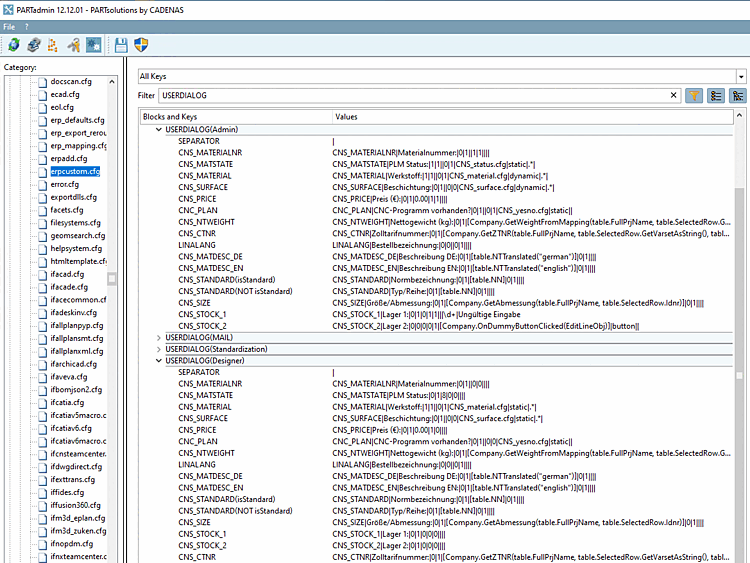
About erpcustom.cfg > Block [USERDIALOG]
various dialogs are controlled. Here we look at the dialog box
Create a
part ident request as it is is opened.
At least two roles must be set differently:
The following illustration shows the Create a part ident request dialog box as it looks when it is opened by the "Designer" role.
| ||||
![[Note]](https://webapi.partcommunity.com/service/help/latest/pages/jp/partsolutions_user/doc/images/note.png)
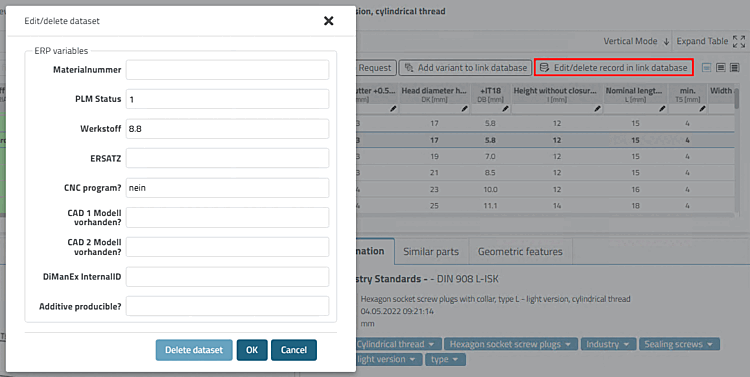
The Edit/delete data record [Edit/delete dataset] dialog box is also controlled via the USERDIALOG block. The following figure shows an example of what it can look like for the "Admin" role.
In the individual keys of the USERDIALOG block, various aspects of each individual variable are defined on a role-specific basis (possibly differently).
In the 5th parameter, for example, the default value is determined, in the 4th, whether an entry is made in the LinkDB, etc. Details on this can be found in the Section 5.12, “ Design "New ident number " dialog box - erpcustom.cfg -> Block [USERDIALOG] ”.
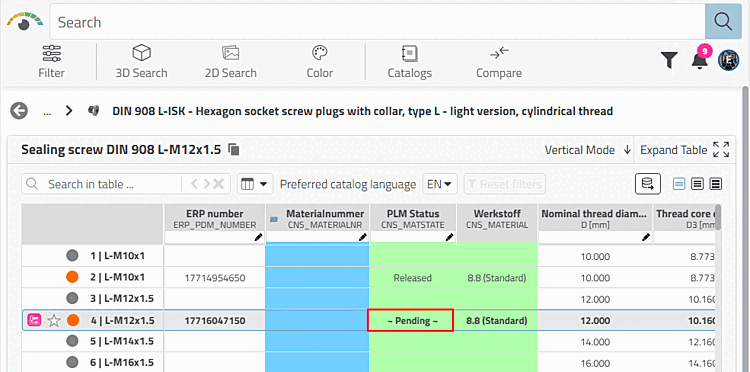
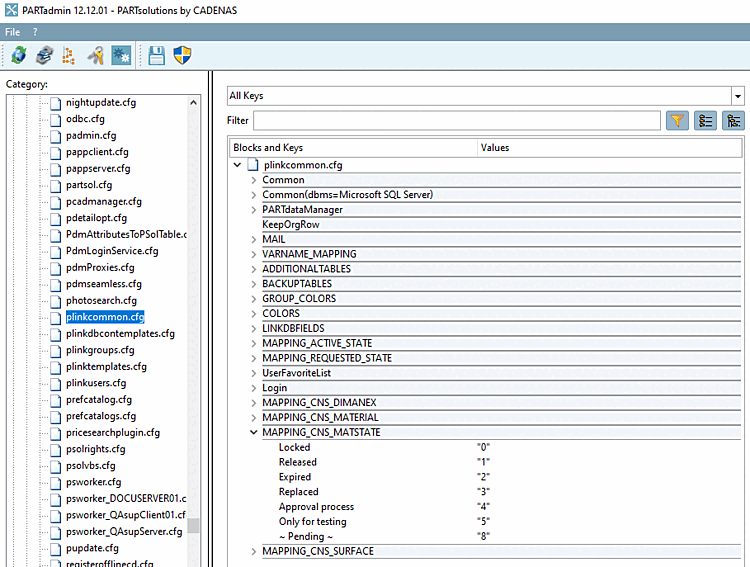
The entry for the translation values of MAPPING_CNS_MATSTATE is made here. In this example, "~Pending~" and "Released" were used.
In the example below under "Process", the following export condition [Export condition] is used:
Red icon if there is no entry in the CNS_MATSTATE column - As a rule, it is configured so that no export to CAD is possible in this case.
ERP_PDM_NUMBER.NE.''.AND.(CNS_MATSTATE.EQ.'0'.OR.CNS_MATSTATE.EQ.'')
Green icon if the CNS_MATSTATE column has the entry "Released" AND at least one of the CNS_CAD1 and CNS_CAD2 columns is not empty.
ERP_PDM_NUMBER.NE.''.AND.CNS_MATSTATE.EQ.'1'.AND.(CNS_CAD1.NE.''.OR.CNS_CAD2.NE.'')
![Status bitmaps for table [Status indicating bitmaps for table view]](https://webapi.partcommunity.com/service/help/latest/pages/jp/partsolutions_user/doc/resources/img/img_5c87488ff1af402fbecd85cd1026ad79.png)
Details on setting options can be found under Section 5.7.5.1.7, “ Export condition - plinkgroups.cfg -> Block [role name] -> Key "EXPORTRESTRICTION" ”.