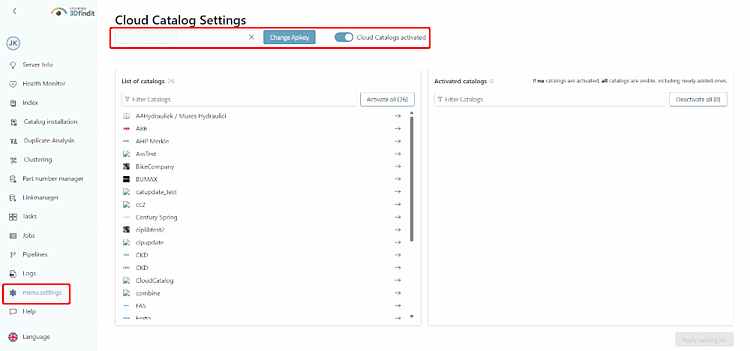
Cloud Catalogs Enable them in the dashboard on the settings page for Cloud Catalogs.

Enter the API key in the field and click . Enable Cloud Catalogs.
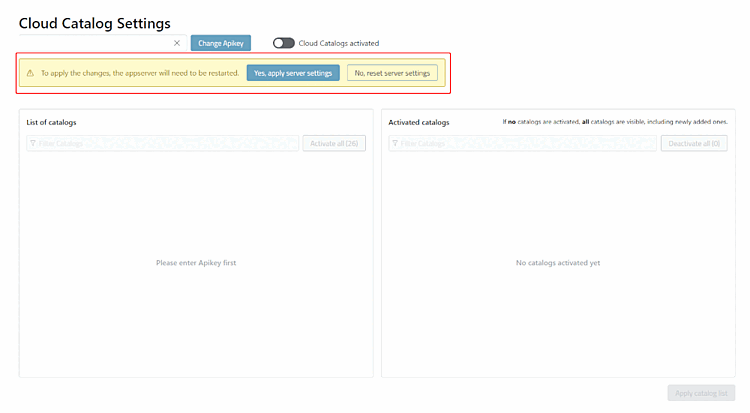
-> The message "To apply the changes, the appserver will need to be restarted" appears. Until the change is confirmed, the catalog lists are locked.
Confirm by selecting " in the prompt. Select " " to discard the change.
-> The message "The appserver needs to be restarted" appears. The catalog lists remain locked until the restart.
Start Restart the app server: In the dashboard , click Server About and select Server status > Actions appserver. To do this, you need the right
appserver-restart. Are you missing this right, an administrator must restart the .If you want only certain catalogs to be available to your users: Move these catalogs from the "List of catalogs " to " Activated catalogs" by clicking on the catalog's row. Click " " to apply all catalogs; use the " Filter Catalogs " field to narrow down the list.
If you do not move any catalogs, all cloud catalogs will be available, including any new ones added.