
 |
Starting user
interface is the catalog selection. Clicking on  Catalogs you can open this page
anytime.
Catalogs you can open this page
anytime.

Once a catalog has been opened, on the left, the dialog area Filters is displayed in addition.

Follow the links to receive detailed information on the individual areas of the user interface.
 Start searching Start searching |
 Search: Input field for full-text search
and display of chosen search methods and filters Search: Input field for full-text search
and display of chosen search methods and filters |
 3D Shape Search 3D Shape Search
|
 2D Sketch search 2D Sketch search
|
 Color Search Color Search
| |
 Order No. / Type Code Search
... Order No. / Type Code Search
...
|
 Catalogs: All catalogs (compare above) Catalogs: All catalogs (compare above) |
 Filter search (Faceted
search) Filter search (Faceted
search)
|
 Compare Compare
|
 Notifications Notifications
|
 Preferred ranges
on/off Preferred ranges
on/off
|
 Logged in user (language, ERP legend, log
out) Logged in user (language, ERP legend, log
out) |
 Filter dialog area Filter dialog area |
 Product
selection Product
selection
|
 Product information: Dialog area is
opened Product information: Dialog area is
opened |
 Add directory as search filter Add directory as search filter
|
 Navigation path Navigation path |
Once a product has been specified, table and 3D view are displayed.

 Table Table |
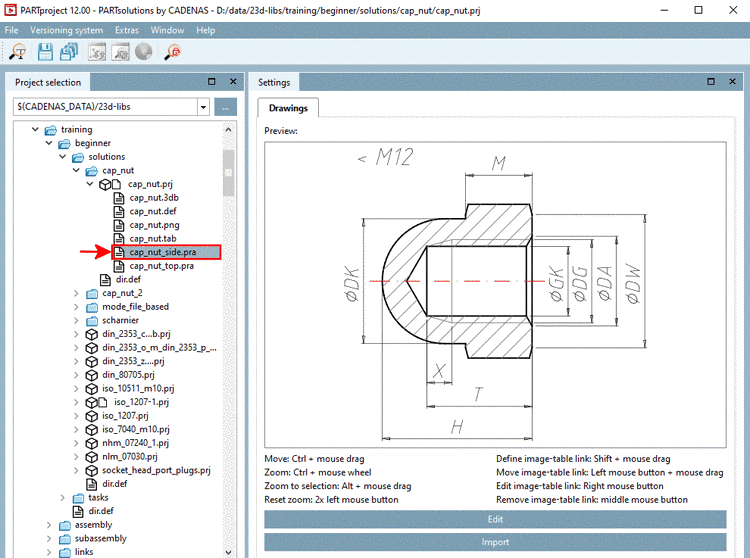 Show,
hide variable type Show,
hide variable type
|
 3D view 3D view
|
 Technical views Technical views
|
 Dimensioning
views Dimensioning
views
|
 3D shape: See 3D Shape Search. 3D shape: See 3D Shape Search. |
 Export to CAD Export to CAD |
 Compare Compare
|
 Similar parts (regarding 3D shape) Similar parts (regarding 3D shape) |
 Part Information Part Information |