Click on the button to list all variables one below the other.
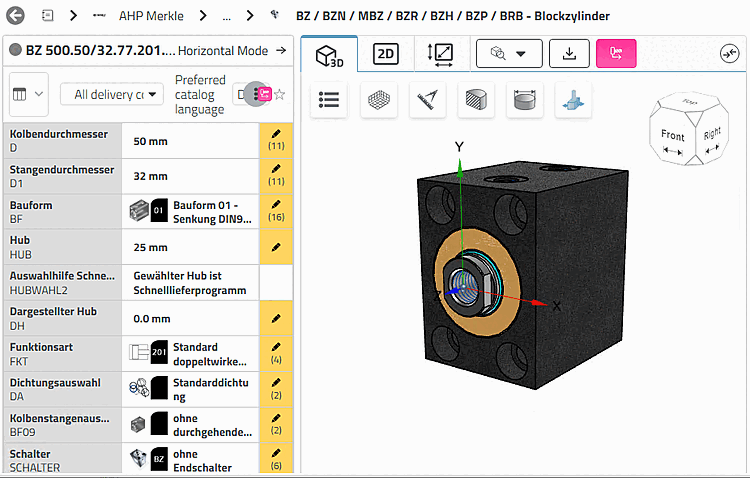
Open for example, a block cylinder. First of all, all variables are connected with the Pen icon
 marked as editable.
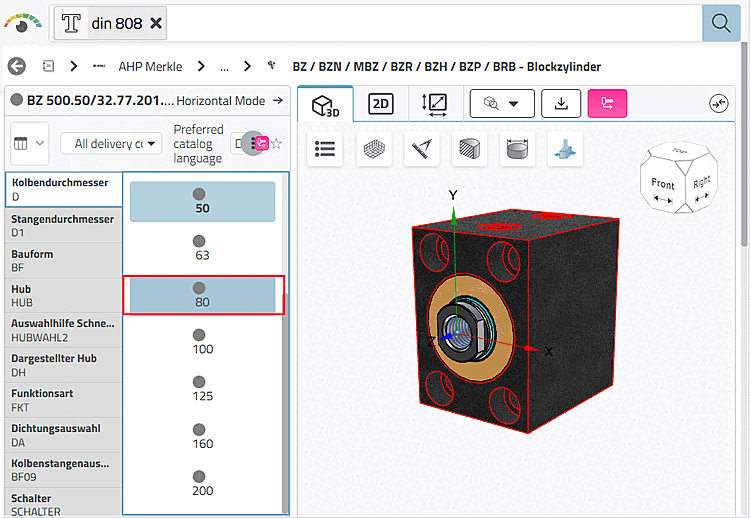
For variable D, piston diameter, open the list field and select the value 80, for example.
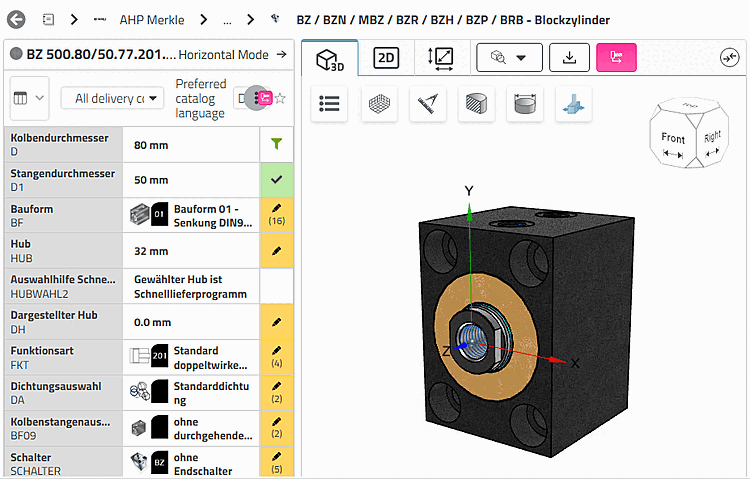
→ variable D now receives the Filter symbol
 .
.→ variable D1 is given the checkmark
 . It was determined indirectly by variable D .
→ The other Variables still show the pencil symbol
, i.e. they have yet to be determined.In this example, only value range variables are involved. In Horizontal view [Horizontal Mode], you can recognize this by the fact that there is only one table row = 1 configurable product.
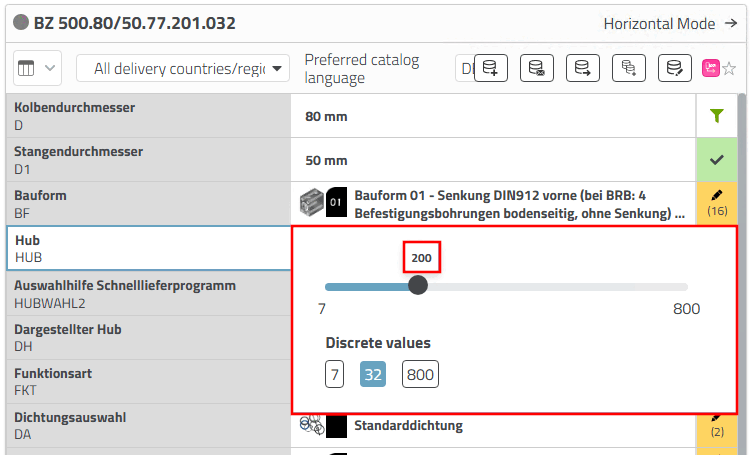
Adjust the stroke of the cylinder, for example.
Adjust the design of the cylinder, for example.

| Icon | Meaning |

| |

|
Several values are available for selection. After clicking, either a slider is displayed (variable with an indefinite number of options) or a list field with a specific number of values. If no number of values is displayed, this is a value range with an indefinite number of options. In these cases, a slider is displayed after clicking. If you select a value in the list field, the following happens:
|
|
| |
|
|
Selection completed, there is only one possible value left This does not mean that there is no change in the
more can be done. However, the choice of a
new value, all selections made anew. The variable
now receives the filter icon Example: The value of the variable GR is changed from 6 to 3.
|

|

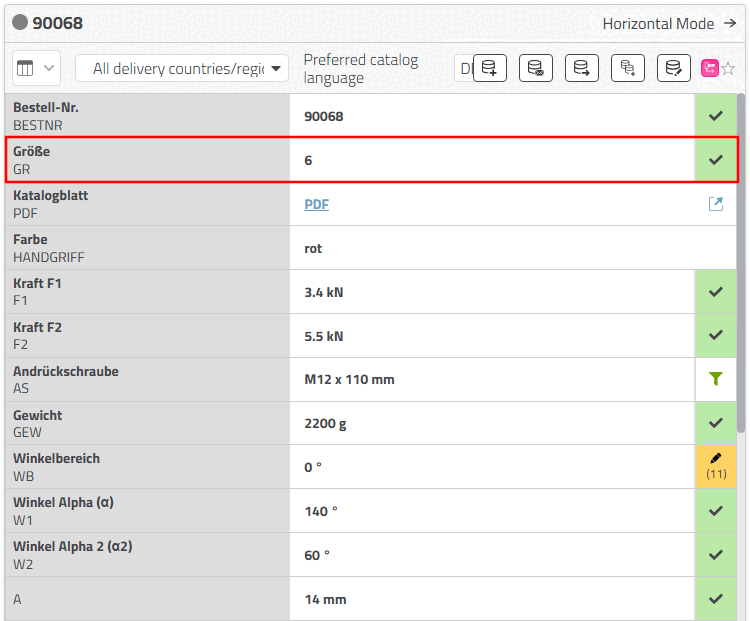
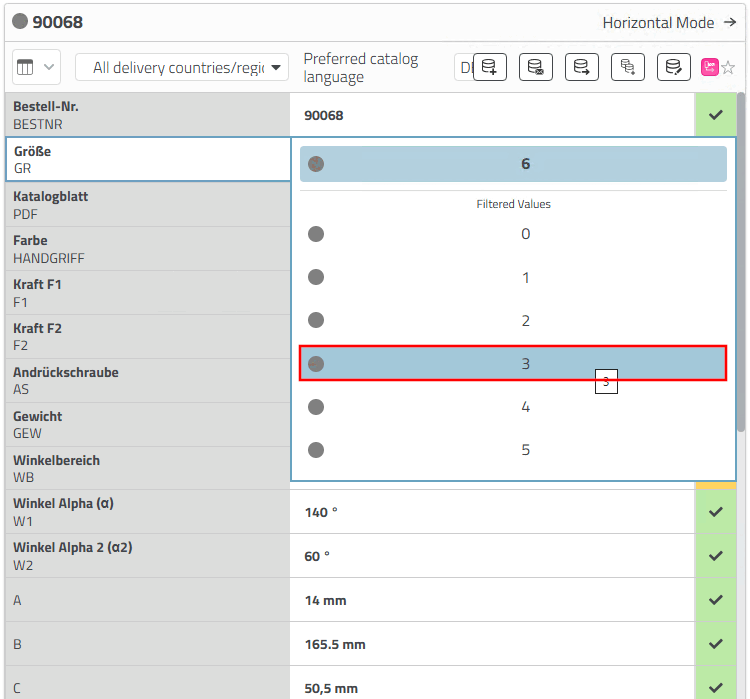
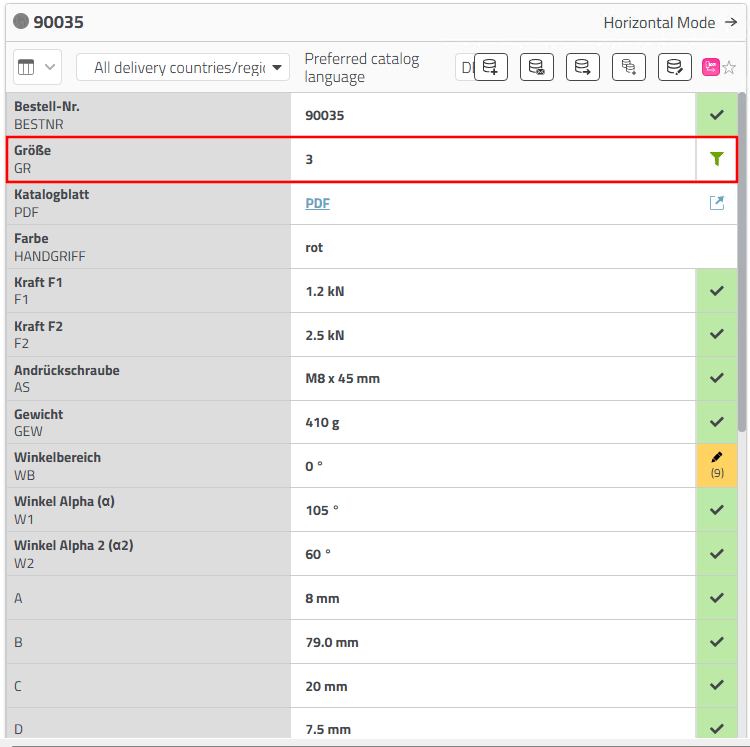
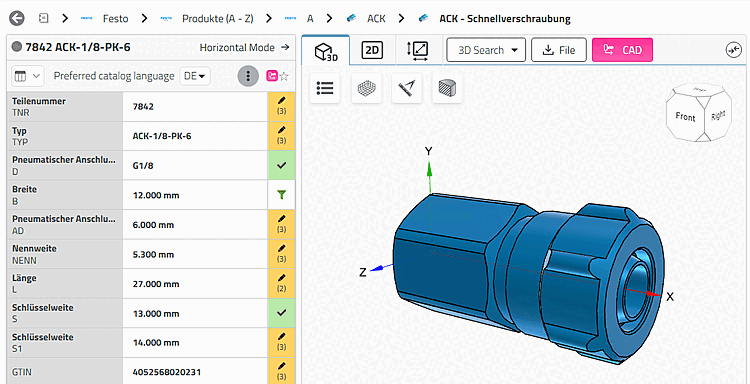
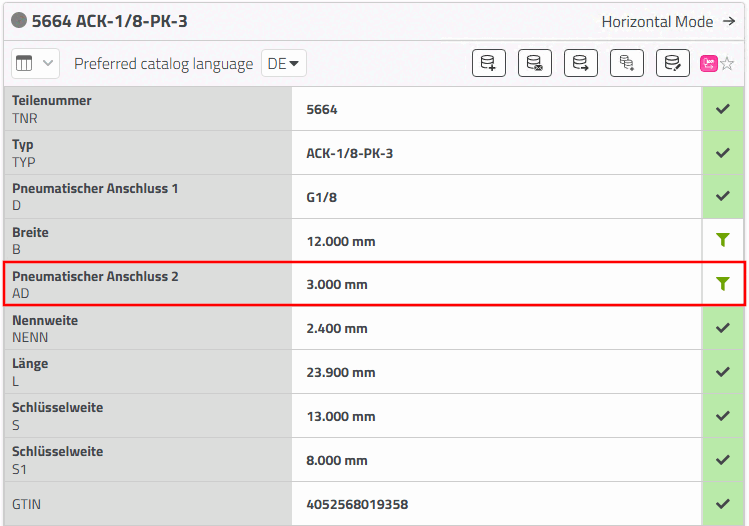
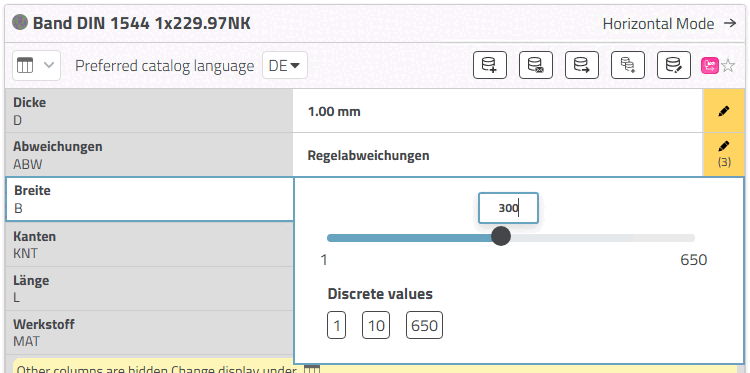
Some components have value range variables [Value range variables]. No fixed value is created for these.
Value range: Enter a desired value within the value range in the input field or select the value using the slider. (Or select one of the discrete values.)
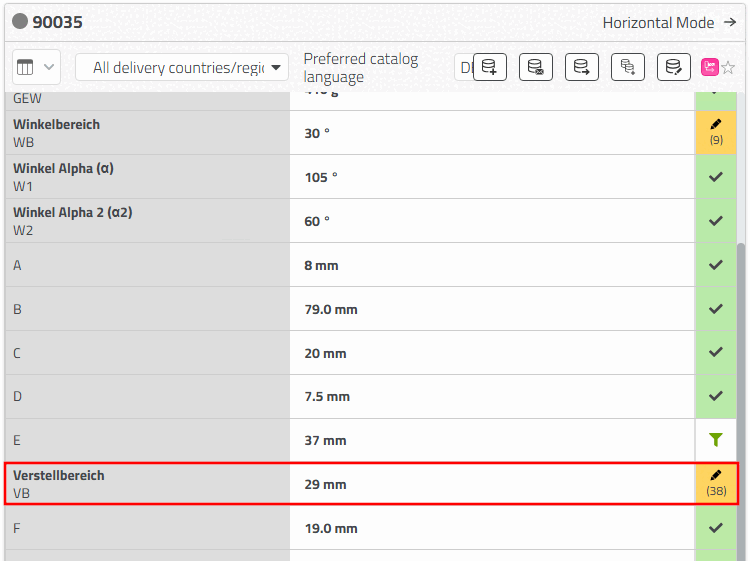
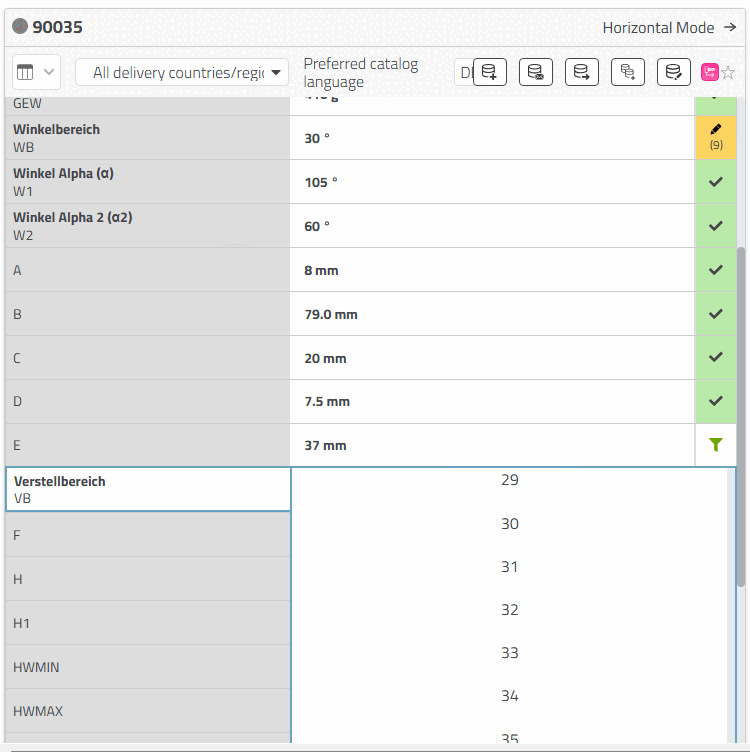
Selecting discrete values: Open the value range by clicking on the pencil icon and then select the desired option from the list box.
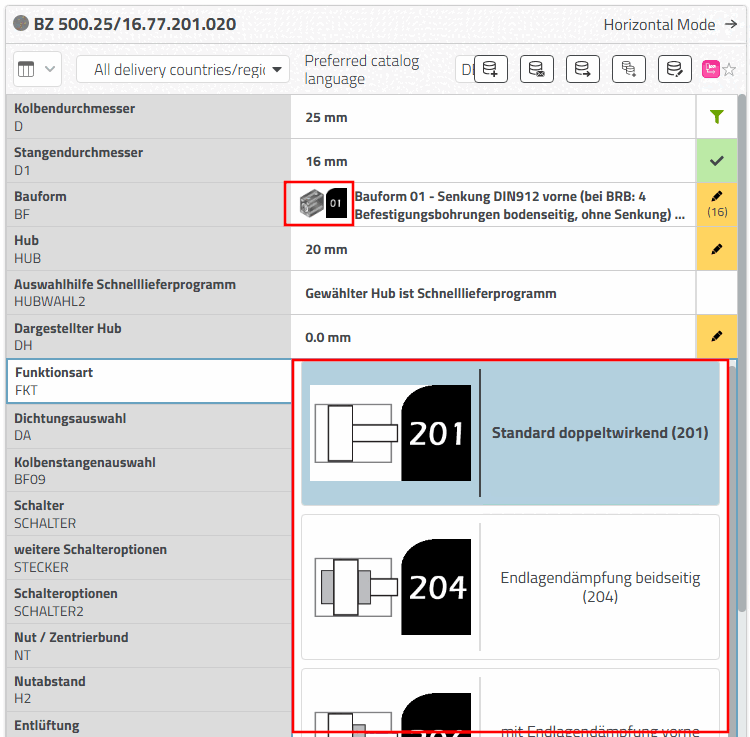
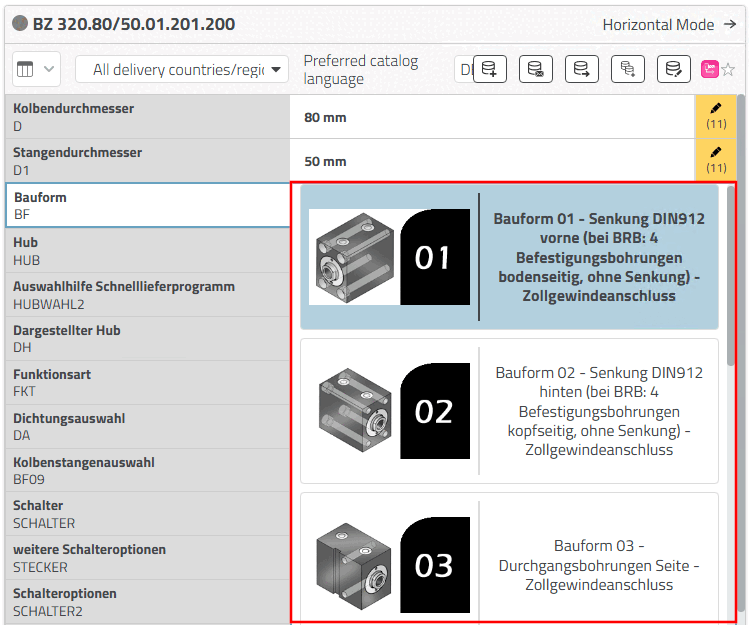
Selection of discrete values with preview images:
Graphics can also be displayed to clarify the selection options in value range fields. Select the desired option.