


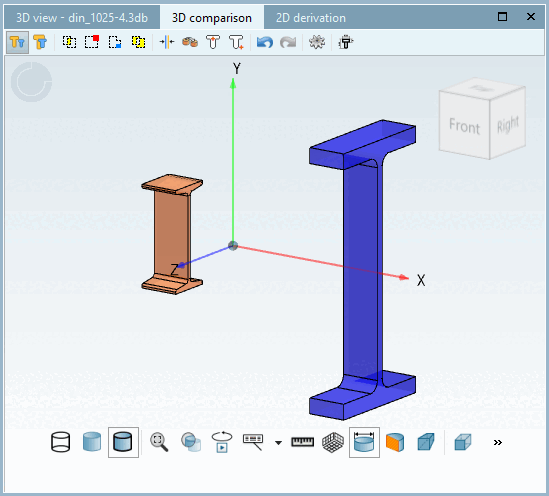
Displays the two components opposite each other.

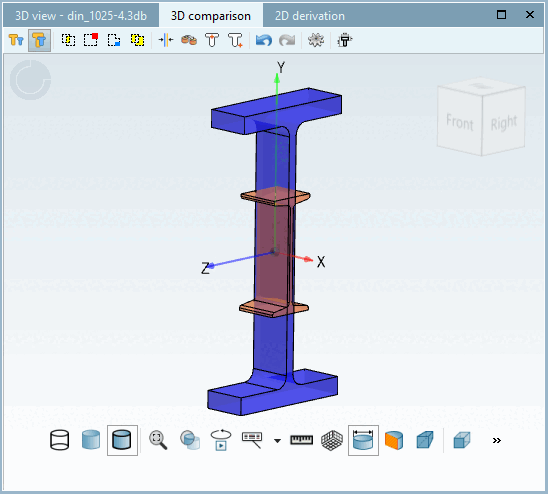
Shows the two components lying one inside the other for the best possible comparison.

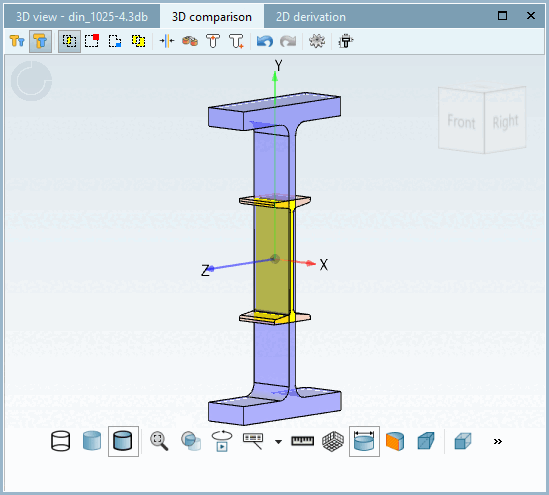
Automatically activates the Overlay components view. Shows the component areas in which the components are identical (in yellow in the example).

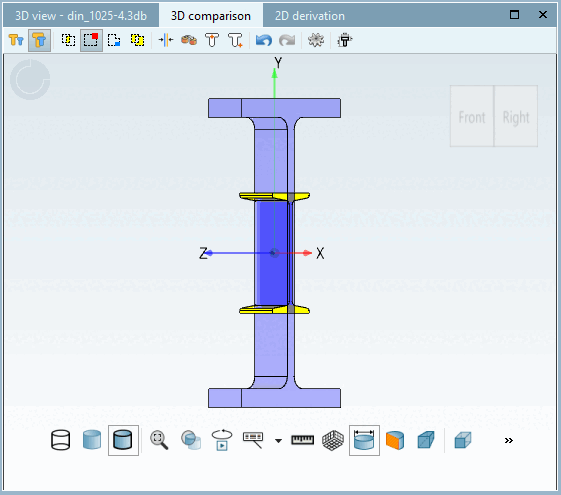
Displays the areas of component 1 minus the areas of the second component (dark blue in the example).

Shows the areas of component 2 minus the areas of the first component (yellow in the example).
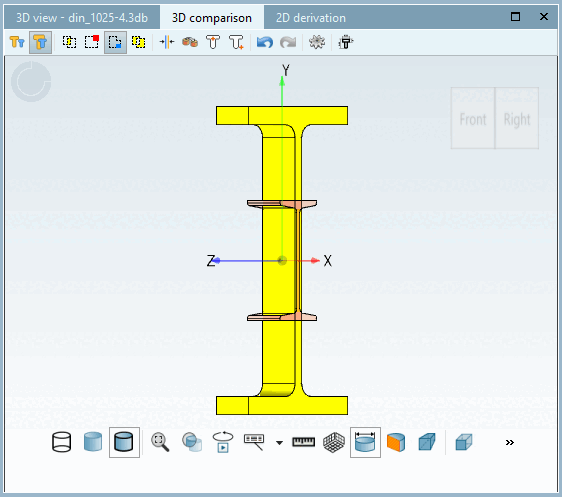

Displays the sum of the differences between component 1 and component 2.
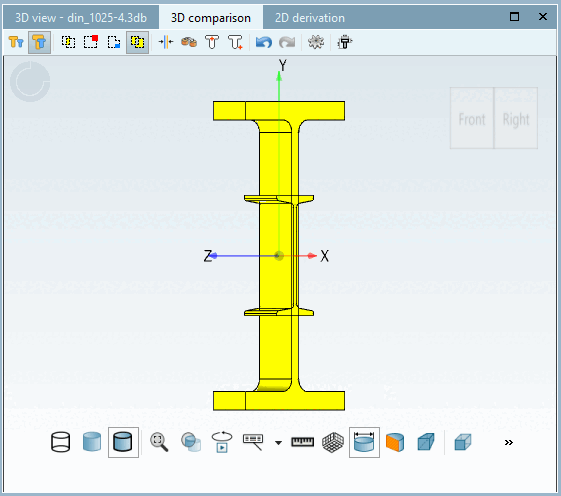
 Rotation and Position
automatically align with each other [Automatically calculate aligned rotation and position]
Rotation and Position
automatically align with each other [Automatically calculate aligned rotation and position]
Aligns the components automatically.
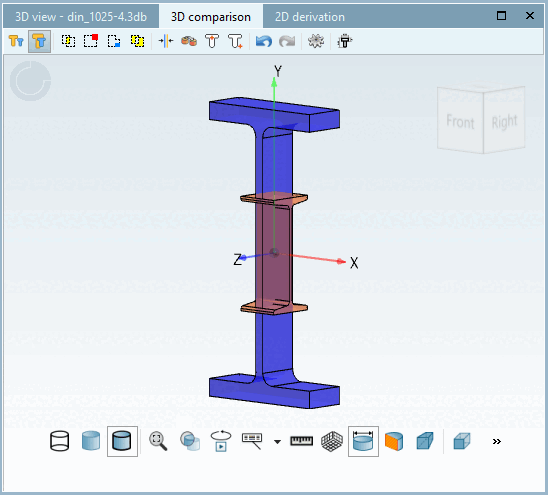

Use the function to align the two parts yourself.
Click on the button and on one surface per component. The two components are then aligned based on the selection. You can determine the alignment using the X and Y axes as well as the rotation axis.
 Mirroring: Change the horizontal
Alignment of the component.
Mirroring: Change the horizontal
Alignment of the component.
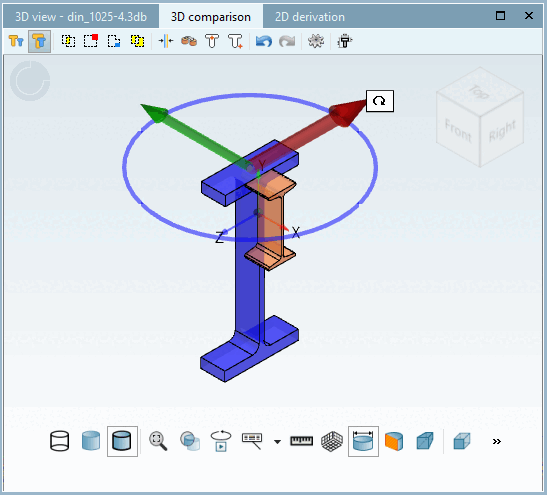

Overlays the components at the zero point with the original rotation.
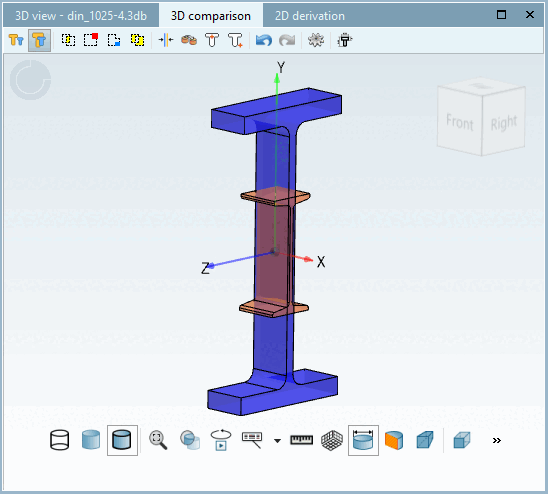

Displays the components in their original position and rotation.

 Undo:
Change of position [Restore: Changes of position] / Restore:
Change of position [Restore: Changes of position]
Undo:
Change of position [Restore: Changes of position] / Restore:
Change of position [Restore: Changes of position]
Jumps back to the previous view or restores the previously shown position.

The settings are not supported in PARTdesigner.

The technical view is not supported in PARTdesigner. Use 3Dfindit / PARTdataManager for the comparison of two technical views.
See Chapter 7, Compare products in ENTERPRISE 3Dfindit - User & Section 2.1.6.10, “ Part comparison ” in PARTsolutions - User.