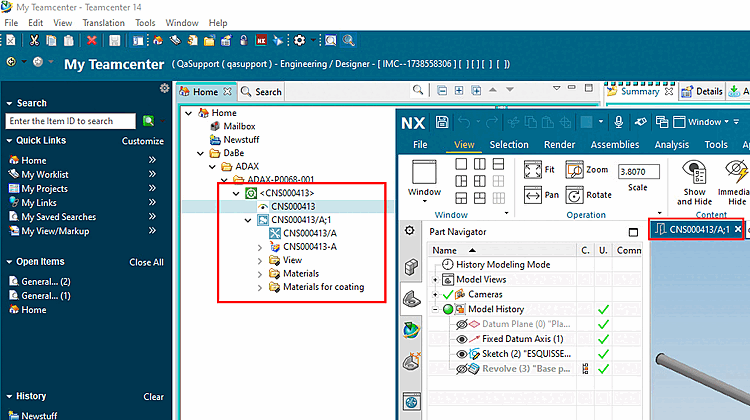
 | Note |
|---|---|
The template names and the item type name mentioned in this section are only examples. They are not provided by the interface. In the customer environment, completely different names may be used. | |
For some item types, mandatory properties are required.
In this example, the templates (Seed Part) CNS_METRIC_TEMPLATE and CNS_INCH_TEMPLATE, as well as the item type "C4_CadenasItem" (names are for illustrative purposes only) are to be used. This is an item type with required properties.
| Note |
|---|---|
If
the templates and item types used are not set in both the | |
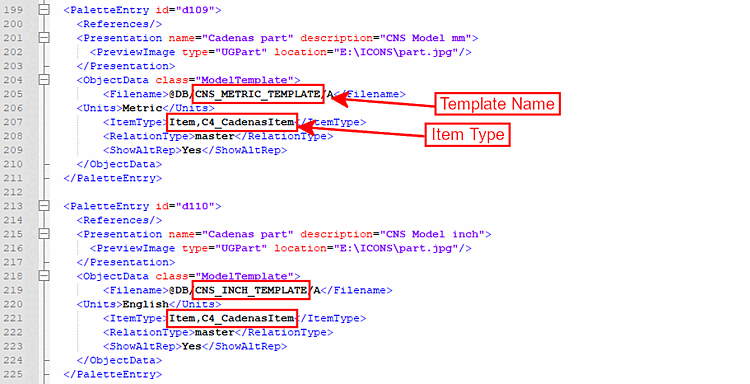
Configure the *.pax file to use the following templates ...
... as well as the ItemType "C4_CadenasItem".
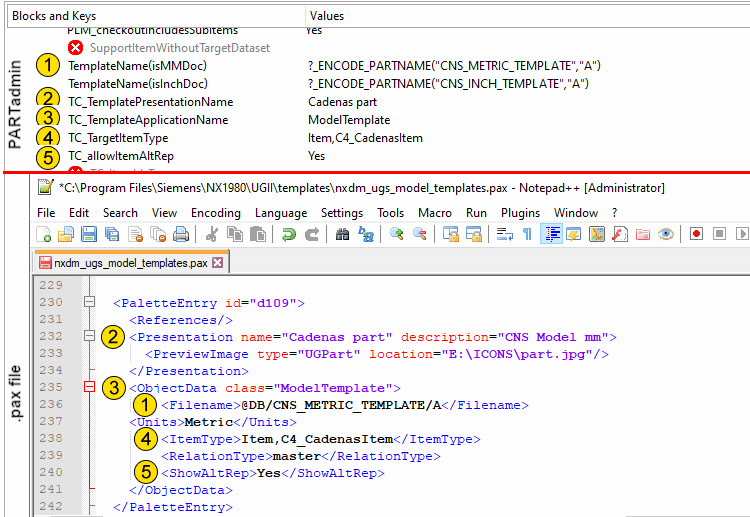
Configure ifnxteamcenter.cfg so that
the new templates (compared to the minimum configuration) and the new ItemType are used:
[CreationOptions(is3d):include(CreationOptions)]
TemplateName(isMMDoc)=?_ENCODE_PARTNAME("CNS_METRIC_TEMPLATE","A") <- Template Name changed
TemplateName(isInchDoc)=?_ENCODE_PARTNAME("CNS_INCH_TEMPLATE","A") <- Template Name changed
TC_TemplatePresentationName=Cadenas part <- Name changed
TC_TemplateApplicationName=ModelTemplate <- unchanged
TC_TargetItemType=Item,C4_CadenasItem <- Type "C4_CadenasItem" added
TC_allowItemAltRep=Yes   <- Now value "Yes"
Also, enable (set) the following keys:
A
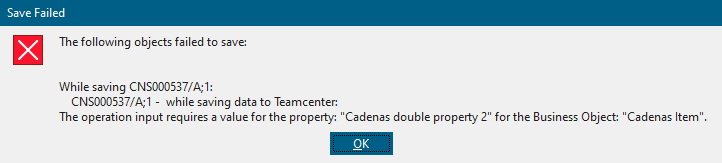
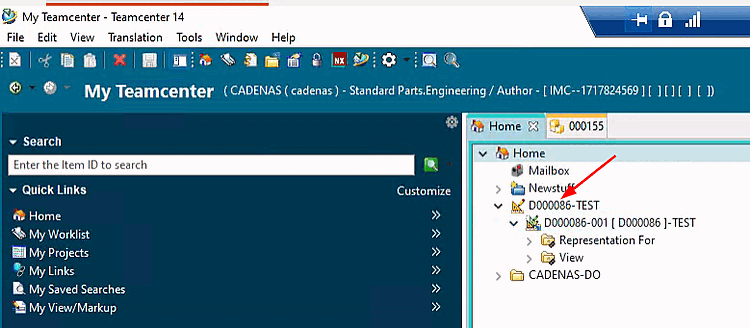
Export in this state would result in an error because this
configuration mandatory properties that are specified in
of the ifnxteamcenter.cfg must be specified.
To determine the required properties and their internal names for the interface configuration, record a journal (macro) in NX with the type "CADENAS Item."
The following instructions will guide you through the process.
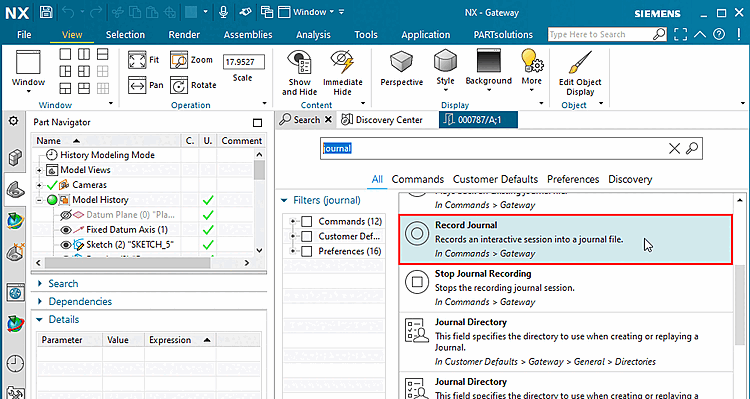
Enter "journal" in the "Search" field, and then click Record Journal.
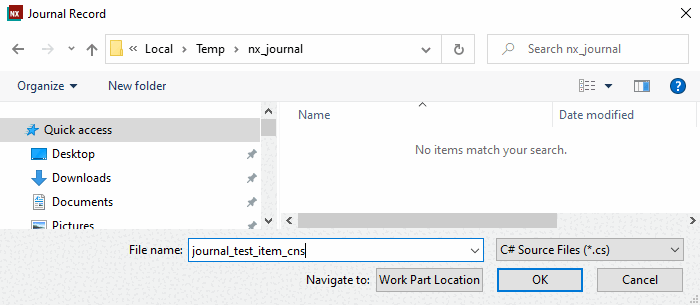
Select any location in Explorer for the journal file and enter a name.
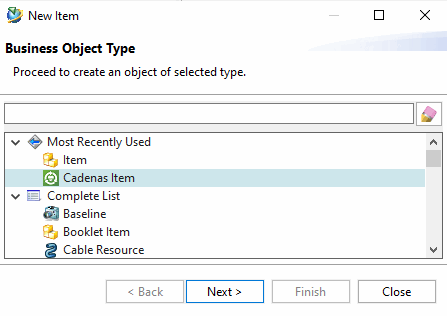
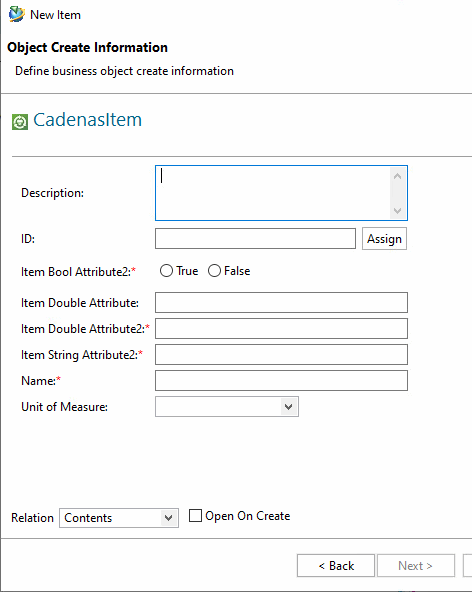
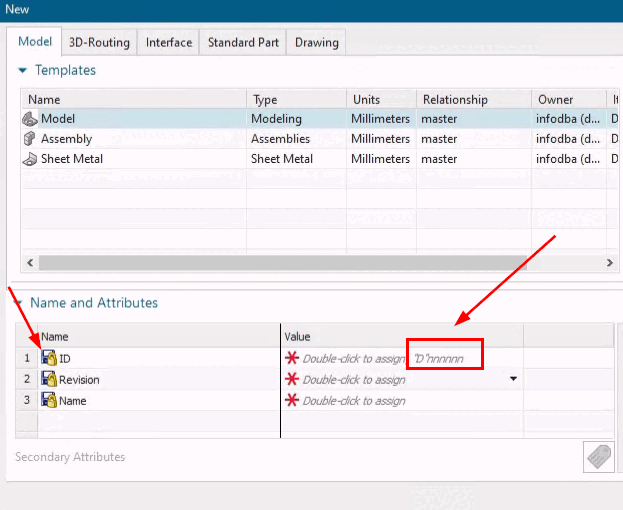
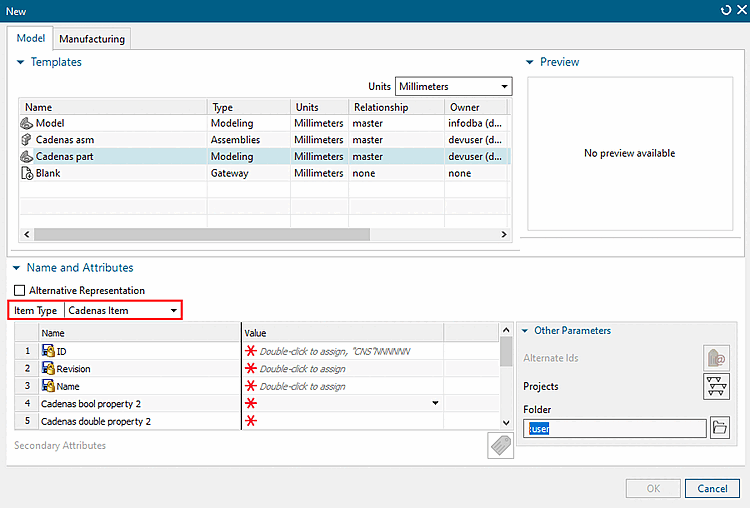
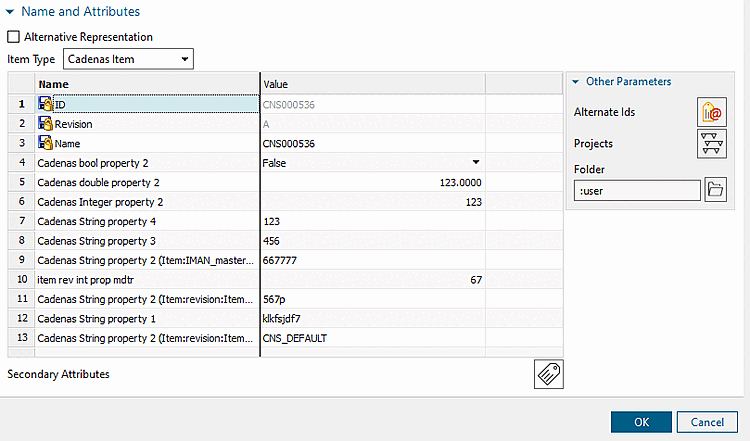
Open File -> New -> Item, and in the dialog box, under Names and Attributes -> Item Type, select CADENAS Item from the drop-down list.
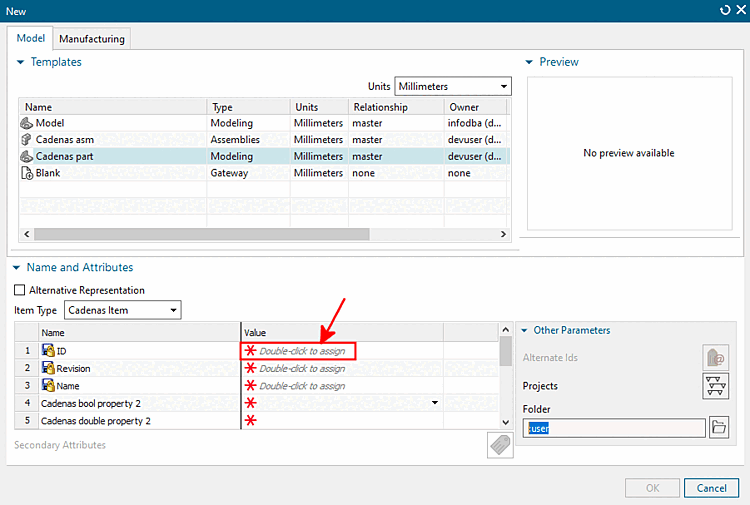
Double-click the " Value " field in ID.
Enter any values in all the rows.
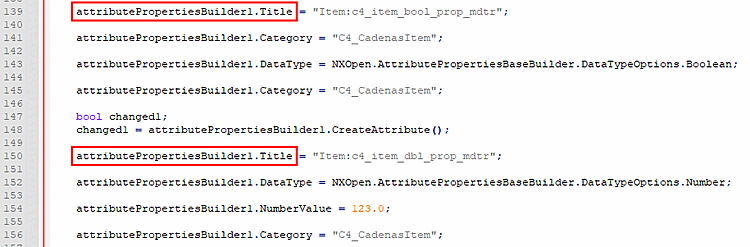
Open the log file in a text editor and search for attributePropertiesBuilder1.Title.
After each occurrence of attributePropertiesBuilder1.Title, you will also find a line with .Category and a line with .DataType.
attributePropertiesBuilder1.Title = "Item:c4_item_bool_prop_mdtr"; attributePropertiesBuilder1.Category = "C4_CadenasItem"; attributePropertiesBuilder1.DataType = NXOpen.AttributePropertiesBaseBuilder
 .DataTypeOptions.Boolean;
The entries found must be entered into the
ifnxteamcenter.cfgbe adopted. See also the next section.
Create the appropriate blocks and keys.
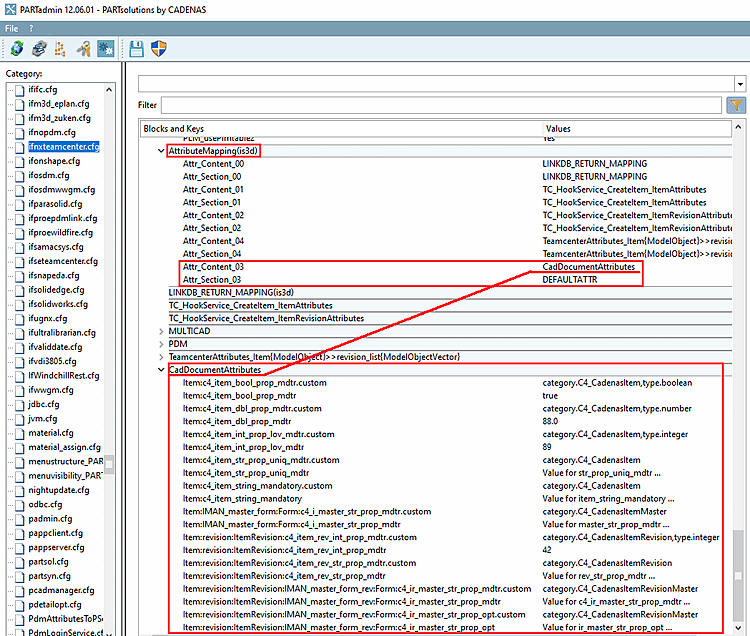
The following section explains the schema used to create the keys and values .
In the CadDocumentAttributes block, create a key with the name listed under "Title " in the recorded journal.
Add a second key with the same name, with " .custom " appended to the end.
In the key, enter ".custom" and enter the following attributes from the journal as values:
category.<attribute from .Category>,type.<attribute from .DataType>
category. C4_CadenasItem ,type. boolean
In the key, enter the value found in the journal as the value, without ".custom".
Repeat all the steps for all attributePropertiesBuilder1.Title entries found in the journal.