Example: The " Description " field for the "Revision" item is to be changed, and the value " LINA" from the 3D model is to be used.
To use attribute mapping, enable the key PdmOnCheckin_02.EXECUTE with the value _TC_HOOK_SERVICE.mapAttributes.
[CreationOptions(is3d):include(CreationOptions)]
PdmOnCheckin_02.EXECUTE=_TC_HOOK_SERVICE.mapAttributes
Create the following blocks and keys according to the desired object/reference to which the change should apply.
[AttributeMapping(is3d)]
Attr_Content_04=TeamcenterAttributes_Item{ModelObject}>>revision_list{ModelObjectVector}
Attr_Section_04=TeamcenterAttributes_Item{ModelObject}>>revision_list{ModelObjectVector}

[TeamcenterAttributes_Item{ModelObject}>>revision_list{ModelObjectVector}]
object_desc=?_FORMAT_0("<ATTR(english,LINA)>").value()
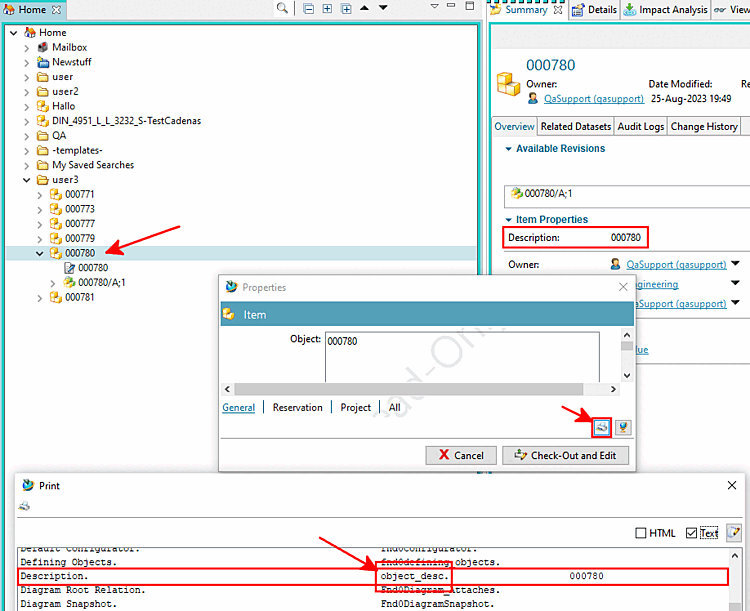
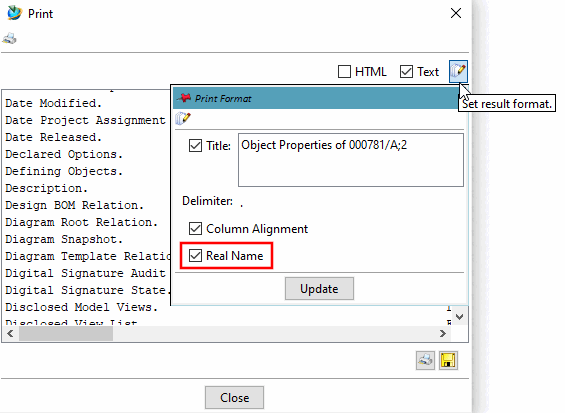
To find out the real name used in Teamcenter for " Description," follow these steps:
Add the key "object_desc " (which corresponds to the Real Name in Teamcenter) with the following value, which contains the desired 3Dfindit attribute (in this example, "LINA").
Terminate the "pddlhost" process using "vbbhost" at the command line.
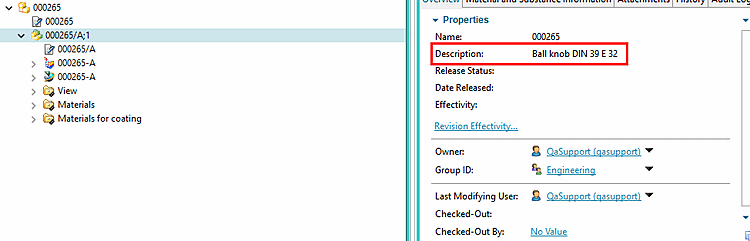
-> Now "Description " displays the value " LINA ":