1.7.5.15.4.
Block [PARTdataManager] - Global settings
for PARTdataManager 1.7.5.15.4.18.
Key "STYLESHEETS" - Custom
stylesheets for GUI elements |  |
| Prev | Next |
Comma Separated
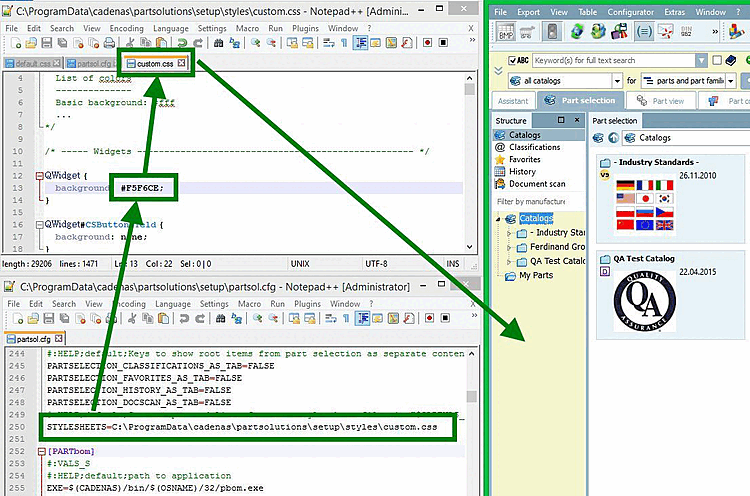
List of custom stylesheet files in $CADENAS_SETUP/styles.
Under
$CADENAS_SETUP/styles the file is default.css for the GUI style
.
The GUI style is easy to customize.
Under
$CADENAS_SETUP/partsol.cfg -> block
[PARTdataManager] key > STYLESHEETS to the desired CSS file. The Styles
are appended to the default style.
It's just
the file name without the path specified, the application searches for the file
in the directory "$CADENAS_SETUP/styles". There you will find
also some examples.
[PARTdataManager]
STYLESHEETS=default.css,custom.css
Ebenso können Sie einen absoluten Pfad angeben.
Find relevant keys in the CSS file Find
To find relevant keys more easily, enable the following docking windows:
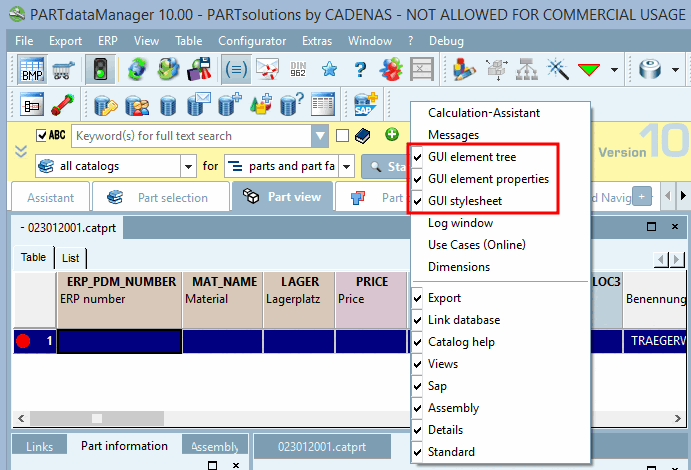
Under
$CADENAS_USER, set a file nameddebug.cfgwith the following Content to:[PDEBUG] showDebugMenu=1 showWidgetTree=1 showExportPath=1
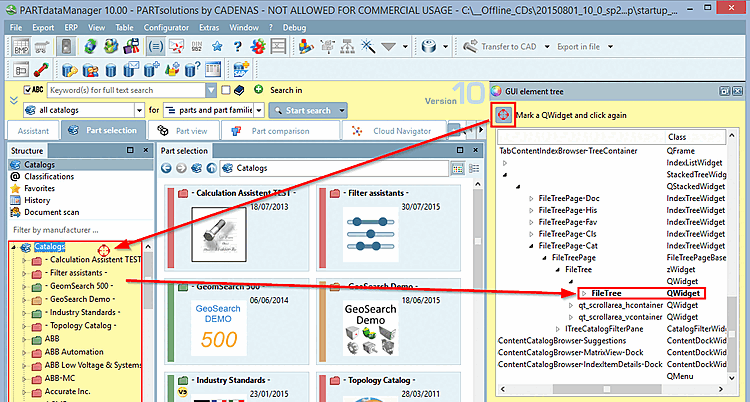
-> The mouse pointer turns into a red circle.
-> The element is highlighted in bold in the GUI Elements tree [GUI element tree].

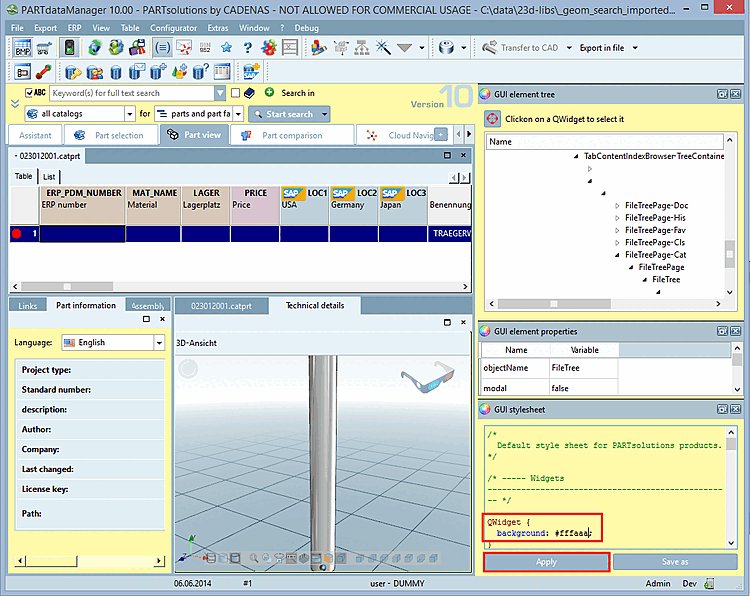
You can make changes to the GUI stylesheet [GUI stylesheet] in the docking window.