5.12.4.
Create / edit class system (classification)
5.12.4.2. Basic structure of the "Edit class system" dialog box |  |
| Prev | Next |
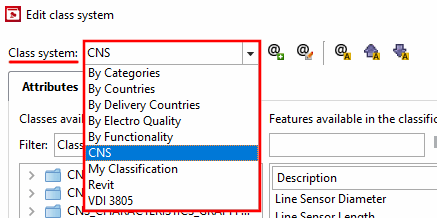
Select the class system to be edited.

The following functions are available via the buttons:
 New class system
create... [Create new class system...] / or
New class system
create... [Create new class system...] / or  Current class system
change... [Change current class system...]
Current class system
change... [Change current class system...]
In the first case, the Create class system dialog box opens, in the second case the Change class system [Modify class system] dialog box opens. Basically, the functionality of both dialog boxes is identical.
Create class system" dialog box - The entries under "Internal name [Internal name]" and "Visible name [Visible name]" have already been set.
One small difference is that there are no entries under Internal name and Visible name when you create a new class system. And if you are editing an existing class system, you must select it in the Class system list box. And the name of the selected system is displayed in brackets in the title of the Modify class system dialog box.
Detailed information can be found at Section 5.12.4.3, “ Create class system / Change current class system... (Basic settings) ”.
 translations in the
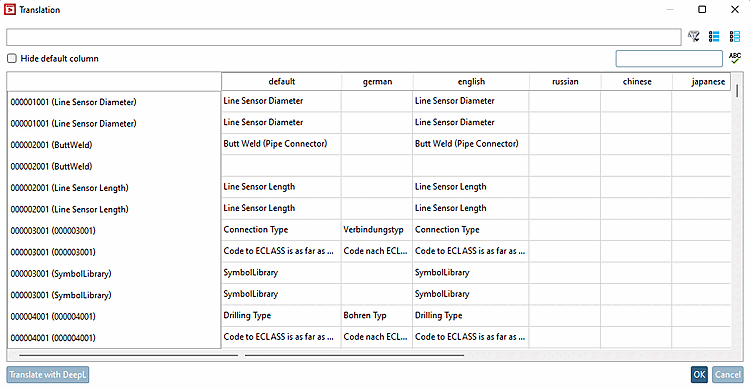
Change class system... [Change translations in the class system...]: You can translate directly
in the Translation dialog box
edit.
translations in the
Change class system... [Change translations in the class system...]: You can translate directly
in the Translation dialog box
edit.
 translations in the
Export class system... [Export translations in the class system...]
translations in the
Export class system... [Export translations in the class system...]
Opens the Create CSV for translations [Create CSV for translation] dialog box. Select the desired settings and click .
 translations in the
Import class system... [Import translations in the class system...]
translations in the
Import class system... [Import translations in the class system...]
Opens the Import translations dialog box. Select the desired settings and click .
![Create class system" dialog box - The entries under "Internal name [Internal name]" and "Visible name [Visible name]" have already been set.](https://webapi.partcommunity.com/service/help/latest/pages/jp/ecatalogsolutions/doc/resources/img/img_33096a664ab2423c92c4486deeeaf9e1.png)
![Create CSV for translations [Create CSV for translation]](https://webapi.partcommunity.com/service/help/latest/pages/jp/ecatalogsolutions/doc/resources/img/img_78e0e81b8a364fad8da348d0d87f58ef.png)
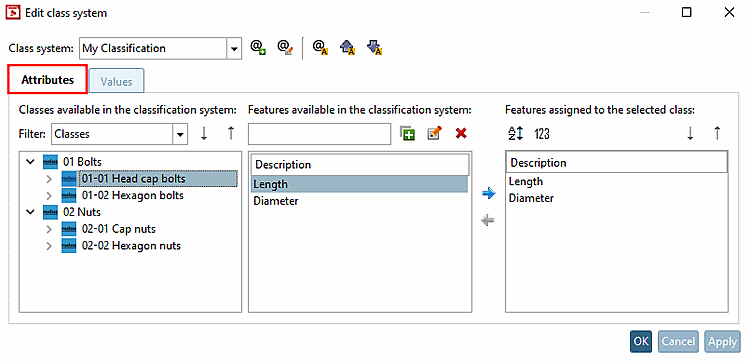
Tabbed page "Features [Attributes]"
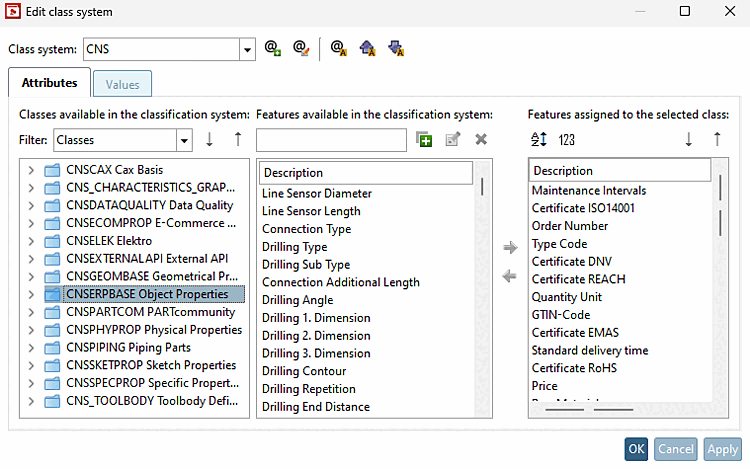
Create or edit the class structure under Classes available in the class system [Classes available in the classification system].
Details can be found at Section 5.12.4.4.2, “Building/editing class system”.
Optionally create class attributes under Attributes available in the class system [Features available in the classification system] (if the option "Support for [Support for] "Attributes [Attributes]" is activated [see below ]).
Select the desired classes one after the other and assign the desired class characteristics to the selected class by moving them via the arrow from Characteristics available in the class system [Features available in the classification system] to Characteristics assigned to the selected class [Features assigned to the selected class].
Details can be found at Section 5.12.4.4.3, “Create features / Edit ”.
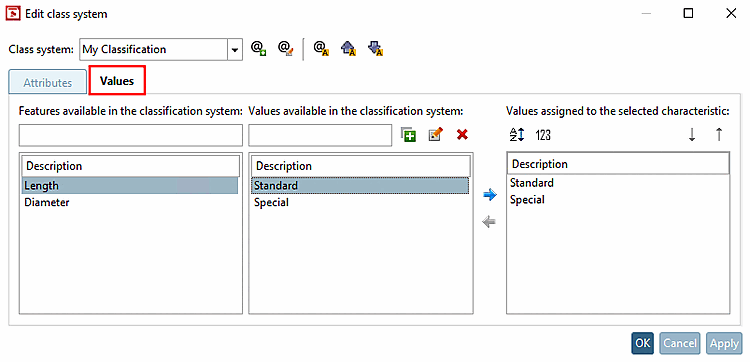
The characteristics created on the Characteristics [Attributes] Tabbed page are now displayed in the Characteristics available in the classification system [Features available in the classification system] field on the left. Create the desired values in the middle column Values available in the classification system [Values available in the classification system] and assign them to the selected feature using the arrow if required. These are then displayed under Values assigned to the selected characteristic.
Details can be found at Section 5.12.4.4.3, “Create features / Edit ”.