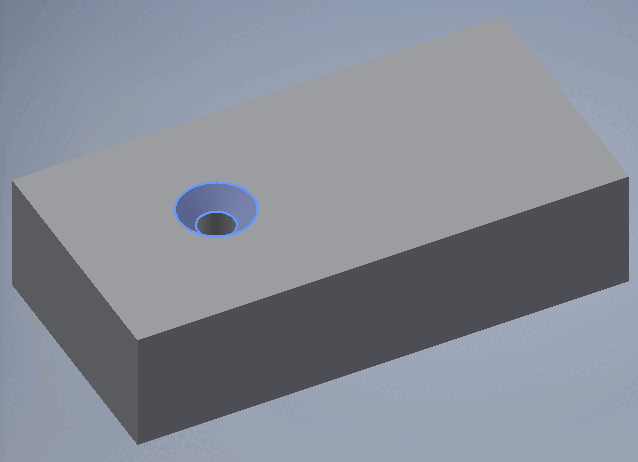
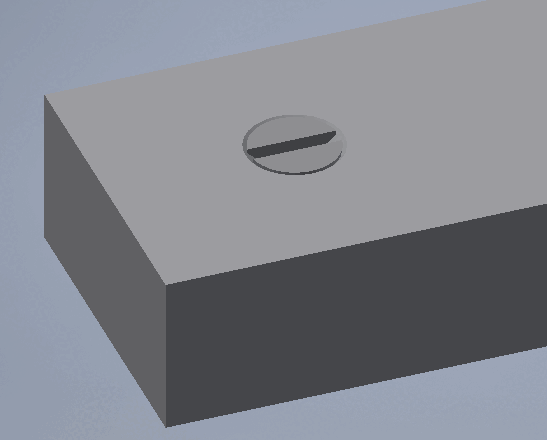
![[Note]](https://webapi.partcommunity.com/service/help/latest/pages/jp/3dfindit/doc/images/note.png)

As soon as
In 3Dfindit, click the To button
Transfer CAD [Export to CAD]
 , the view switches to CAD and the
3Dfindit placement dialog opens.
, the view switches to CAD and the
3Dfindit placement dialog opens.
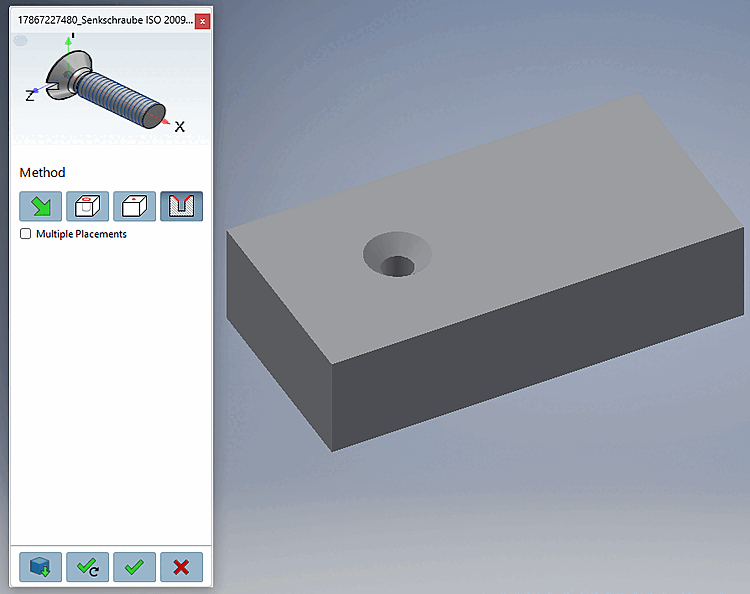
Select a surface that should coincide with the selected placement surface [Select coincident placement face].
Click Place once
 or Multiple
Place [Place multiple]
or Multiple
Place [Place multiple]
 .
.
Optionally, make additional placements or close the placement dialog

Open: The part is opened in a separate CAD window.
Place Multiple Times [Place multiple] (and Keep the Dialog Open)
Place once (and close the dialog box) 
Close dialog (without placement)