3.3.7.9. NX: Adjust
placement dialog via macro 3.3.7.9.2. Procedure when
using NX with Teamcenter |  |
| Prev | Next |
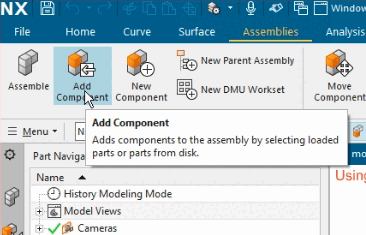
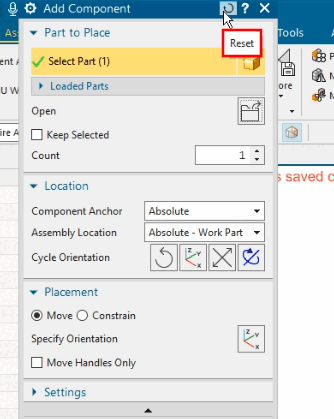
Make sure that the correct macro template is active in ifugnx.cfg and carry out a placement with a test part. Ideally, all settings of the template are already as you actually need them. In this case, there is no need to make any adjustments.
Otherwise perform the steps of the following instruction.
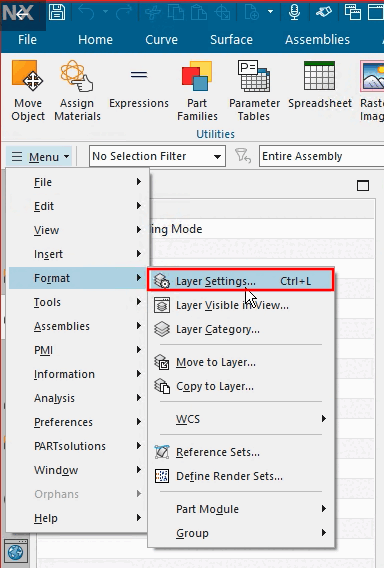
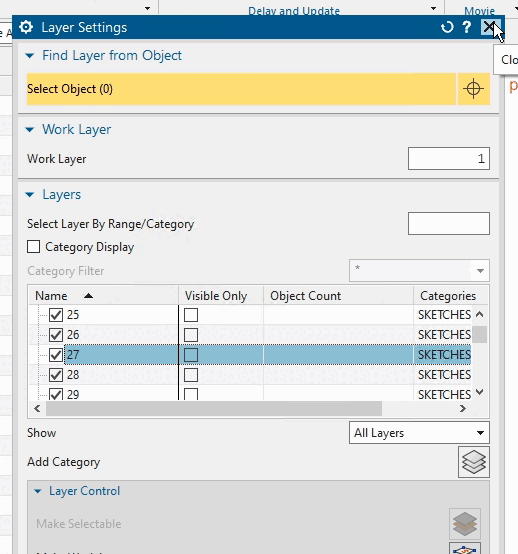
Make sure that "Solid-Layer (by default 27)" is activated.
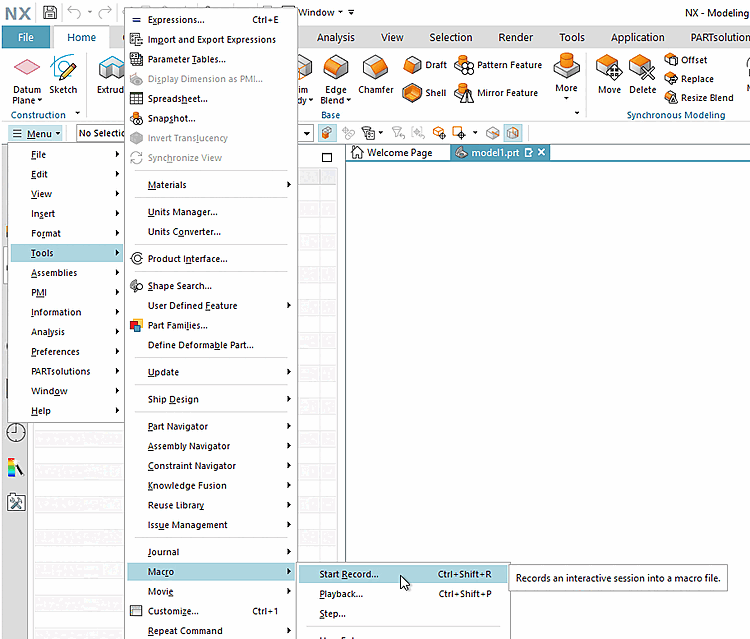
Perform a placing as a test. Then for the macro recording you should not make a mistake.
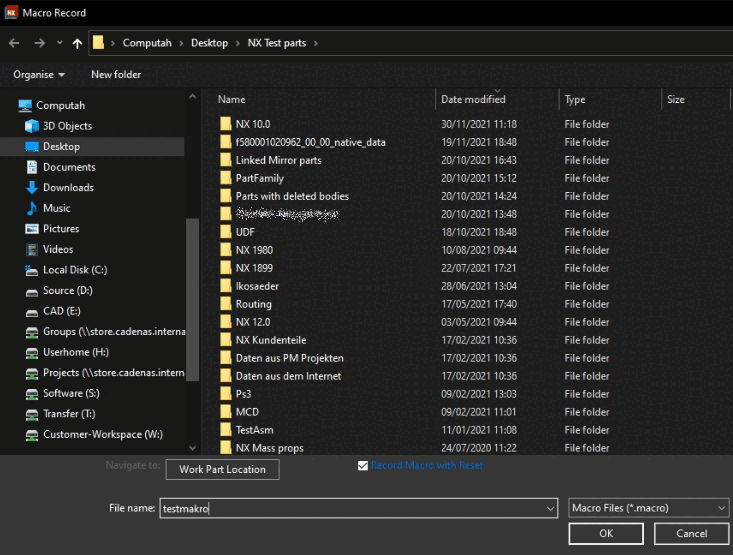
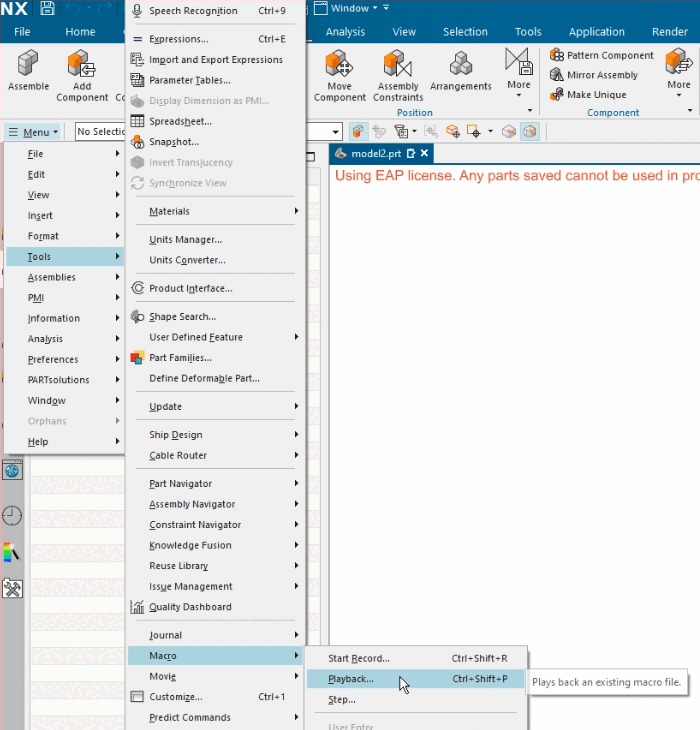
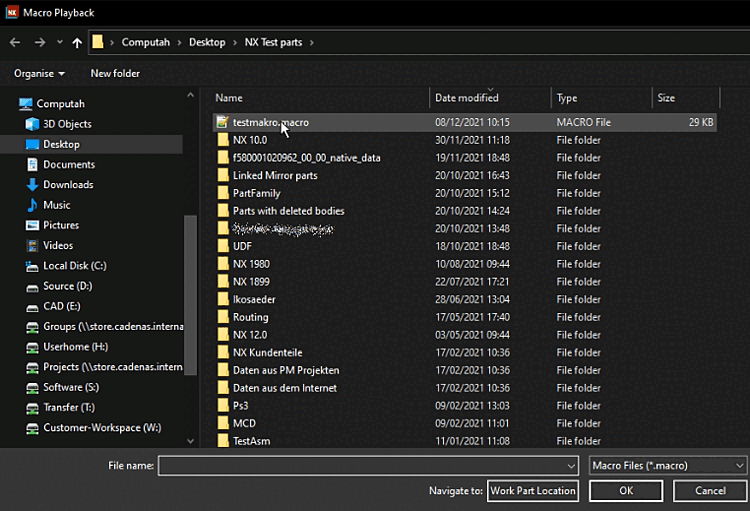
Specify the storage location and file name for the macro and confirm with . It is best to save the macro immediately in the directory provided for this purpose at
...\iface\unigraphics\shared\macro\cns_place_....macro.-> The record is immediately started.
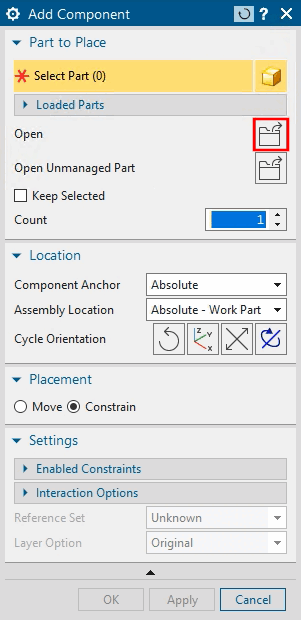
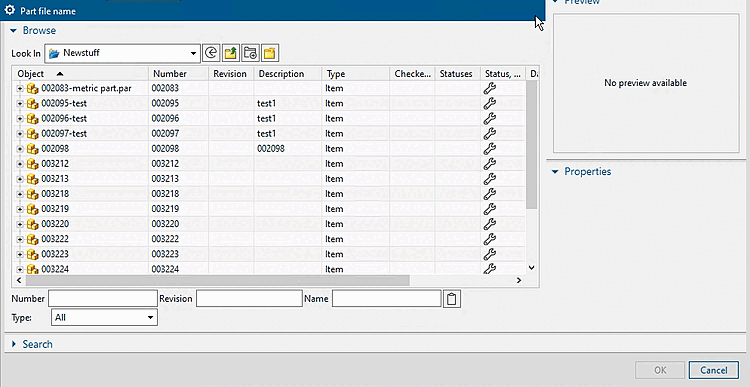
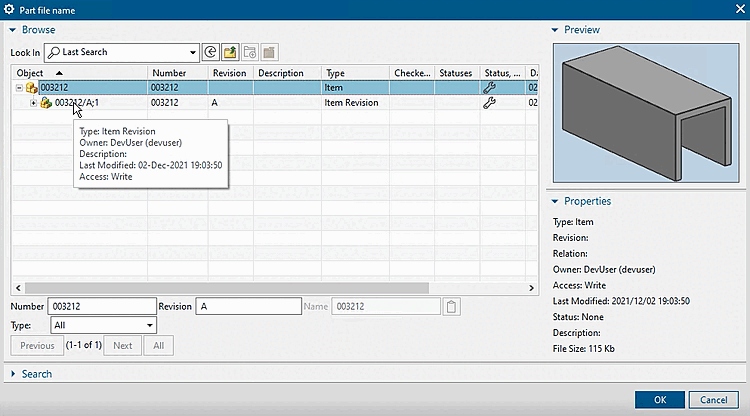
Select the Teamcenter option in the list field under Look In.
Next, correct entries must be made under Number and Revision.
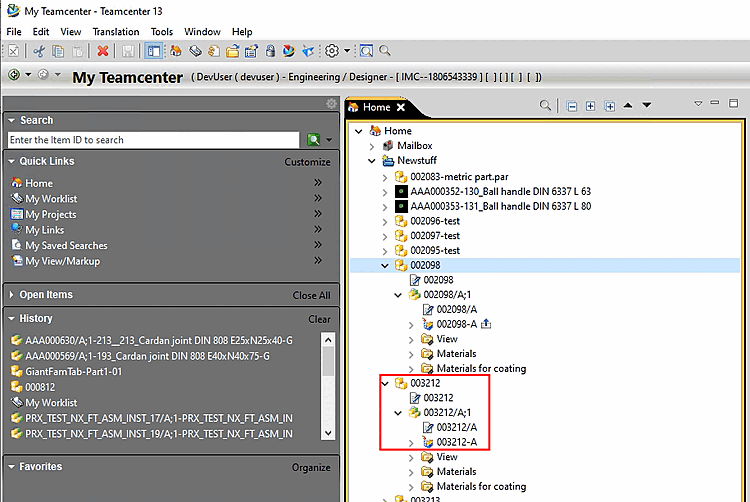
To find out the relevant information, open My Teamcenter -> Home -> Newstuff.
Enter a valid item ID in the input field under Number.
Use TAB to switch to the next field and enter a valid revision under Revision.
Close the dialog by clicking .
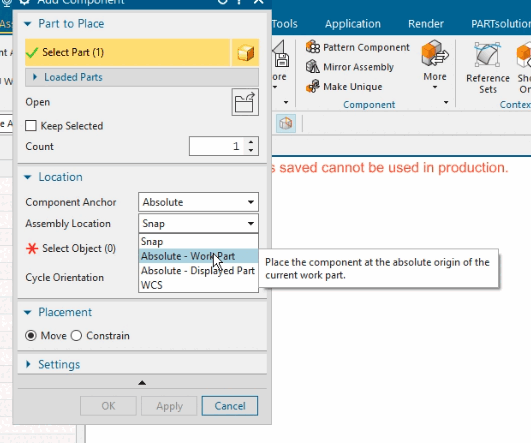
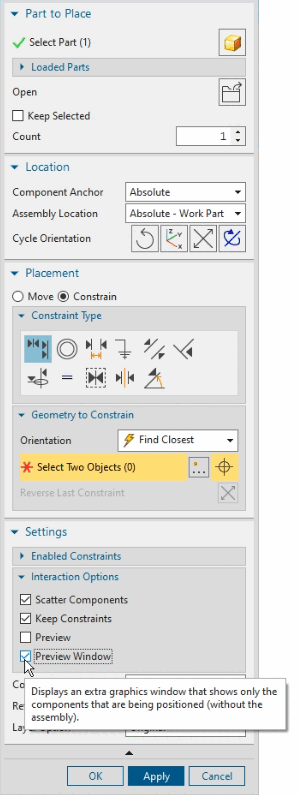
Open the list field under Assembly Location and select Absolute - Work Part.
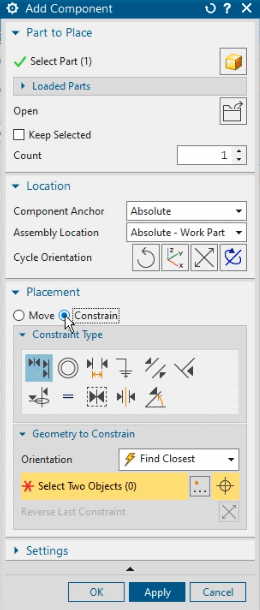
Optional: Change the setting under Placement from "Move " to "Constrain ".
Optional: Deactivate the Preview option under Settings -> Interaction Options and activate Preview Window
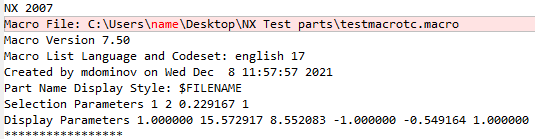
For the macro recording a concrete sample part had been used. Places containing references to this part have to be replaced by common place holders now.
May be you want to replace your user name by "administrator", for example (doesn't matter for functionality).
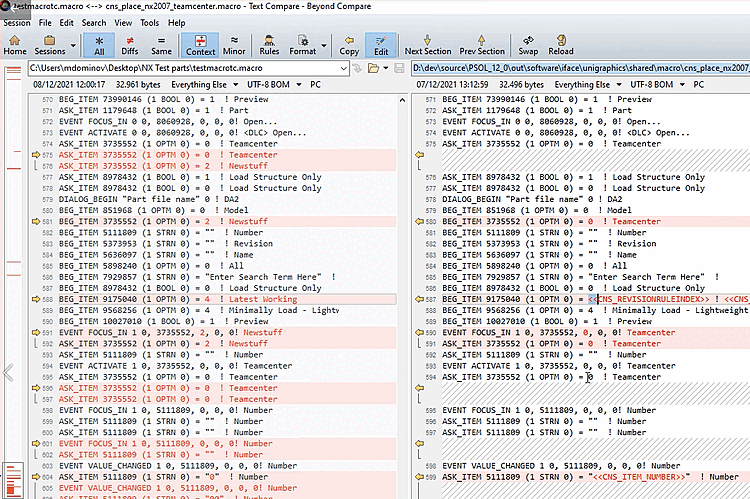
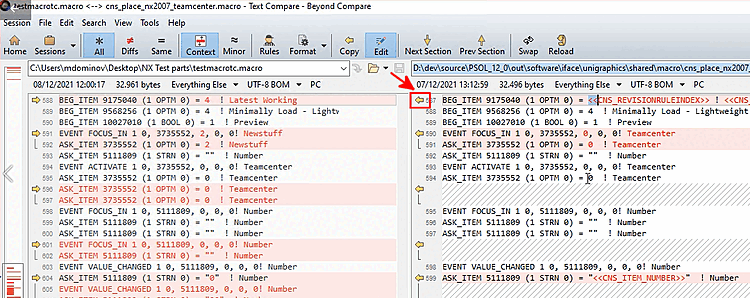
In the Teamcenter standard template, search for lines with angle brackets.
BEG_ITEM 9175040 (1 OPTM 0) = <<CNS_REVISIONRULEINDEX>> ! <<CNS_REVISIONRULE>>
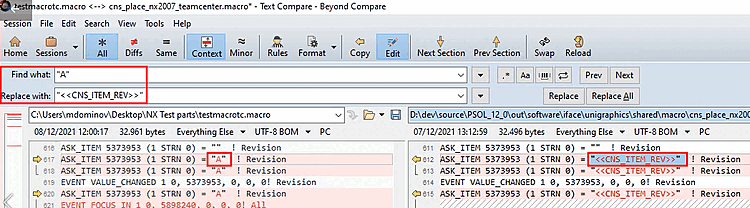
Transfer these lines into the recorded macro with the help of the used comparison tool; in above figure by clicking on the yellow arrow.
When clicking on the yellow arrow, on the left, the whole block is overwritten.
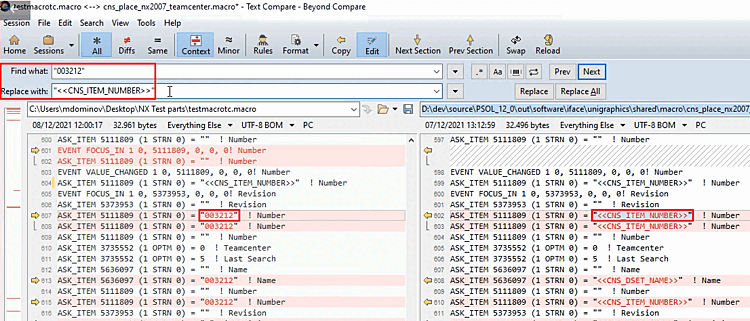
Example 3: If there are very frequent occurrences to be replaced, it is also a good idea to work with search & replace instead of transferring each individual occurrence with the yellow arrow.
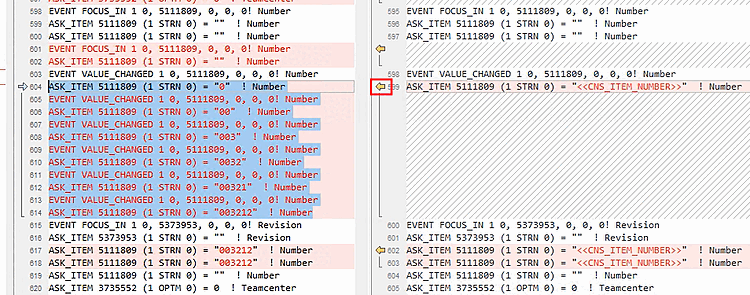
Example 4: Ignore empty lines.
Optionally, you can also delete the following lines at the end of the file.
WINDOW RESIZE 1.000000 10.822917 7.906250 -1.000000 -0.730510 1.000000 0.730510
WINDOW RESIZE 1.000000 10.822917 7.906250 -1.000000 -0.730510 1.000000 0.730510
WINDOW RESIZE 1.000000 10.822917 7.906250 -1.000000 -0.730510 1.000000 0.730510
WINDOW RESIZE 1.000000 10.822917 7.906250 -1.000000 -0.730510 1.000000 0.730510
WINDOW RESIZE 1.000000 10.822917 7.906250 -1.000000 -0.730510 1.000000 0.730510
Set placement macro in
ifugnx.cfg![[Note]](https://webapi.partcommunity.com/service/help/latest/pages/jp/partwarehouse/doc/images/note.png)
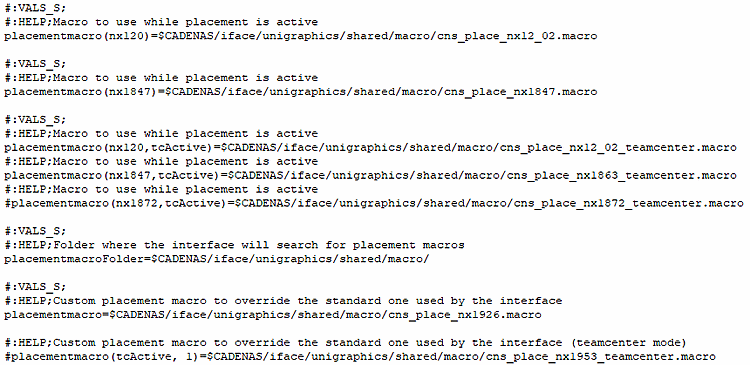
Note This step has to be performed manually up to NX version 1926 inclusively, for later versions it will happen automatically, so that manual intervention can be omitted, except the macro is recorded for a special NX subversion.
No name adjustment is required for later versions. Simply save the recorded macro file at
...\iface\unigraphics\shared\macrousing the patterncns_place_nxXXXX.macroorcns_place_nxXXXX_teamcenter.macro. The appropriate file will then be determined automatically.If the reference is explicitly specified in
ifugnx.cfgunder "placementmacro=", the name does not matter.Test the macro from PARTdataManager once with a single part and once with an assembly, possibly again with an inch part.
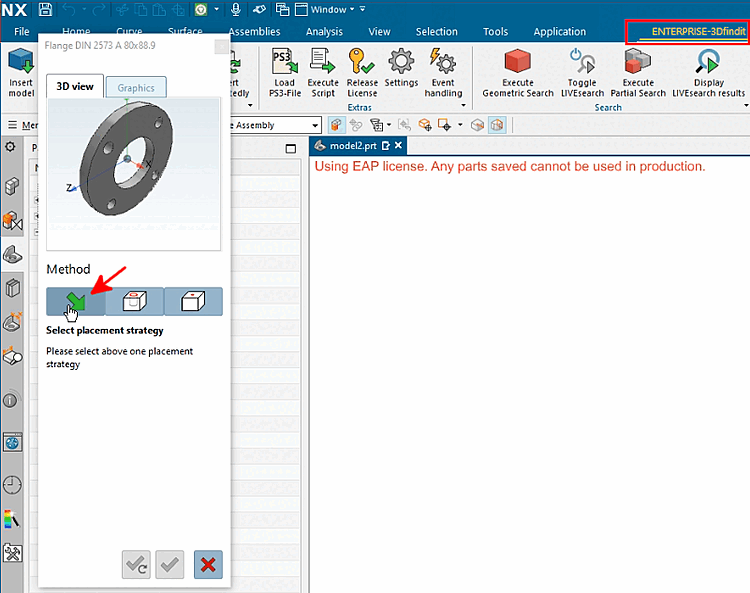
After the part is transferred, click on the green arrow (native placement dialog).
-> Now the NX placement dialog should show exactly those settings which had been applied when recording the macro.
Optional check: Take a look at the macro file
cns_place.macroin the user directory.After each export it should show exactly the currently used replacements.
![[Tip]](https://webapi.partcommunity.com/service/help/latest/pages/jp/partwarehouse/doc/images/tip.png)
![[Caution]](https://webapi.partcommunity.com/service/help/latest/pages/jp/partwarehouse/doc/images/caution.png)