
 |
The Links dialog box contains links to related parts.
You can directly load a part by double-click.
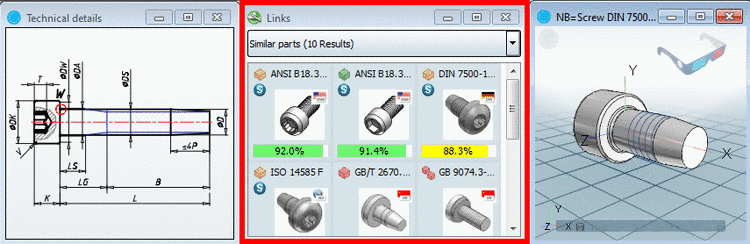
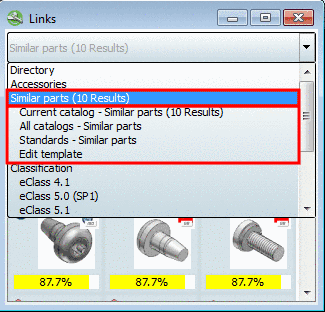
The following categories of links are available:
At this selection a geometric similarity search is performed in the background.
Found parts, similar to the currently opened part, are continuously offered.
You may continue working, configuring parts, create a 2D derivation, etc., all without being disturbed.
Via subitem Edit template you can set for example, exactly where and with which minimum similarity the search shall be performed (details follow).
With version 9.08 the layout has been reworked. The new view mode with "tiles" (compare ???) is used in the Links dialog section now by default.
When selecting Similar parts a geometric similarity search is processed in the background continuously.
An essential innovation is, that the geometric degree of similarity is displayed for each part.
Another new feature at the background search is, that you can configure the search range and the minimum degree of similarity. The setting "all catalogs until 90%" leads to fast results for example.
In order to open the configuration mode, select the item Edit template in the list field.
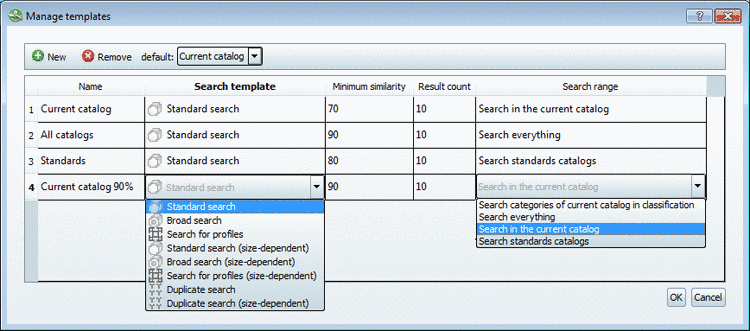
-> The respective dialog box Manage templates opens.
Already existing templates are listed. Now you can perform the following settings:
In the Name column, double-click the desired field. Afterwards you can change the displayed name of the template.
In the Search template column, double-click into the desired field. Afterwards you can select the desired template in the list field.
In the Minimum similarity column, double-click into the desired field and set the desired value via little arrow keys.
In the Result count column, double-click into the desired field and set the minimal number of results via little arrow keys.
In the Search range column, double-click into the desired field. Afterwards you can determine the search range in the list field.
Furthermore you can add
 or remove
  templates and determine the default
template.
templates and determine the default
template.The default template is used, if you do not use the templates displayed indented (meaning no special template), but the item Similar parts one level higher.
More information on this is found under Section 3.1.7.4, “ Docking window "Links" ” in PARTsolutions - User manual.