

Create a plane with a specified angle based on the plane currently selected.
Select one of the base planes (XY/ZX/YZ) and click on the context menu command Insert new plan.... [Insert new plane...]
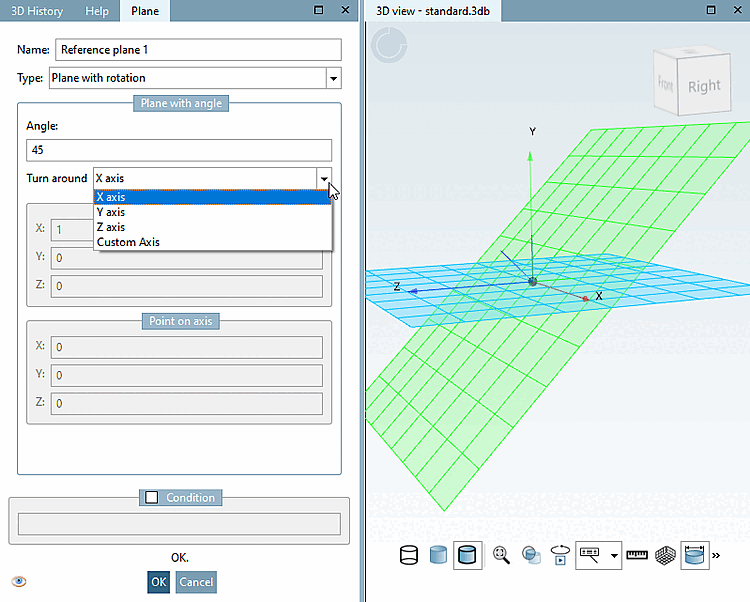
Under Type, select Layer with rotation [Plane with rotation] in the list box.
Select the desired rotation axis in the list box under Rotate around [Turn around].
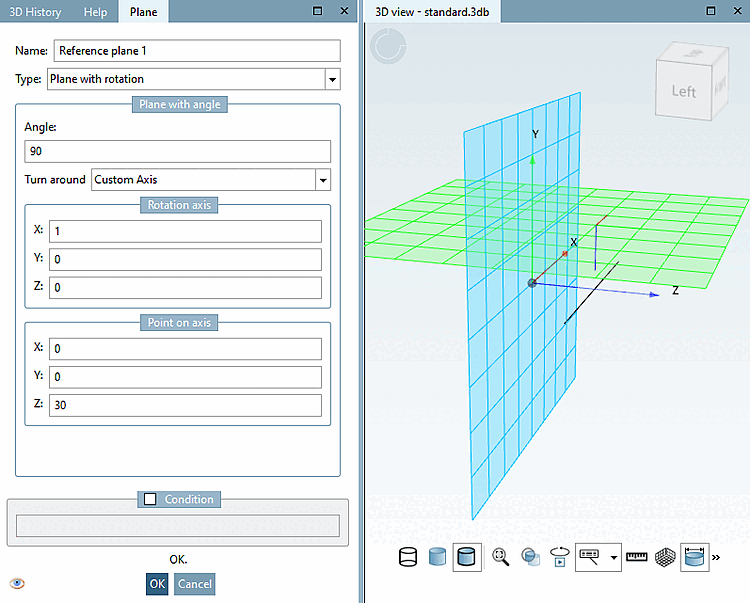
With the help of this function you can rotate a plane with a certain angle around a custom axis.
The rotation axis is specified via direction vector AND a point of axis.
-> The fields for rotation axis [Rotation axis] and point on axis [Point on axis] are activated (these are deactivated for the other options).
Result is the selected basic plane (here Plane XY) rotated around the specified axis.
Condition: The creation of the reference plane can optionally be made dependent on a condition. For example, enter B > 10.
-> After confirming with , the new plane appears in the 3D History dialog area with the name that was assigned in the dialog under Name. By default,"Reference plane 1 " is entered. Further reference planes are numbered consecutively. If you want to change the reference for any reason, you can do this on the "Reference plane" using the context menu command Select new reference.
![[Note]](https://webapi.partcommunity.com/service/help/latest/pages/jp/partwarehouse/doc/images/note.png) | Note |
|---|---|
The 3D view immediately visualizes value changes and shows the position in the coordinate system. | |