

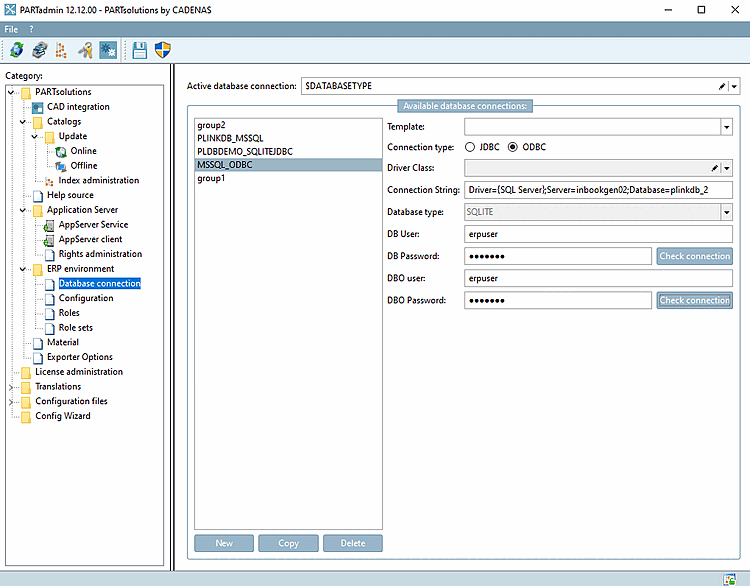
In the Database connection category, define how the database (e.g. MSSQL, Oracle, etc.) is accessed.
![[Note]](https://webapi.partcommunity.com/service/help/latest/pages/jp/partwarehouse/doc/images/note.png)
ODBC driver: The functionality for using ODBC is automatically available.
If the database is run via the AppServer, then the ODBC driver only needs to be installed on the server. It is only required on the clients if the database is accessed directly.
In the Available database connections dialog area, select "MSSQL via ODBC " in the Template list box.
All drivers installed at
libs/all/java/jarare listed in the Available database connections dialog area in the Template list box (the ones listed are supplied and are always available).Others must be downloaded from the respective manufacturer (Oracle, Microsoft) and copied to the directory
libs/all/java/jar. They are NOT installed by CADENAS.Please download them under one of the following addresses.
https://www.oracle.com/database/technologies/appdev/jdbc-downloads.html
sqljdbc_12.2\deu\mssql-jdbc-12.2.0.jre8.jarresp.sqljdbc_12.2\deu\mssql-jdbc-12.2.0.jre11.jarhttps://learn.microsoft.com/de-de/sql/connect/jdbc/download-microsoft-jdbc-driver-for-sql-server?view=sql-server-ver16
Use the button to create the required database connections and fill in the respective fields to the right. Then select the required database connection [Active database connection] under Active database connection.
You can also enter a variable under Active database connection. For example, enter $DATABASETYPE and create this variable in start.env, for example.
[ENVIRONS]
CADENAS=%DirOfThisFile%
CADENAS_SETUP=C:\ProgramData\PARTsolutions\setup
CADENAS_DEFAULTUSER=$CADENAS_SETUP\user\default_user
CADENAS_SITESETUP=C:\ProgramData\PARTsolutions\sitesetup
CADENAS_USER=%UserAppData%\PARTsolutions\user
CADENAS_LICENSE=$CADENAS_SITESETUP\lic
CADENAS_POOL=C:\ProgramData\PARTsolutions\pool
CADENAS_DATA=C:\data\
DATABASETYPE=group1
Now use to create connections that are referenced by the DATABASETYPE value.
Select the desired Active database connection. The name must match one of the available database connections.
The driver class [Driver Class] item is omitted for ODBC. The selection options for JDBC are "net.sourceforge.jtds.jdbc.Driver" and "SQLite.JDBC.Driver".
Connection string [Connection String]: Replace the placeholders with the actual data.
The connection string [Connection String] contains all the information required to access the LinkDB. (There is no need to set up the ODBC data source.) Admin rights are not required.
All options of the connection string can be found in the respective driver documentation.
Optionally, enter the DBO user and DBO password [DBO Password]. This is required for changes to the database schema such as creating table columns or for backing up the database.