
2.1.12.1.
Make-or-buy, cost mockup and supplier
analysis
2.1.12.1.4. Settings dialog for "Make-or-Buy ","Cost Mockup " and "Suppliers "
|  |
| Prev | Next |
The setting options for the "Make-or-Buy [Make or Buy] ","Cost Mockup [Cost mockup] " and "Suppliers [Suppliers] " analyses are largely identical, so they are dealt with together here.
Activate the desired method on the left. The corresponding setting options are then displayed on the right.
![[Note]](https://webapi.partcommunity.com/service/help/latest/pages/jp/partwarehouse/doc/images/note.png)
!["Create analysis [Create analysis] " dialog box: "Make-or-buy" activated as an example](https://webapi.partcommunity.com/service/help/latest/pages/jp/partwarehouse/doc/resources/img/img_33959472062541b7bf8f22c14f9b3c1a.png)
Name of the analysis [Analysis name]: The name is displayed as a label on the corresponding results page on the tab.
Maximum number of search results [Maximum number of search result]: Here you can restrict the display of results. This does not affect the search itself.
You can see the search results when you expand a result item either by clicking on the plus sign
 or by clicking on the Expand all icon
 .
.
Variable filter: Not used for make-or-buy [Make or Buy], cost mockup [Cost mockup] and supplier [Analysis] analysis [Suppliers], only relevant for duplicate analysis [Duplicate Analysis]
Source part filter and candidate filter [Candidate filter]:
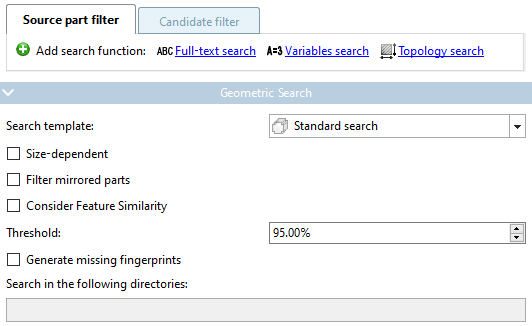
An analysis can also only be carried out for a specific group of parts. Use the source part filter [Source part filter] for this.
The result parts can also be filtered. Use the candidate filter [Candidate filter] for this.
In both cases, the full text search [Full-text search], variable search [Variables search] and topology search [Topology search] filters are available. The functions can also be used several times by clicking on Add search function.
Example 1: Filtering the source parts to be used
For example, a variable search [Variables search] can be used to determine that the source parts to be used have e.g.
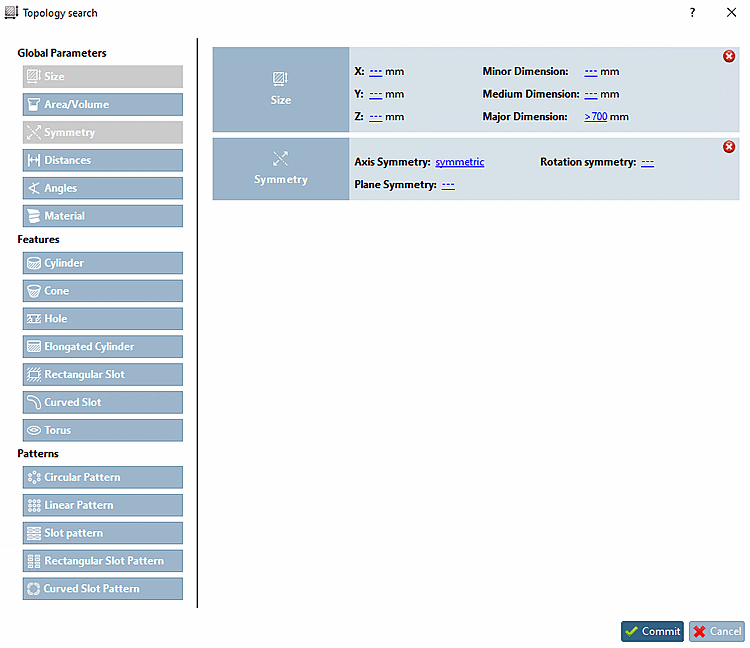
MAT_NAME=Steeland that it does not matter for the candidates (perhaps no ERP number has been assigned yet).For example, you could also define a specific group of parts for which the duplicate search is to be carried out using a topology search [Topology search] (e.g. axially symmetrical parts larger than 700 mm).
Example 2: Filtering result parts
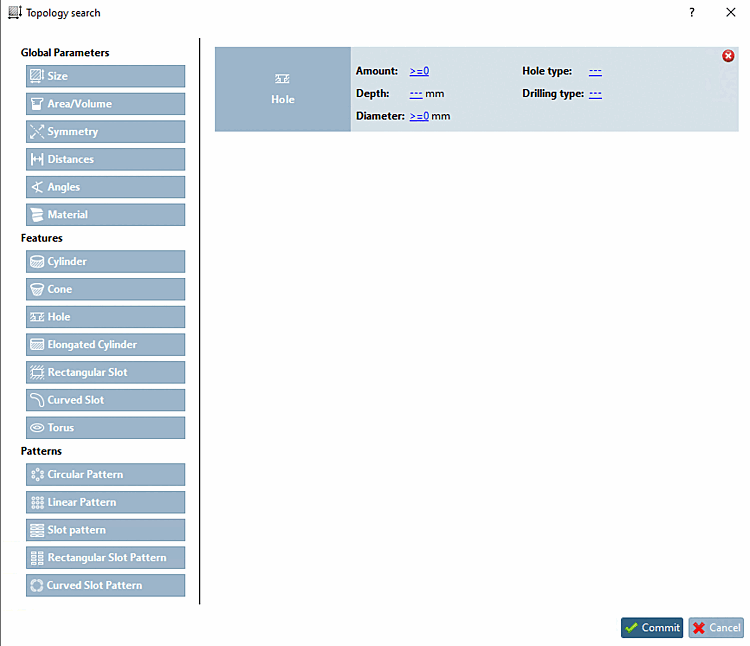
If, for example, you only want parts with drill holes in the result, set a search with Hole -> Quantity [Amount] > 0 on the Candidate filter tab page.
The functionality corresponds to the other standard search functions:
Details on full text search [Full-text search] can be found under Section 2.1.6.4.3.2, “ Full text search: Detailed search options ”.
Details on variable search [Variables search] can be found under Section 2.1.6.4.5, “ Variables search ”.
Details on topology search [Topology search] can be found under Section 2.1.6.4.11, “ Topology search ”.

![Variable search [Variables search]: MAT_NAME=Steel](https://webapi.partcommunity.com/service/help/latest/pages/jp/partwarehouse/doc/resources/img/img_9513387e987849cf9141672ec6857a71.png)
Depending on size [Size-dependent]:
Filter [Filter mirrored parts] mirrored parts: If you activate this option, mirrored parts are filtered out.
Threshold value [Threshold]: Set the minimum tolerated similarity here.
Regenerate missing fingerprints [Generate missing fingerprints]:
Search in the following director [Search in the following directories] ies: Activate the checkbox for the directories to be searched.
In the list field, select the desired column, which contains the price information. The price information is displayed at all search results later (if available).
Ignore projects that do not contain price information [Ignore projects without price information]:
The activation can accelerate the search. On the other hand very similar parts are possibly not included in the comparison anymore.