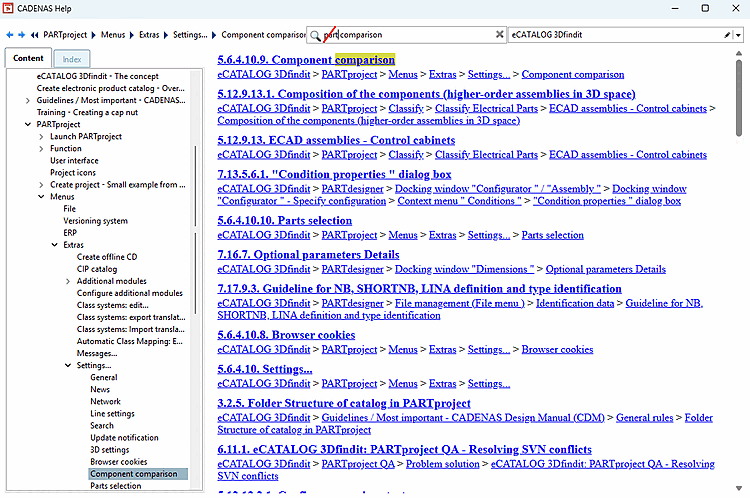
Optionally, expand the list field on the right to specify the manuals to be searched. This helps to avoid unwanted hits.
Start the search by clicking on the Return key.
-> By default, the Contents [Content] Tabbed page is activated on the left. The search results are displayed on the right.
-> When you click on a result, the corresponding content is displayed on the right and the corresponding chapter is highlighted on the left in the table of contents.

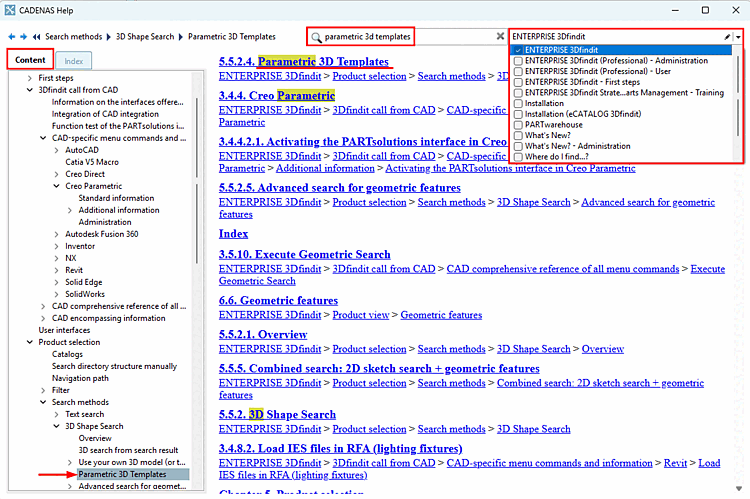
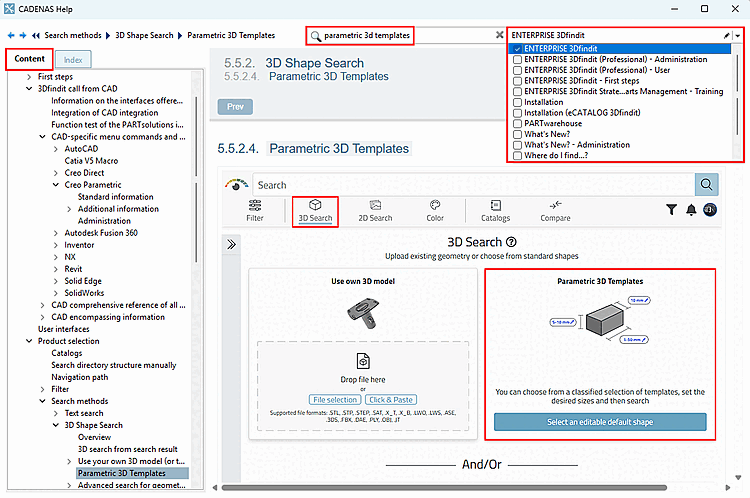
When you open the help, the Contents [Content] Tabbed page is displayed on the left by default.
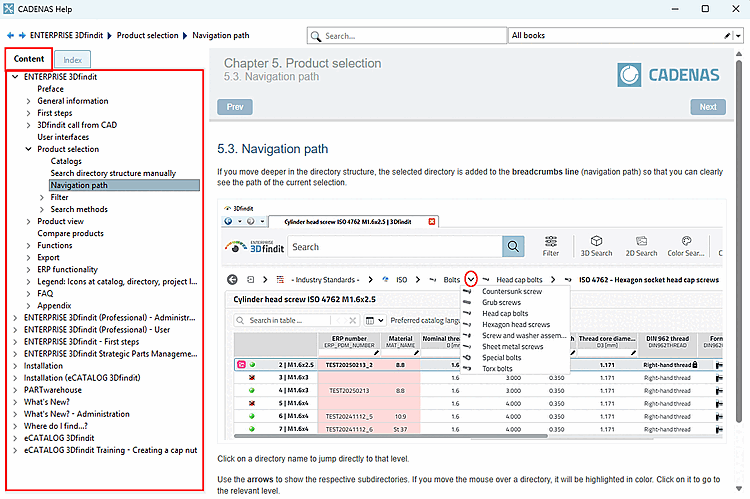
Click on the desired chapter in the table of contents on the left to load the corresponding page on the right.
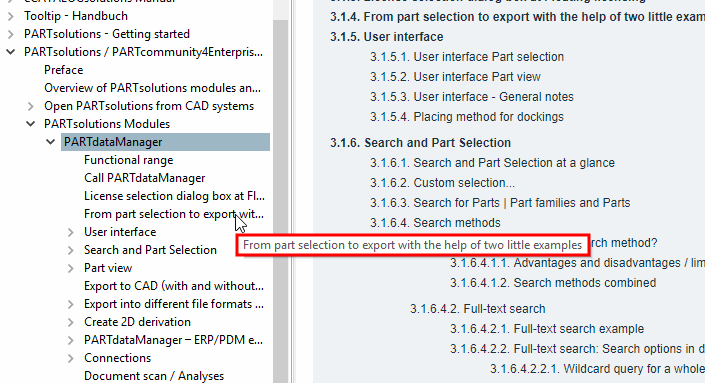
In the table of content, cut titles (recognizable by ...) are displayed in full length in the tooltip.
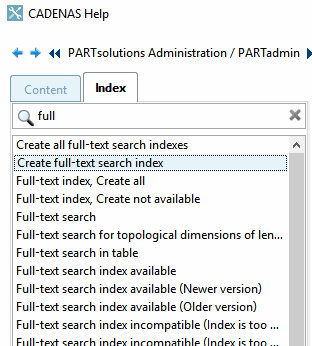
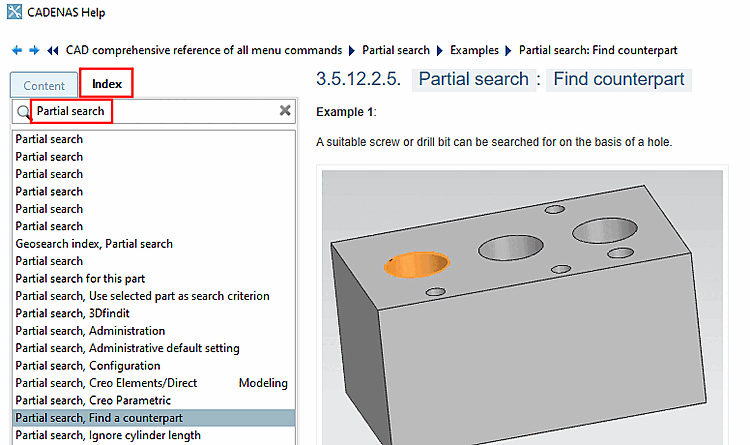
Select the Index Tabbed page on the left.
Enter a term. You will only receive results if the entered term appears exactly as it does in the index.
![[Note]](https://webapi.partcommunity.com/service/help/latest/pages/jp/partwarehouse/doc/images/note.png)
-> You will now see the corresponding index terms.
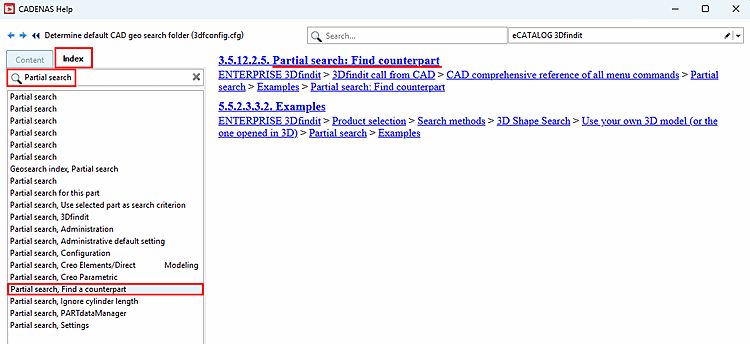
-> The search result is now displayed on the right.
![[Tip]](https://webapi.partcommunity.com/service/help/latest/pages/jp/partwarehouse/doc/images/tip.png)