
 |
The 3-D preview has been improved in many areas:[77]
The most important functions are now available in only one button toolbar in the 3-D area. If you move your cursor over a button, it changes from dimmed to full color.
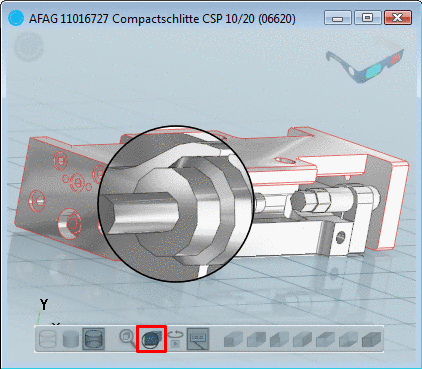
Turn the magnifying glass on/off via the button toolbar. It enables viewing details of the part.
The rules for the mouse function in the 3-D window, are the same as for the activated magnifying glass function.
For example, when holding down the left and right mouse buttons, you can move the magnifying glass across the part.
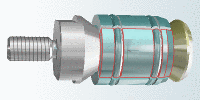
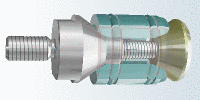
With the middle mouse button you can make the part transparent.
By holding down the shift key you move through the transparency.
Per default, the coordinate system is displayed at the bottom left.
With a pair of red-cyan glasses, you can see the part or assembly in a realistic three dimensional view.

[77] Detailed information can be found under Section 3.1.7.6, “ Docking window "3D view" ” in PARTsolutions - User manual.