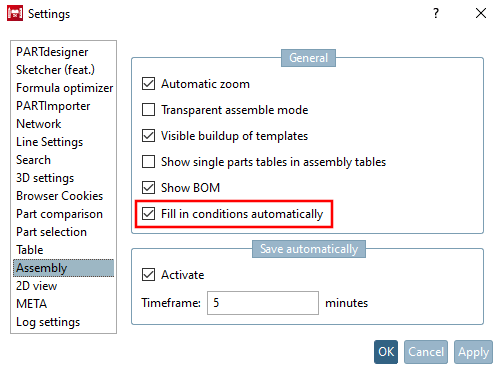
Conditions can be assigned to each component. A secondary mouse click on Conditions calls up the context menu command New condition and Insert condition.
![Call "New condition [New condition]"](https://webapi.partcommunity.com/service/help/latest/pages/jp/partsolutions_user/doc/resources/img/img_7772a26a9c4a488baf01f3541f9fbd17.png)
You can use Paste condition [Insert condition] to move a previously copied condition to the desired position.
The New condition context menu command opens the Condition properties window.
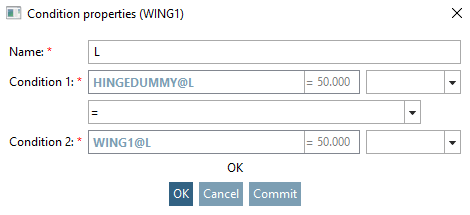
There, the variables (length, diameter, etc.) of the dummy start part (this contains the controlling table in the assembly) and the individual parts can be set to the ratios = , < , <= , > , >= , <> using operands.
![[Note]](https://webapi.partcommunity.com/service/help/latest/pages/jp/partsolutions_user/doc/images/note.png)
With the help of the Variable Browser [Variable browser] (see below) you can easily use the correct syntax.
Condition 1 = Condition 2 --------------------------------- SCHARNIERDUMMY@L = FLUEGEL1@LThe
entire expression in the Condition Properties [Condition properties] dialog box reads as follows:
The variable's "L" value of the dummy starter part "HINGEDUMMY" shall correspond to the variable's "L" value of the part "WING1".