

The button is displayed by default.
Via configuration file custom_config.json you have the
Ability to hide the button.
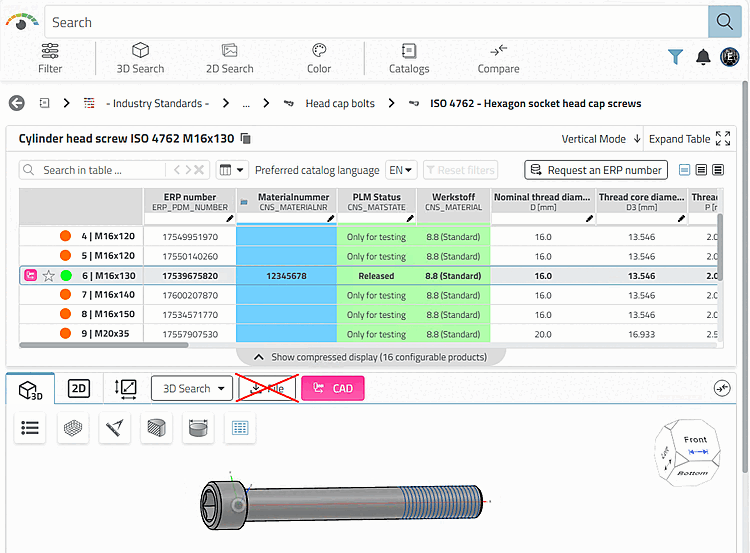
You can find the configuration file at ...libs\pappserver\webapps\3dfindit-enterprise.
Insert the line "showDownloadButton": false. The default is "true".
{
  "baseApiPath": "",
  "basename": "/webapps/3dfindit-enterprise",
  "erp": true,
  "startRoute": "CadBim",
  "isEnterprise": true,
  "showDownloadButton": false
}
Starting with version 12.14 Enterprise Patch 1, you can specify a display condition instead of “true” or “false.” This way, the is displayed only for specific ERP roles and/or specific catalogs. This works exclusively for the two parameters “erpRole” and “catalog.” For “catalog,” you can also subdirectories can be specified; subdirectories are automatically included. If both parameters are specified, the button is displayed only if the user has one of the specified roles and the component is located in one of the specified catalogs .
Example 1: Button Display only for specific ERP roles
"showDownloadButton": {
  "erpRole": ["role_1", "role_2"]
}
Example 2: Button Display only for specific catalogs or directories
"showDownloadButton": {
  "catalog": ["catalog_1", "catalog_2/directory_a"]
}
Example 3: Button Display only for certain catalogs if the user also has one of the specified roles
"showDownloadButton": {
  "erpRole": ["role_1", "role_2"],
  "catalog": ["catalog_1", "catalog_2/directory_a"]
}