|
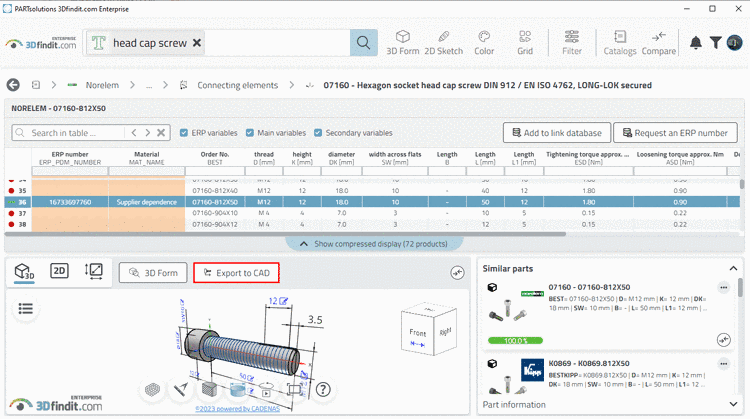
In this example a textual search shall be performed.
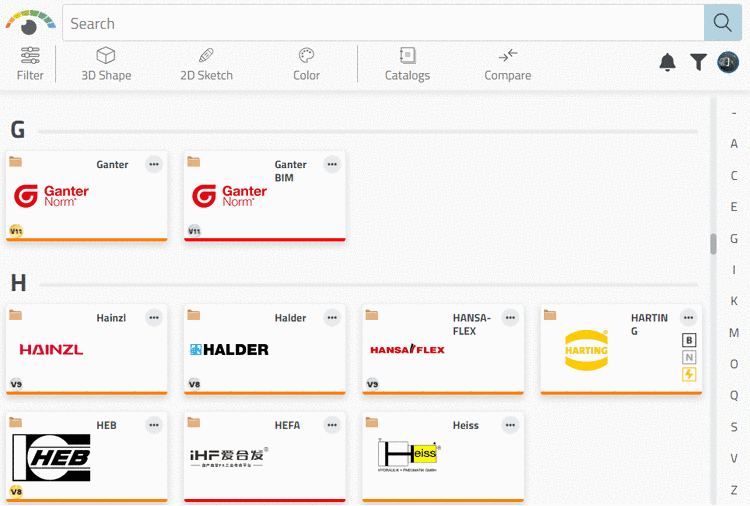
Open 3Dfindit by clicking on the respective icon
 in CAD menu.
-> 3Dfindit.com is opened in the catalog selection.
Once a catalog has been opened, on the left, an additional filter is displayed.
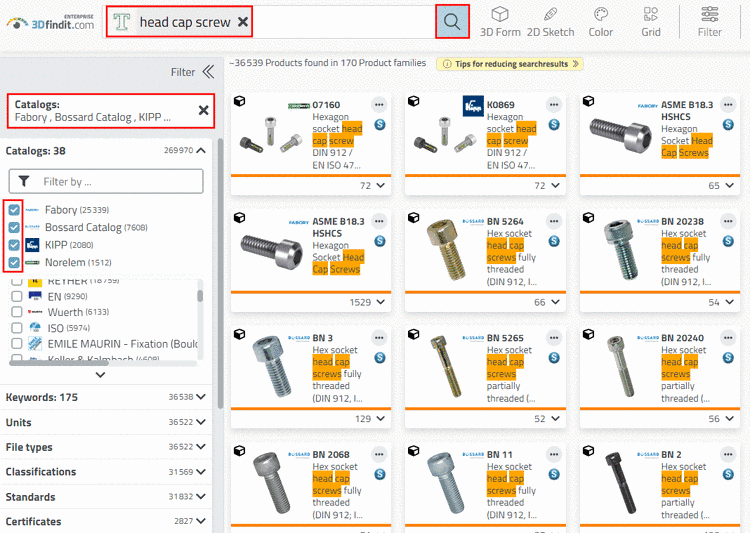
In the search input field, enter the term "Head cap screw". (If for example the article or ERP number is known, you can search with that as well.)
-> On the left, the dialog area Filter is opened.
For example, filter for catalog manufacturers.
-> With each change the search is immediately executed and the display adjusted.
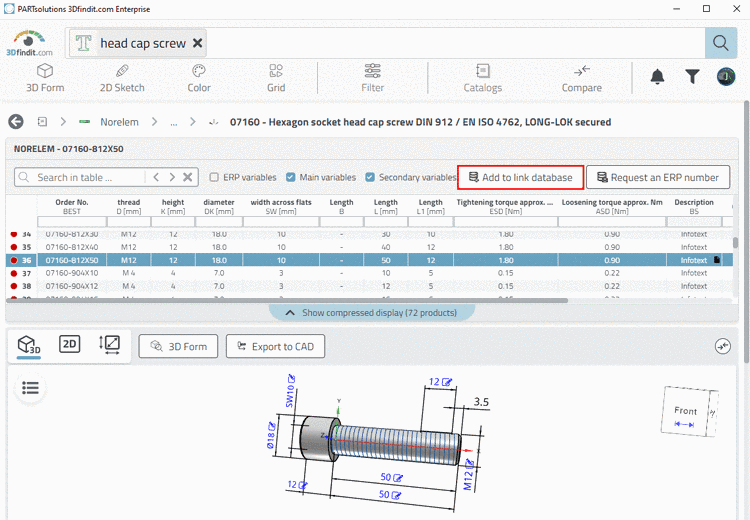
Open the desired part with a single-click.
-> Table and 3D view is opened.
Depending on the intended workflow an ERP number can be added.
For this, click on the command Add to link database.
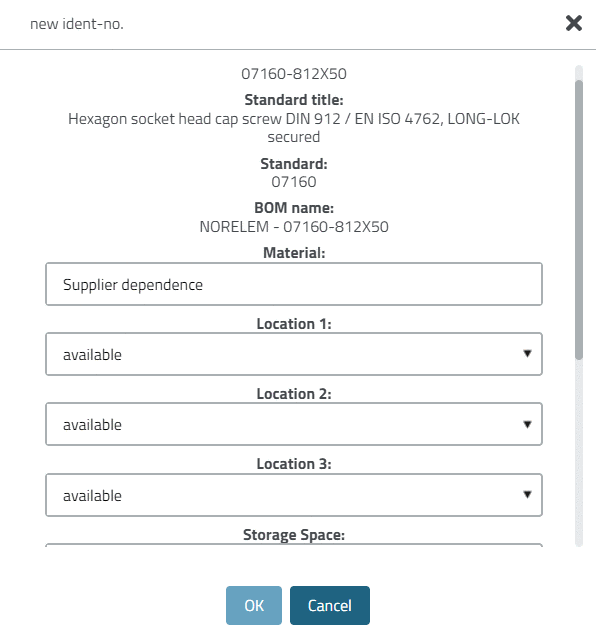
-> The respective dialog is opened.
In the list field, select the material and confirm with . (Die ERP_PDM_NUMBER is automatically generated [depending on the intended workflow].)