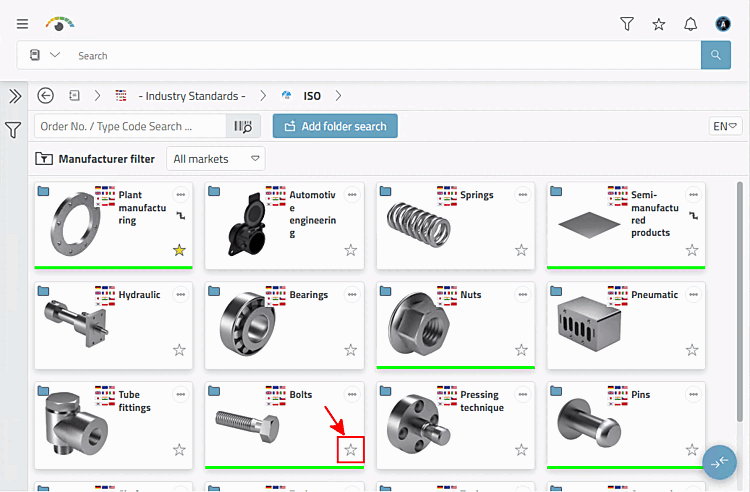
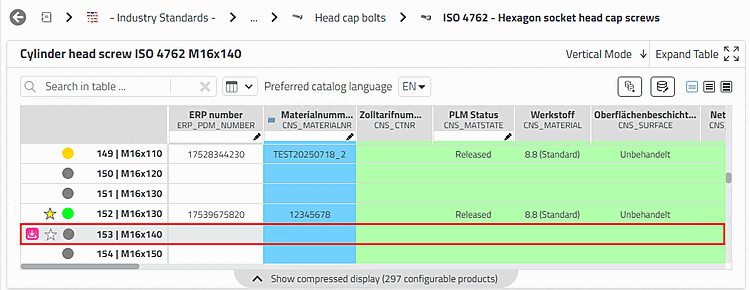
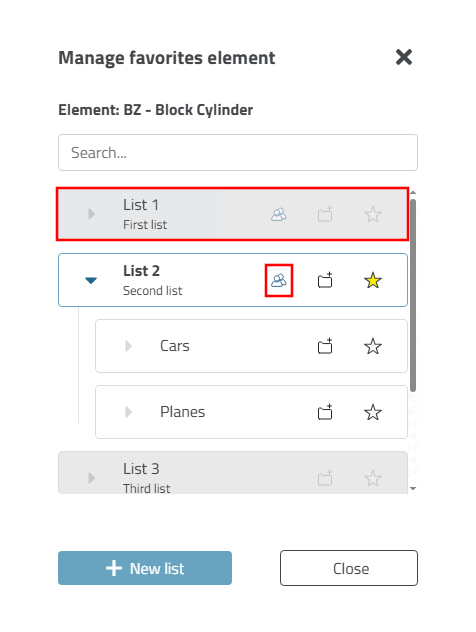
Click at any level (catalog, directory, part family, or Table row) to the desired unfilled star
 .
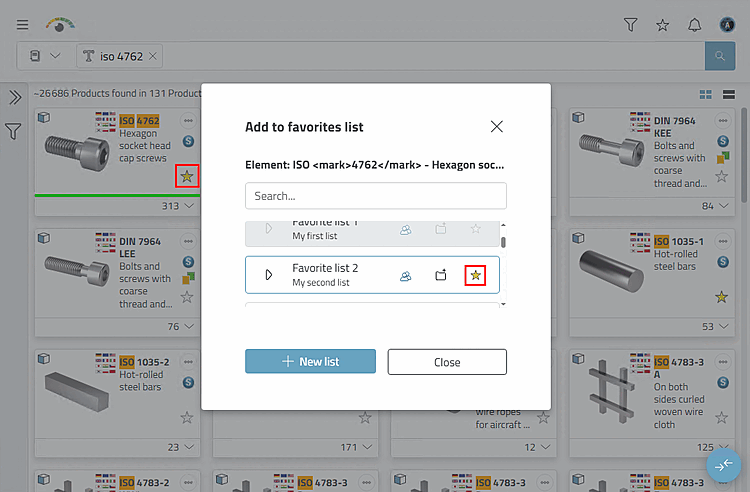
.-> The Add to favorites list window opens.
Here, for example, the ISO 4762 parts family has been marked as a favorite and assigned to the "List 2" list.
Select the star symbol in the desired list (or in several lists if necessary).
![[Note]](https://webapi.partcommunity.com/service/help/latest/pages/jp/partsolutions_user/doc/images/note.png)
Note Lists with read-only rights are grayed out. The star symbol cannot be selected in these lists. See also Section 8.2.3, “Create and organize favourites lists ”.
-> The Star is colored yellow
 .
.-> The desired element is now added to the favorites list.
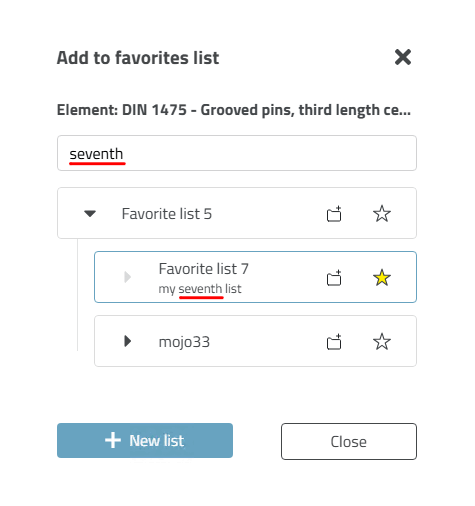
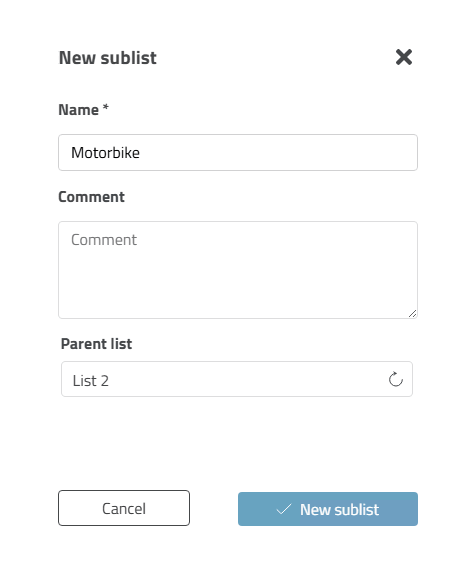
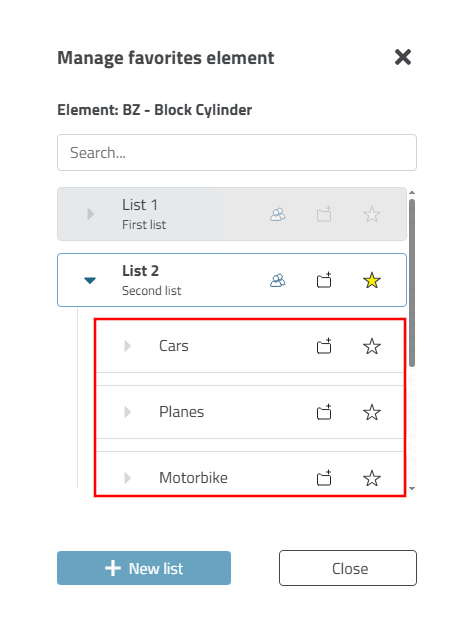
Optional you can click on the folder icon with the plus sign
 an intermediate step, a list or
sublist (and then the star symbol
Select).
an intermediate step, a list or
sublist (and then the star symbol
Select).-> The New sublist dialog box opens (example using a sublist).
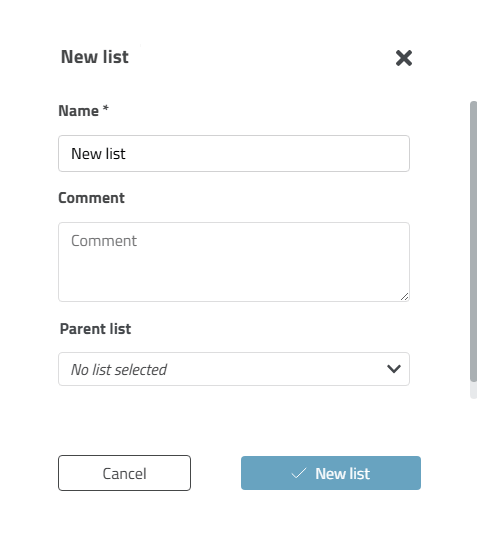
Optionally, you can create a new list by clicking on the button.
Enter the desired name and an optional comment in the New list dialog box.
When your actions are complete, close the dialog box by clicking on .
-> You and others can now open the favorite at a later time.