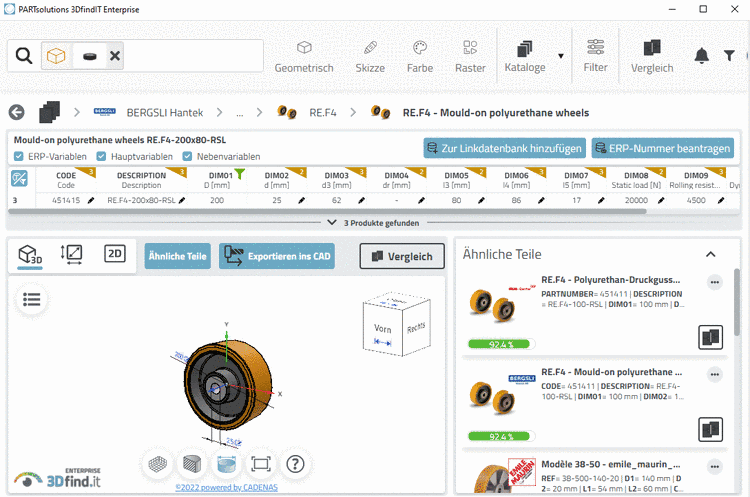
|
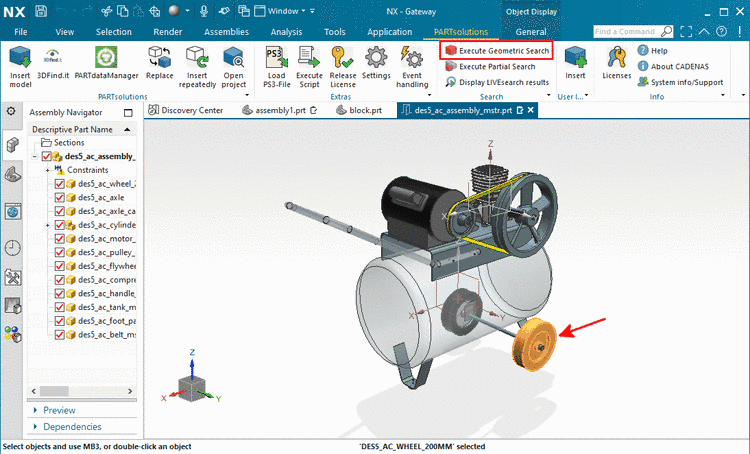
In the PARTsolutions menu (or toolbar) of your CAD system, click on Execute Geometric Search
 .
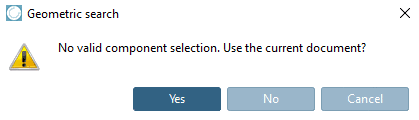
.In assemblies, at first select the desired part. Otherwise a query is displayed.
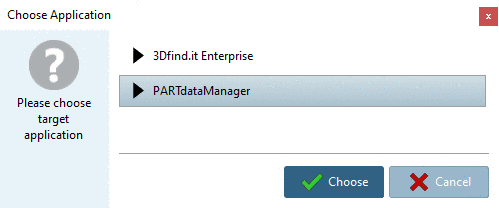
-> The dialog box Choose Application is opened.
Select either 3Dfind.it Enterprise or PARTdataManager and then click on . (Here in this example, PARTdataManager has been chosen.)
-> The focus switches to the chosen application.
-> A search is immediately executed.
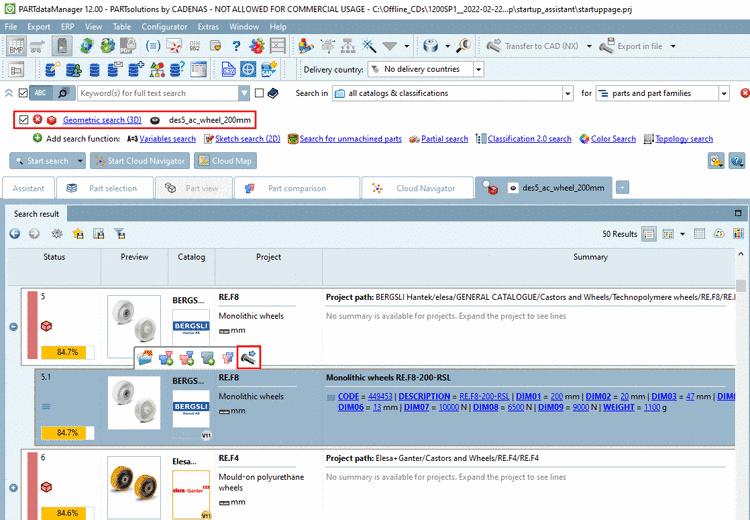
-> The active part is loaded under search function Geometric search (3D)
and enabled  . The corresponding preview image is displayed.
(Both may last a moment.)
. The corresponding preview image is displayed.
(Both may last a moment.)Select the desired part from the search results and click on the button .
Optionally, perform a Part comparison by clicking on Compare to search-part, for example.
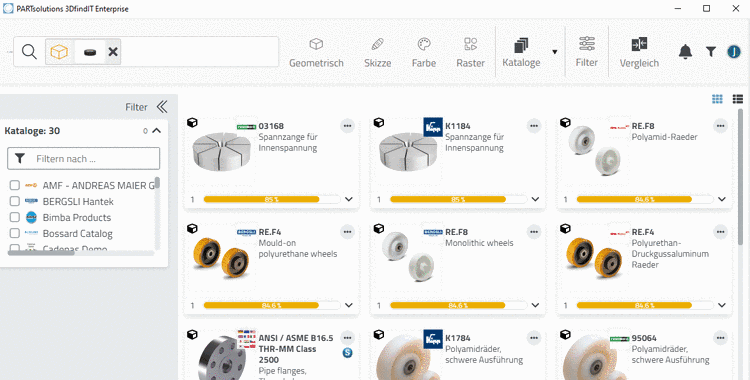
If you chose 3DfindIT, the process is the same in principle.
When opening a part, you can export it via .