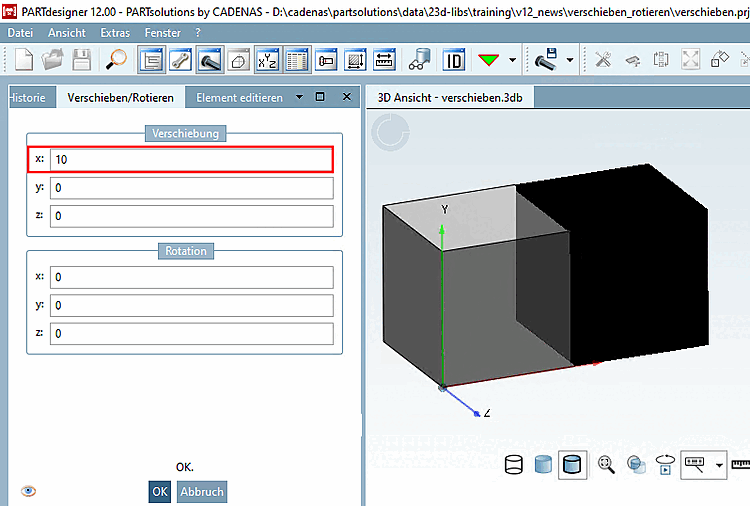
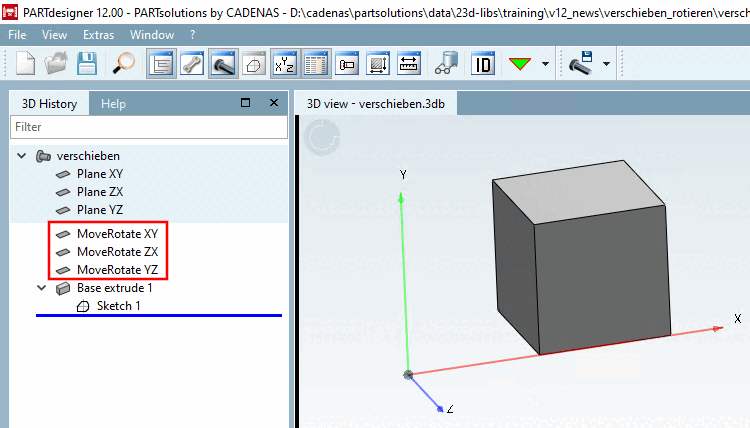
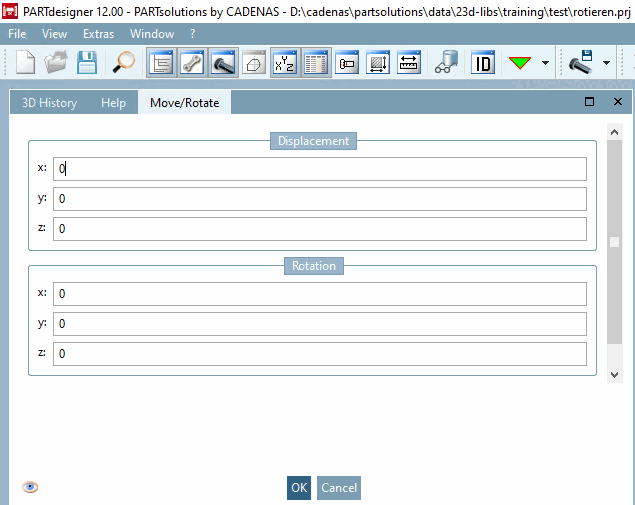
Click on Move/Rotate [Move/Rotate...]... the dialog area of the same name opens.
You can position the component accordingly in space by making entries under Shift [Displacement] and Rotation. The alignment of the coordinate system remains unaffected.
![[Note]](https://webapi.partcommunity.com/service/help/latest/pages/jp/partsolutions_user/doc/images/note.png) | Note |
|---|---|
When executing Move/Rotate [Move/Rotate...]... dependencies are created, so that there may be no simple "back". Please note the dependencies when deleting automatically generated plans.
| |
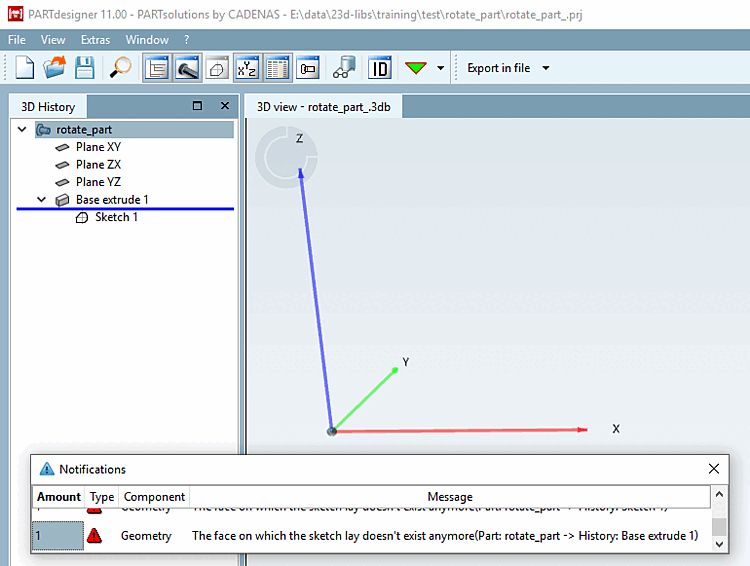
The use of Rotate may be related to a manipulation of the coordinate system ( PARTproject -> Edit project -> General tab -> General -> Coordinate axes ). See the following example.
Initial situation: Part modeled in eCATALOG 3Dfindit, "faulty" with Y-axis upwards.
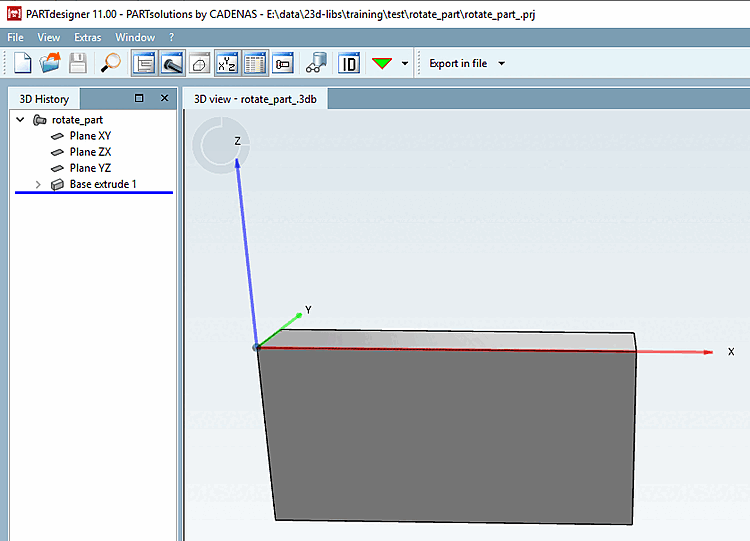
Requirement: The component should retain its horizontal position in space, but the coordinate system should be reoriented with the Z-axis pointing upwards.
The coordinate system is realigned in PARTproject via the Coordinate axes function so that the Z-axis points upwards and the Y-axis points backwards.
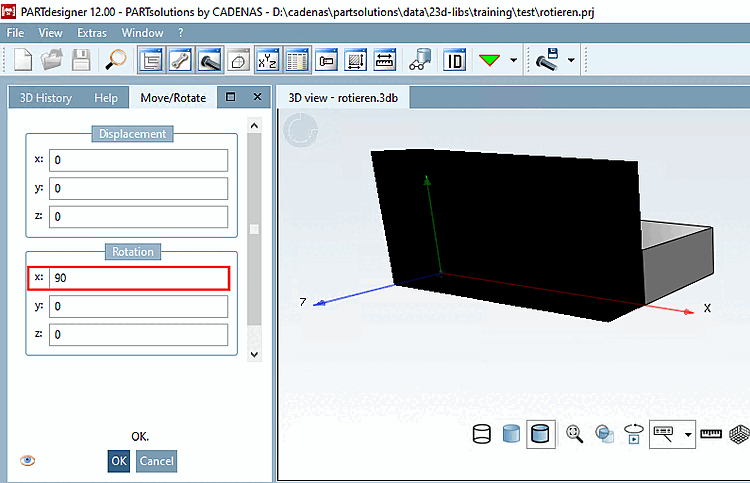
In PARTdesigner the component can be returned to its original position in space by rotating it [Rotate].
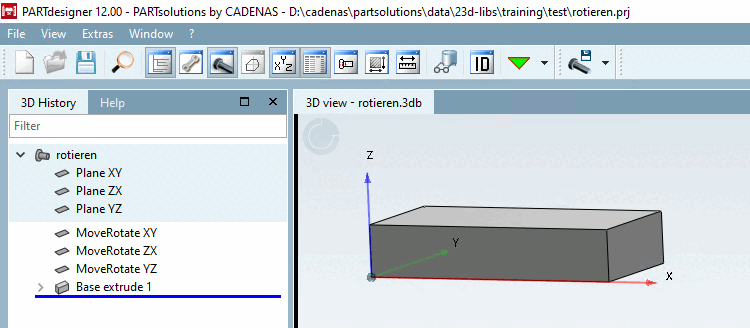
After applying rotation [Rotation] x: 90, the component appears in its original position again. Compare Fig. „Initial situation“.
Note Rotate in PARTdesigner only works with fully modeled parts and not with Q&S parts.
The alignment of Q&S parts can be manipulated in the project file. There you will find a string starting with
REF1@MATRIX. General: Calculate the rotation matrix and multiply the two matrices. There are help pages on the Internet for the calculation:http://danceswithcode.net/engineeringnotes/rotations_in_3d/demo3D/rotations_in_3d_tool.htmlorhttps://matrix.reshish.com/de/multiplication.php.The change is not in PARTdesigner but only in the PARTdataManager to see.
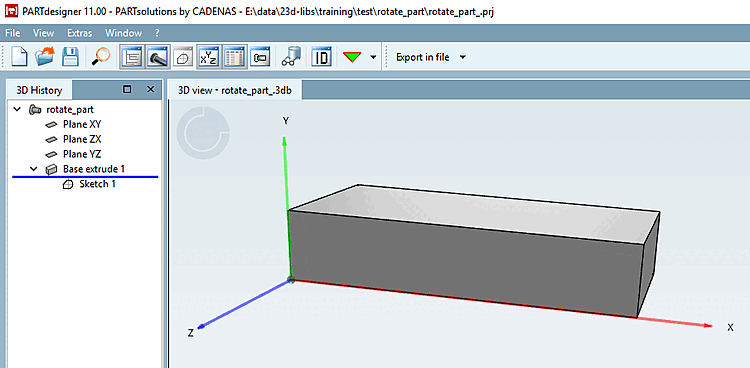
![PARTprojectfunction "Coordinate axes [Coordinate axes] "](https://webapi.partcommunity.com/service/help/latest/pages/jp/partsolutions_user/doc/resources/img/img_dc6c76da1ef34f87a51f3d65b995e40c.png)
| Note |
|---|---|
When executing Move/Rotate [Move/Rotate...]... dependencies are created, so that there may be no simple "back". Please note the dependencies when deleting automatically generated plans. | |
Depending on which setting you perform, the part is moved "in space":