1.5.7.2. Additional
information 1.5.7.2.1. Inventor:
"Replace" and "Partial Search" require preselected
elements
|  |
| Prev | Next |
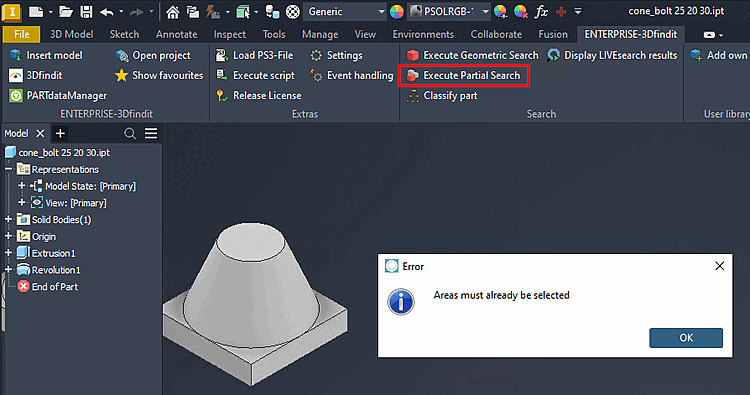
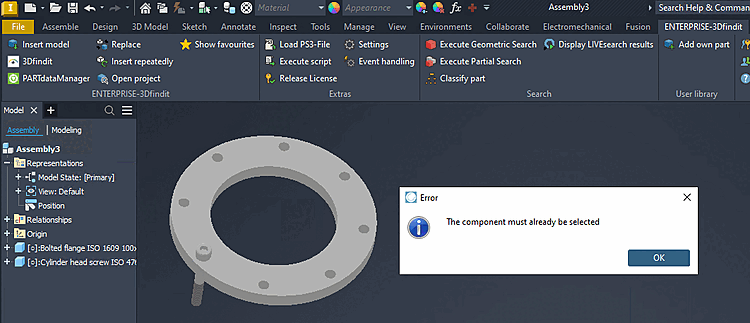
Functions such as Replace [Replace] and Partial Search [Partial search] now work exclusively with elements that have already been preselected in Inventor. If no preselection exists, a corresponding error message is displayed.
If you select " Replace with Selected Component," the process proceeds as usual; otherwise, a corresponding error message appears. For details on the Replace function, see Section 1.6.6, “ Replace ”.
Example Partial Search [Partial search]:
If no feature is preselected in Partial Search [Partial search], an error message appears.
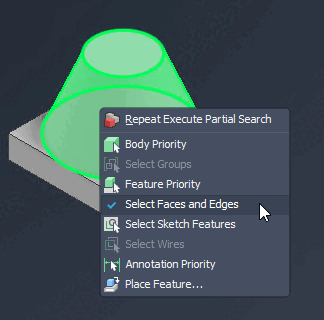
To preselect faces or edges for this function, use SHIFT + right-click in Inventor. Enable "Select Faces and Edges."
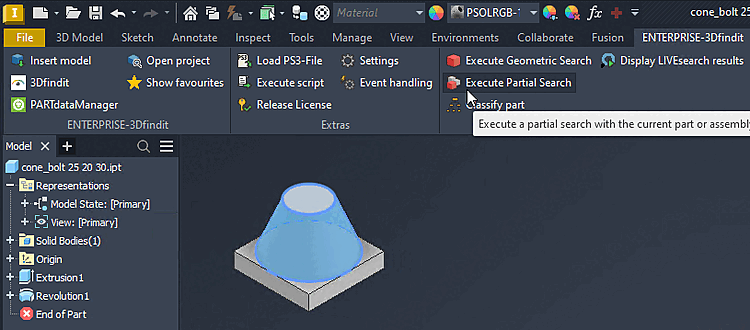
After that, you can select a face or edge and launch the Partial Search [Partial search].
For details on partial searches [Partial search], see " Section 3.5.12, “ Perform a partial search ” in ENTERPRISE 3Dfindit - User."