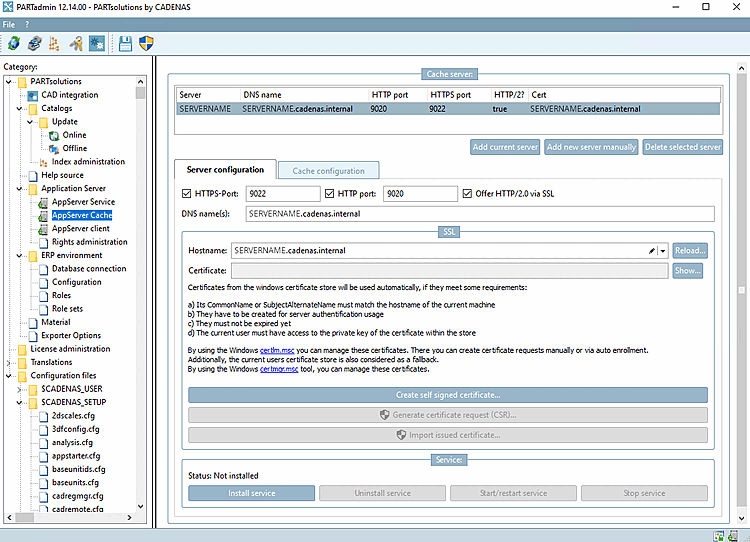
Start You can use the PARTadmin (
padmin.exein the directorybinof installation).Switch to PARTadmin's elevated mode (the shield icon in the toolbar). Elevated mode is required because the service must be installed and, if necessary, certificates must be requested or generated.
Log in remotely using the "Change User " option in the toolbar with the admin user (the user with the profile " appserver-admin"). You must initially log in as a user who is authorized to view all settings — users without AppServer admin privileges cannot see the configuration options.
Navigate to the " Application Server [AppServer Service] > AppServer Cache" entry.
Click " Add current Server" to add the current server as a cache server, and then select it from the list.
Go to the Tabbed page for Server Configuration [Server configuration] and click Install Service.