

!["Start search [Start search]" or "Cloud Map [Cloud Map]"](https://webapi.partcommunity.com/service/help/latest/pages/jp/partsolutions_admin/doc/resources/img/img_9fbfb78b3d934aa5ad69afb0ec1a119e.png)
The quality of search results is independent of the chosen mode.
When you click , the search results are displayed below on the Search results tab page.
Detailed information can be found at Section 2.1.6.7, “ Search results ”.
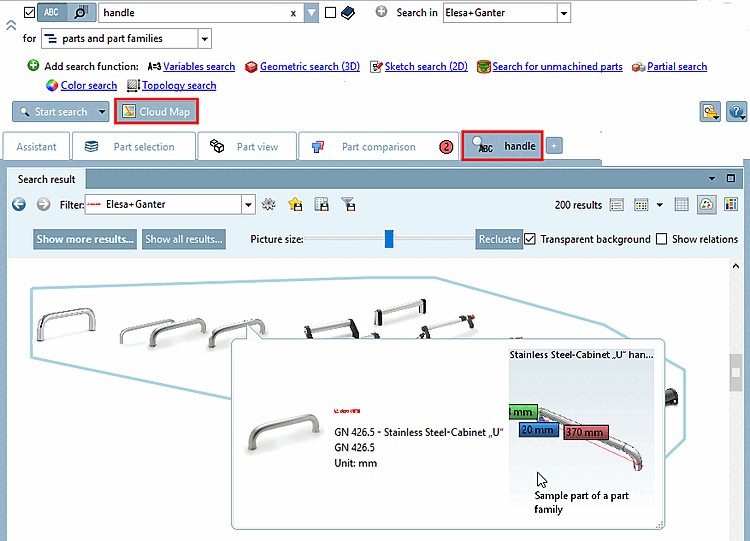
If you click , the search results are displayed below on the Search results tab page in Cloud Map mode
 mode.
mode.The Cloud Map search and display offers the following features:
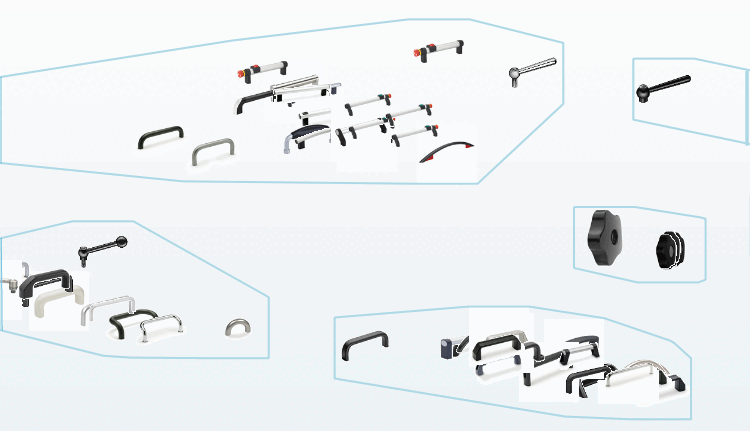
Geometrically similar parts are closer together than dissimilar parts.
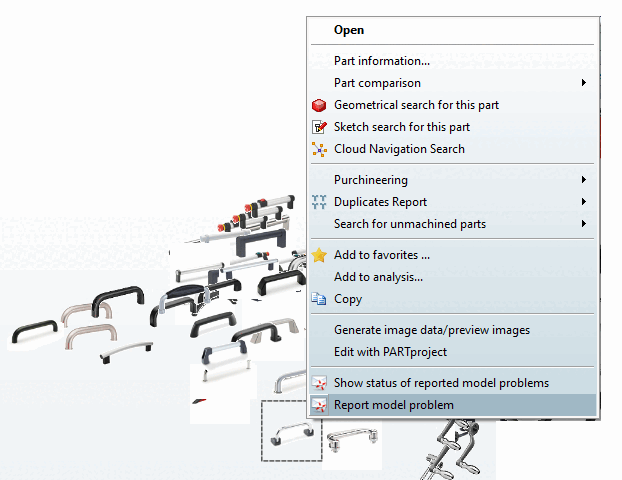
This gives you a quick overview of the search results and, if necessary, you can specify the search in a further step using the context menu.
Clicking on a part (graphic) displays a tooltip with part information on the standard number and standard designation, as well as a 3D representation.
A toolbar with additional functions is displayed above the cloud map:
Image size [Picture size]: Adjust the image size using the slider.
: After clicking on the button, the similar parts are grouped together with a blue frame.
Transparent background: Switch off the transparency if graphics overlap and you want to focus on a selected graphic.
Show relationships [Show relations]: If you activate the checkbox, relationship lines based on textual matches are displayed. Geometric and textual information does not necessarily have to match.
![Search results with "Symbols [Symbols] " display option](https://webapi.partcommunity.com/service/help/latest/pages/jp/partsolutions_admin/doc/resources/img/img_6331bc1feab24af0905bbf557e4fca62.png)
![Show relationships [Show relations]](https://webapi.partcommunity.com/service/help/latest/pages/jp/partsolutions_admin/doc/resources/img/img_99ef10ff45bf459b92b5c657729c2da5.png)