
5.17.4.
Catalog Update with ERP Integration - Cloud Catalogs
Enable and Update (via Dashboard) 5.17.4.5. Check
assignments in the Update Manager |  |
| Prev | Next |
After the
Update, whether by hand or via the task, check the assignments in the
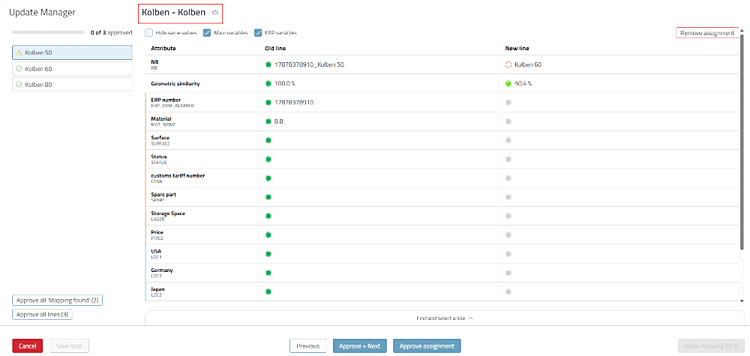
Update Manager [Update manager]. The operation is the same
as for locally installed catalogs, see Section 5.17.3.1.3, “Processing in Update Manager (Overall Process)”. For cloud catalogs, a cloud icon
 next to the project name, that the data from the
cloud servers.
Open the Update Manager [Update manager] by selecting the project in question, click the status icon, e.g.
 assignment must be verified
. [Mapping needs verification]
Confirm discontinued products by selecting " ."
-> The Product is used with
 product is
Leaked [Product expired] excellent.

In special cases, such as when a project has been split or merged with another, assign a line manually using "; see Section 5.17.3.1.3, “Processing in Update Manager (Overall Process)”.