

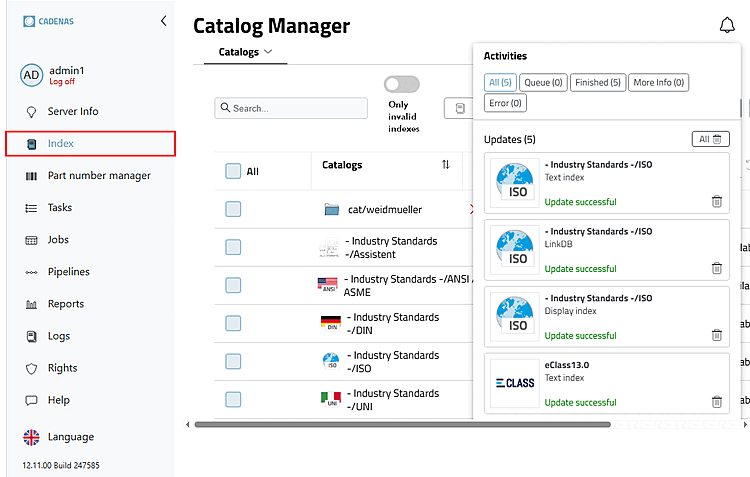
You can update both catalogs and classifications in the Index dialog area.
![Index > Tabbed page "Classifications [Classifications]"](https://webapi.partcommunity.com/service/help/latest/pages/jp/installation_ecatalogsolutions/doc/resources/img/img_c618832c55d7489bbbc2c11a0b97ec58.png)
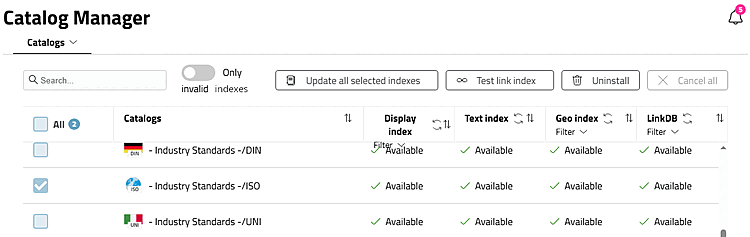
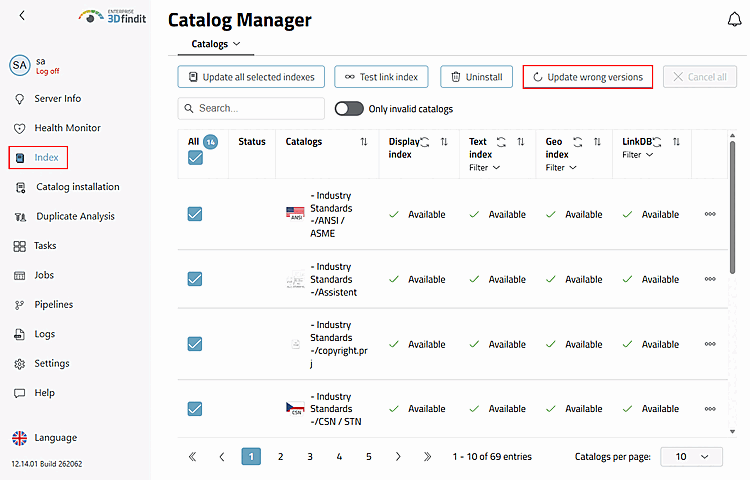
Only invalid indexes: Execute action only for catalogs with invalid indexes
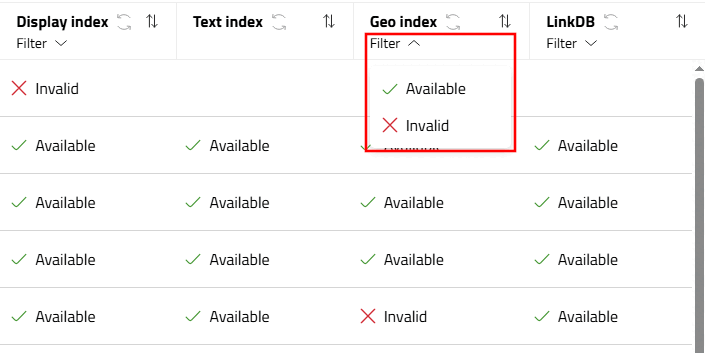
Filter: Filter specific index type by e.g. Available | Invalid (depending on the situation also others such as In Progress )
If the checkbox at the beginning of the line is activated and then the Update all selected indexes button is clicked, all index types of the respective catalog or classification are updated.
Test link index: See Section 1.4.3.6.6.7, “ Check link index ”.
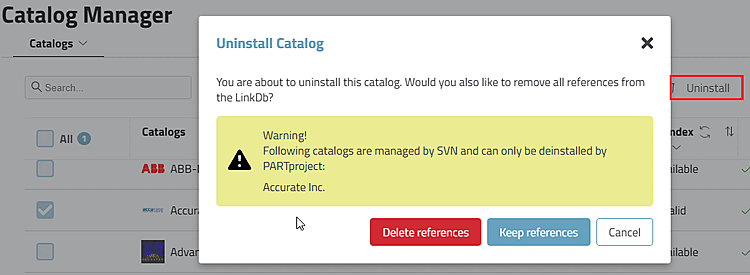
If the action is not possible (for example, because it is an SVN catalog), a red warning triangle is displayed in the activities dialog and/or a corresponding message is displayed.
If multiple versions of a catalog are installed, you can use the dashboard to uninstall the most recently installed version. The catalog remains in its previous version. This is helpful if, after a catalog update, ERP mappings are incorrect or the new catalog version is defective. In contrast, “Uninstall” removes the entire catalog.
Why is the function needed? The version number of a Project is available in both the project file (
verhist.cfg) and the LinkDB ( Version column). Switches If the two entries differ from each other, the project cannot be displayed in the 3Dfindit / PARTdataManager . The export is then locked, and the displayed material numbers are may not be correct. Such a deviation can be caused by e.g. Deletion and reinstallation of a catalog arise.The " Update wrong versions " command corrects the entry in the LinkDB.
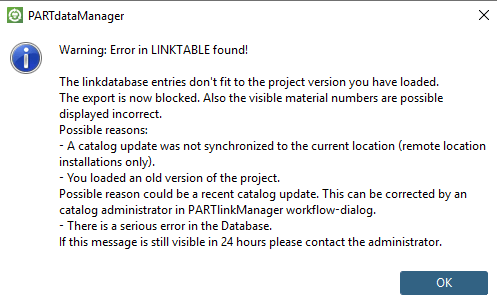
In PARTdataManager, you can identify the error by the following error message:
You can correct incorrect version numbers in a catalog directly in the dashboard . This command is equivalent to the "Correct Version Numbers [Correct version numbers] " command in the PARTlinkManager's Update Manager [Update manager]. It is not normally required, but is used only for troubleshooting.
To correct the error, follow these steps:
During the correction run, variables that may have changed are also adjusted to match the MIdent. Edited lines are recreated in the LinkDB with the correct version number.
For more information about this command in Update Manager [Update manager], see " Section 5.17.4.3.2, “ Correct version numbers ”
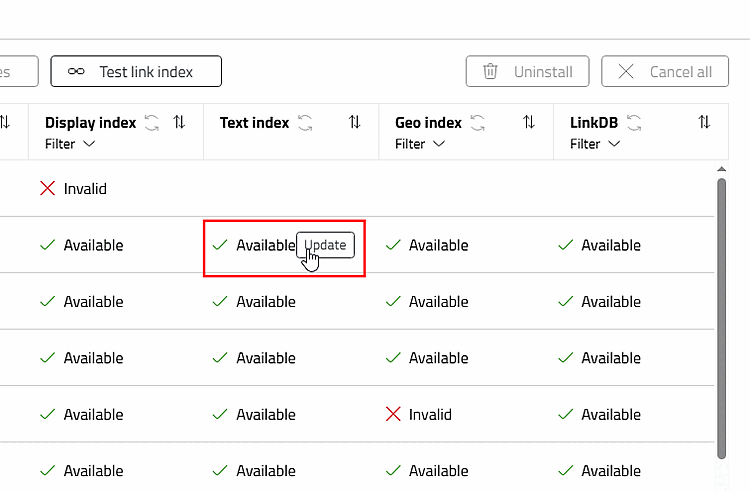
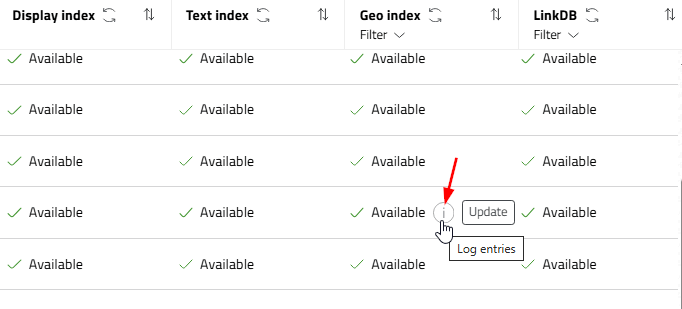
Update specific index (display, text, geo or LinkDB)
Move the mouse over the desired index and click on Update.
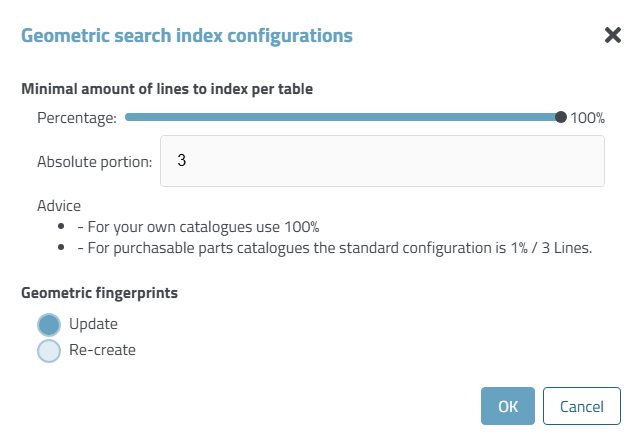
When the geometric index is updated, the Geometric search index configurations dialog box also opens.
Minimum number of rows to be indexed per table [Minimum number of lines to index per table]
Percentage share [Percental fraction]
A high percentage value increases the calculation time for large tables.
Absolute share [Absolute fraction]
To ensure that a sufficient number of rows are indexed even for small tables, enter the absolute proportion.
Calculation example 1: 10 lines, percentage share [Percental fraction]: 10, absolute share [Absolute fraction]: 3 -> 3 lines are generated
Calculation example 2: 10 lines, percentage share [Percental fraction]: 20, absolute share [Absolute fraction]: 1 -> 2 lines are generated
The larger of the two values is therefore always used. The time for generating and the storage space for the fingerprints on the hard disk is roughly proportional to the number of lines.
If only new components have been added and no components have been changed, Update is sufficient.
Create new [Create from scratch]
With a CIP installation, there is no need to recreate the geometric fingerprints. These are always present in catalogs delivered by CADENAS (with 1% share! [see above]).

 Notifications: With
Clicking on the icon in the page header opens the Activities dialog box. Here you will find ongoing and
already completed activities are displayed.
Notifications: With
Clicking on the icon in the page header opens the Activities dialog box. Here you will find ongoing and
already completed activities are displayed.

Notifications via table icons: There are a number of icons with additional information. Click on the icon to see the notification text.
 Update: Click on the icon in the
Column headers, all indexes of the respective type are updated. Attention:
This can take time, especially with the geo-index.
Update: Click on the icon in the
Column headers, all indexes of the respective type are updated. Attention:
This can take time, especially with the geo-index.
![[Note]](https://webapi.partcommunity.com/service/help/latest/pages/jp/installation_ecatalogsolutions/doc/images/note.png) | Note |
|---|---|
New installations and updates of catalogs and classifications are carried out in PARTadmin under category PARTsolutions > Catalogs > Update > Online. See Section 1.4.3.1, “ Catalog update Online ”. | |