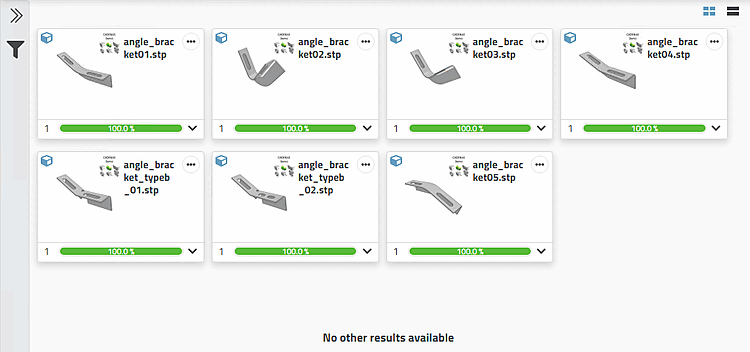
Choose the search part for the partial search.
You can load this in various ways:
-> In any case, the part is opened in the settings area of the same name.
Switch to the tab page
 Partial
Search [Partial search].
Partial
Search [Partial search].
(You can also upload a part from the file system here by clicking on ).
Select one or multiple features of the part (here 4 features of a slotted hole).
-> All parts including the marked features of the slotted hole will be found.
Click on the icon of the displayed method in the search bar at the top.
In addition, select the features of the second slotted hole.
-> Now only 2 result parts are found, as the position of the single features is also considered.