


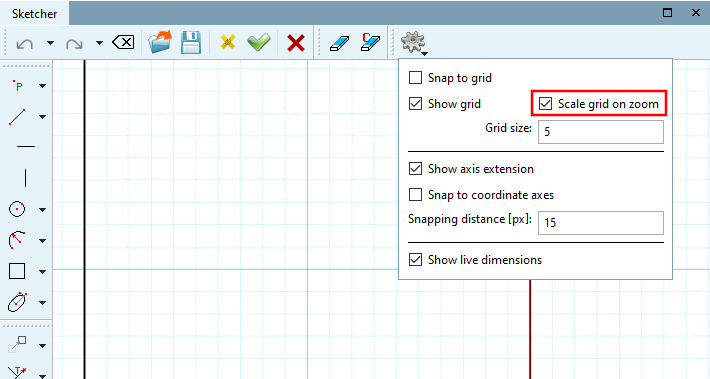
With V12, there are various new functions in Sketcher, which are summarized under the icon  Quick settings icon.
Snap to grid: This allows elements to be placed quickly and precisely.
If, for example, a line is drawn, start and end point are automatically placed on intersections of grid lines. A placing between grid lines can only be achieved with option turned off.
Special case for circles and angles:
"Snap to grid" is activated here under PARTdesigner -> Settings [Settings...]... -> Sketcher (hist.) [Sketcher (feat.)] -> Grid -> Scalar parameters. If the width is set to 5, for example, the circle radius will snap to multiples of 5, regardless of the direction in which you move the mouse.
Scale when zooming [Scale grid on zoom]:
If the option is activated, the rasterization is automatically scaled by a factor of 10 when zooming in from a certain point. Compare the following two illustrations. If the Snap to grid option is activated, this option is automatically deactivated, as snapping to "wrong" points is not desired.
Display axle extension [Show axis extension]:
In PARTdesigner -> Tools menu [Extras] -> Settings [Preferences...]... -> Sketcher (hist.) [Sketcher (feat.)] -> Color settings -> Axis extension the color of the axis extension can be set.
Snap to coordinate axes [Snap to coordinate axes]: If, for example, Snap to grid is switched off but this option is activated, a line is strictly oriented to the coordinate axes, whereby the length remains free in contrast to Snap to grid.
Snap-in distance [Snapping distance] [px]: Default value is 25
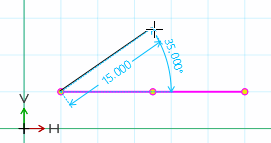
Show auxiliary dimensions [Show live dimensions]: When drawing lines and angles, auxiliary dimensions such as line length, angle between lines or circle diameter are displayed.
In PARTdesigner -> Tools menu [Extras] -> Settings [Preferences...]... -> Sketcher (hist.) [Sketcher (feat.)] -> Color settings -> Auxiliary dimensioning [Live dimensions] the color of the auxiliary dimensioning can be set.




![Axle extension [Axis extension] on (default)](https://webapi.partcommunity.com/service/help/latest/pages/jp/installation_ecatalogsolutions/doc/resources/img/img_60be453de5cb4fd081f53f6621101aa5.png)
![Axle extension [Axis extension] off](https://webapi.partcommunity.com/service/help/latest/pages/jp/installation_ecatalogsolutions/doc/resources/img/img_cdbc09e7f4094d2d873c4f47c865e1ea.png)


