

The Update Manager [Update manager] guides you through the check line by line: You confirm or change the assignment for each project line and do not apply the assignment until all lines have been processed.
On the left, all lines in the project are listed one below the other. Each line displays an icon indicating its status, and above it, a bar shows the overall progress, e.g., “0 of 3 approved.” Click “Approve all ‘Mapping found’” to approve all lines for which a mapping was found at once; “Approve all lines” approves all lines. The number of lines affected is shown in parentheses.
Comparison View (Main View): The old line (“Old line”) and the suggested new line (“New line”) are compared attribute by attribute. Use the “Hide same values,” “Main variables,” and “ERP variables” checkboxes to specify which attributes are displayed.
Selection view: Here you can select a different line, even from a different project. See " ."
: You do not have to complete an assignment in a single session. With "Save Local," you can save your current progress locally in the browser and continue editing later. The button becomes active as soon as you have modified and confirmed an assignment.
: As soon as a save file is available, this button appears. Use it to reset the assignment to the last saved state.
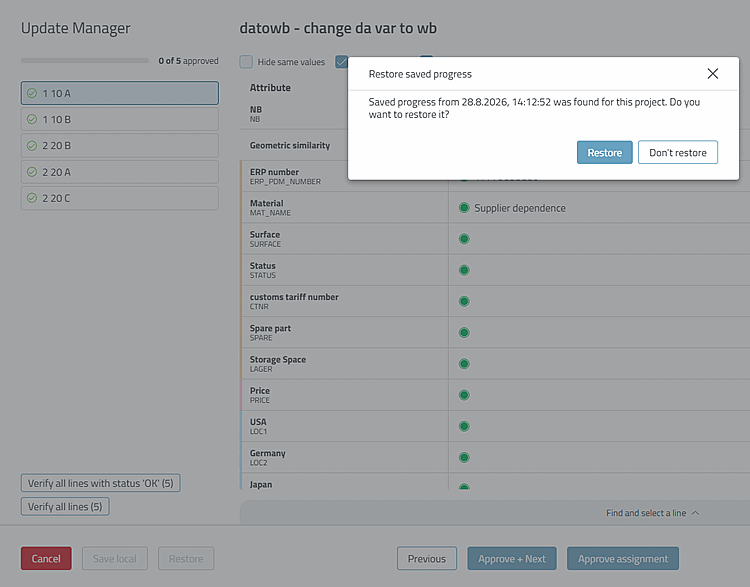
When you open the Update Manager [Update manager] for a project with saved progress, the " Restore saved progress" dialog asks if you want to load the saved progress. If you select ," it remains saved, and you can load it later by selecting ."
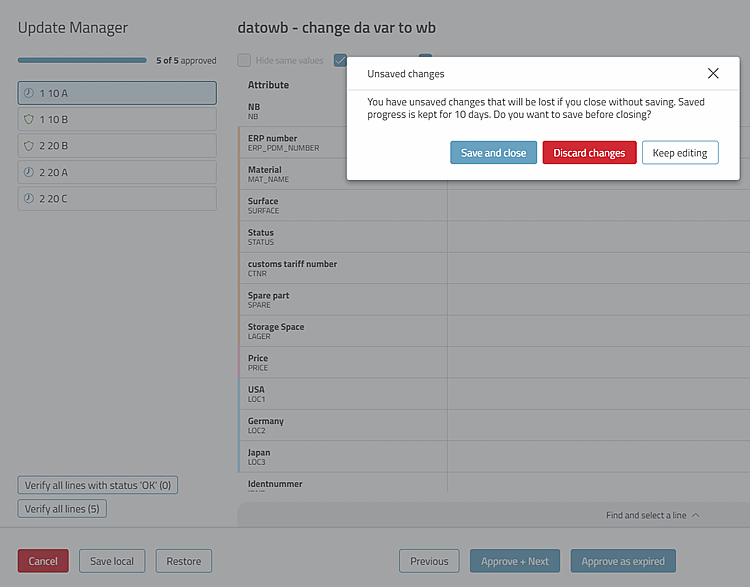
If you close the Update Manager [Update manager] by clicking " " while there are unsaved changes, the " Unsaved Changes" dialog box appears. There, select " ," " ," or ."
Save states are automatically deleted after 10 days and after a successful . If the browser's memory is full, you can delete older save states in the " Saved Projects " dialog. A save state also expires as soon as a new version of the catalog is installed.