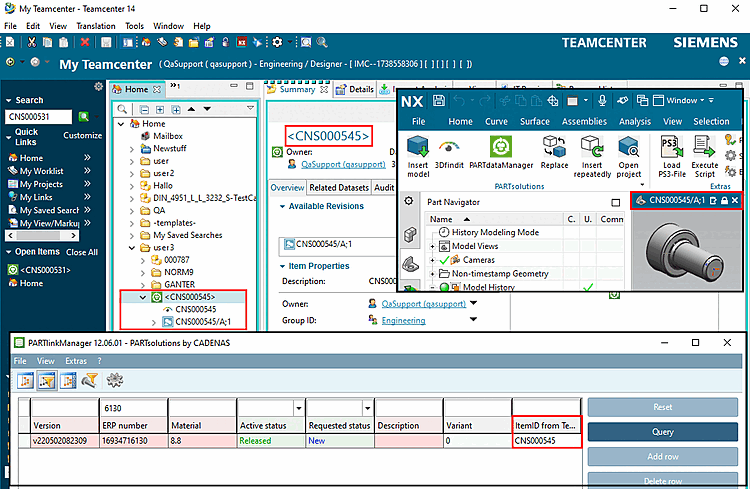

Return Mapping is used to display PDM information in 3Dfindit.
Certain values are returned by the PDM to the LinkDB.
Example (using Teamcenter): The ItemID of the created part should be returned to the LinkDB column TC_ITEMID.
You can find the specific placeholders available in the sections on the respective PDM system.
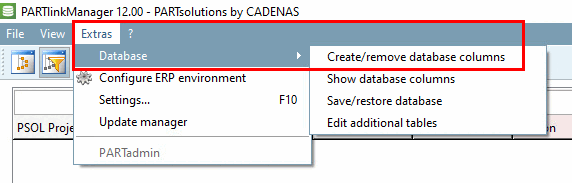
Open PARTlinkManager -> Tools menu -> Database -> Create/Remove Database Columns.
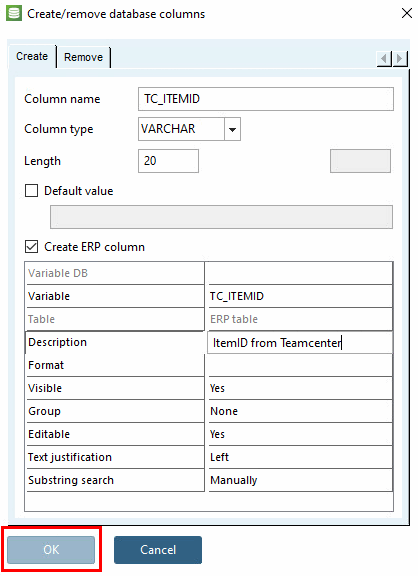
Create a new column TC_ITEMID in the ERPTABLE of the LinkDB (example for Teamcenter).
Select the option "Create ERP Column" .
For details on creating database columns, see " Section 5.3, “Add / remove database columns ”." Section 5.3, “Add / remove database columns ”.
Make sure that the following two keys are enabled.
[AttributeMapping(is3d)]
Attr_Content_00=LINKDB_RETURN_MAPPING
Attr_Section_00=LINKDB_RETURN_MAPPING
Add the key "ERPTABLE.TC_ITEMID" with the supported value "%TC_ItemId%" in the following section.
[LINKDB_RETURN_MAPPING(is3d)]
ERPTABLE.COLUMNNAME=<specific_placeholder>
Open PARTdataManager to test the export.
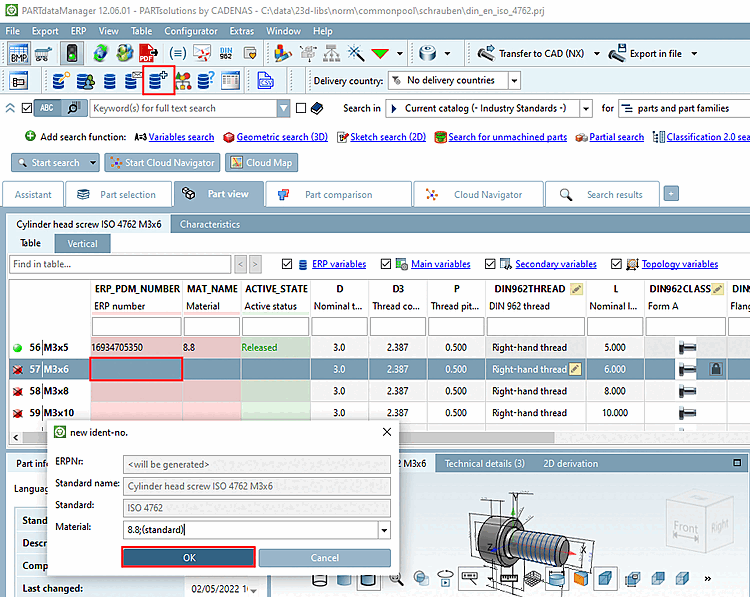
Before you export a new part, you must assign an ERP_PDM_NUMBER to the part you want to export.
Select the desired row and click on the
 add record to the link database.
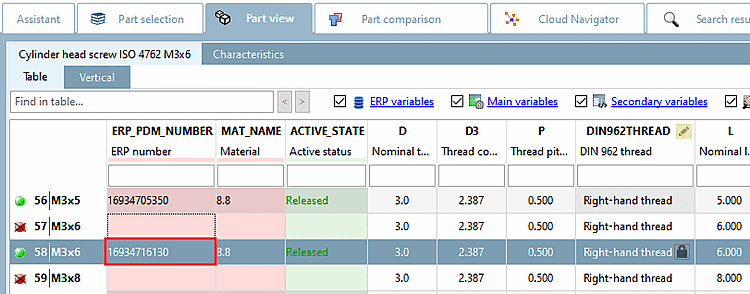
Check the result in PDM, CAD, and PARTlinkManager.
For information on how to make added columns visible in the PARTdataManager, see Section 5.7.5.1.6, “ Columns to be displayed - plinkgroups.cfg -> Block [Role_name] -> Key "VARSUSED / VARSHIDDEN" ”