

The following applies to Vault 2022 & 2023
(Tests conducted in BINwin10x64_EN_VAULT_2023 - 10.13.18.44)
Inventor project files are located not only in the main directory ("C:\CADDATA\VaultPrj2023"), but also in subfolders.
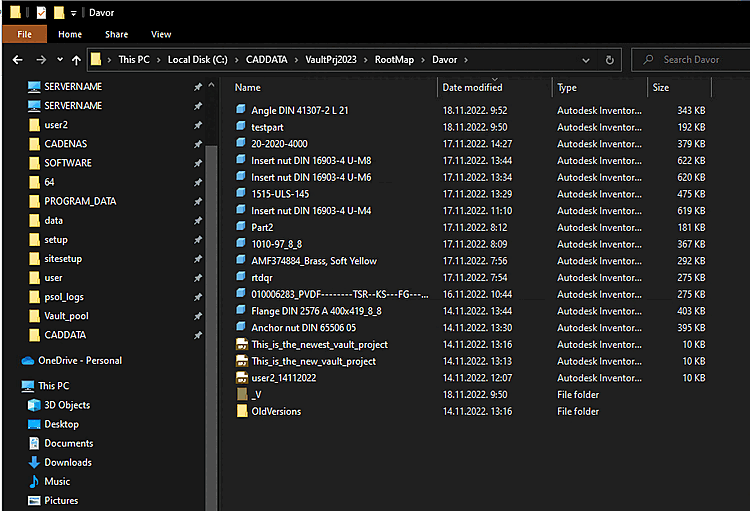
Login from Inventor to Vault and/or automatic login to Vault from Inventor:
After the CAD model is generated, the Vault save dialog box appears.
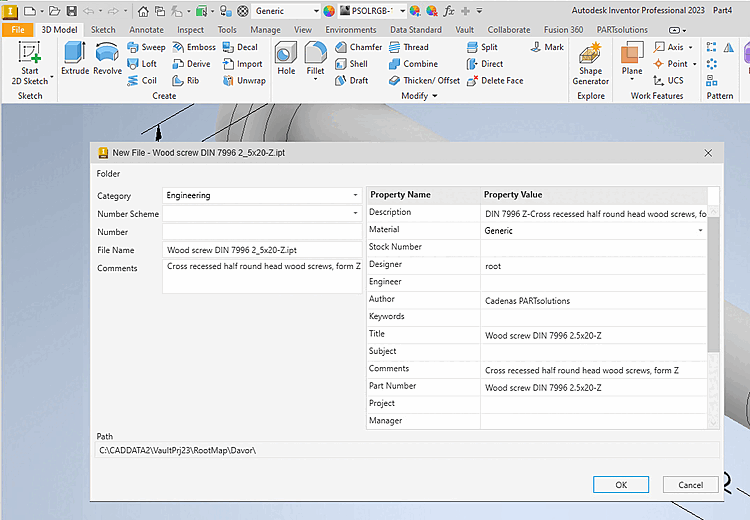
As a result, the CAD file is not saved in the correct pool path, and the Vault API cannot upload it.
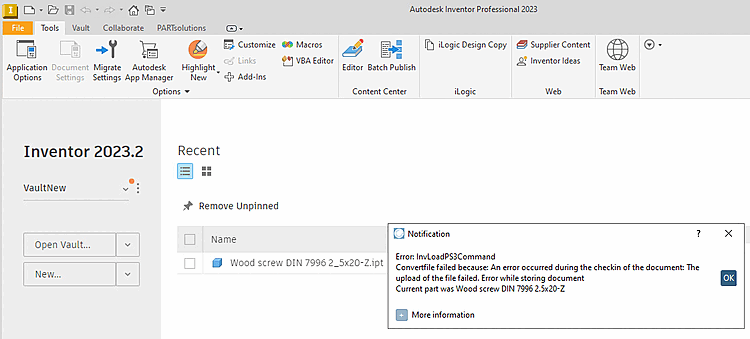
Create a new Inventor environment:
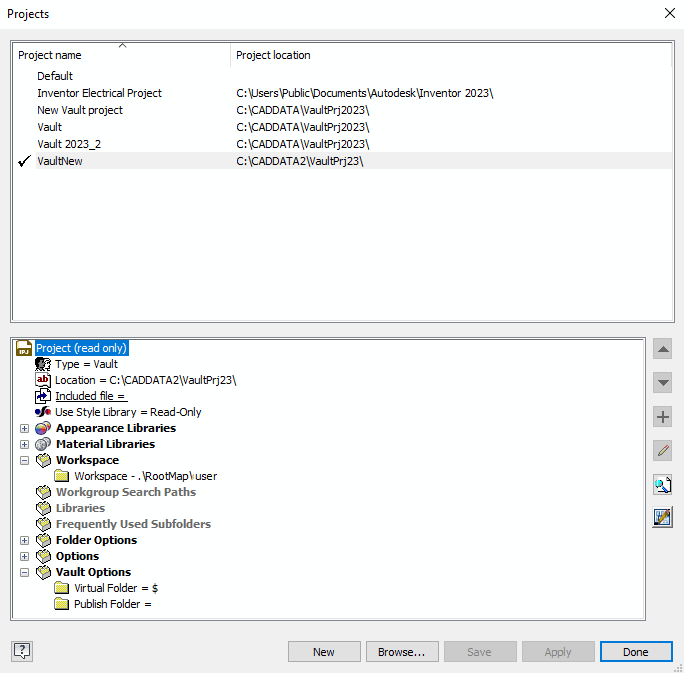
New directory "C:\CADDATA2\VaultPrj23" containing only one project, "VaultNew" (explained below).
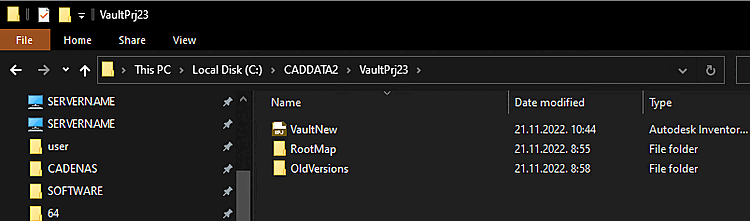
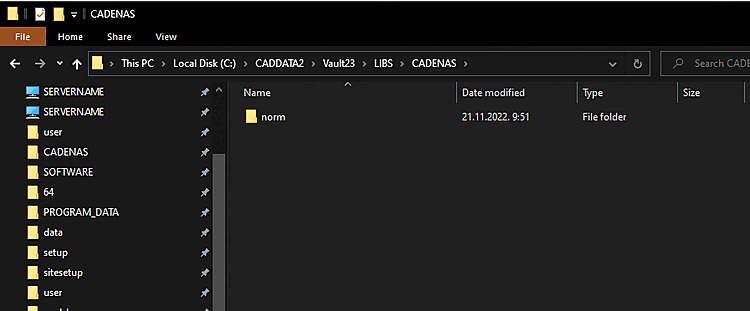
New Directory "C:\CADDATA2\Vault23\LIBS\CADENAS" for the CADENAS pool path.
Create a new project for this environment.
The following add-ins are enabled: 3Dfindit, Inventor Vault, Vault Data Standard.
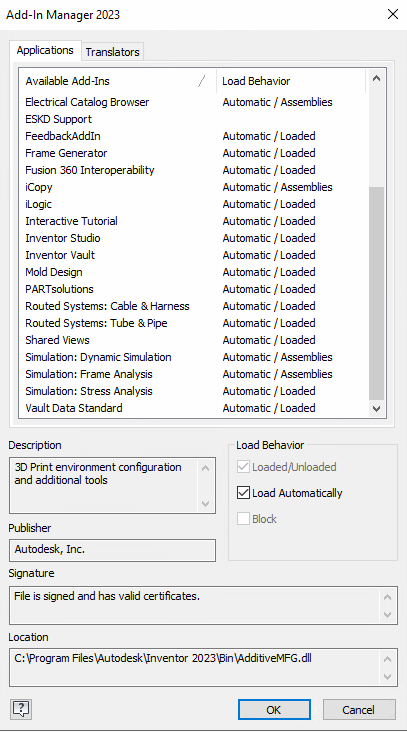
Disable automatic sign-in to Vault from Inventor.
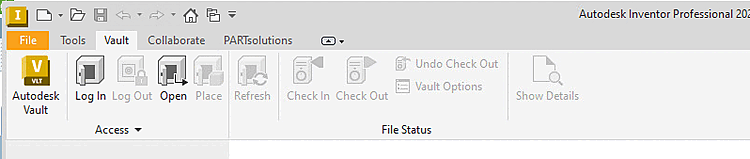
Do not log out of Inventor from Vault.
The first time you export, the Data Standard dialog box appears.
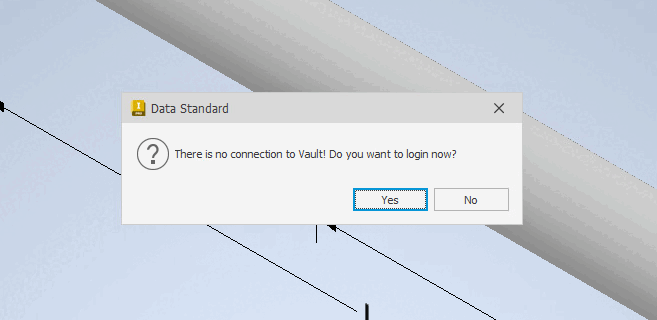
Click "No"; the API is already connected to Vault.
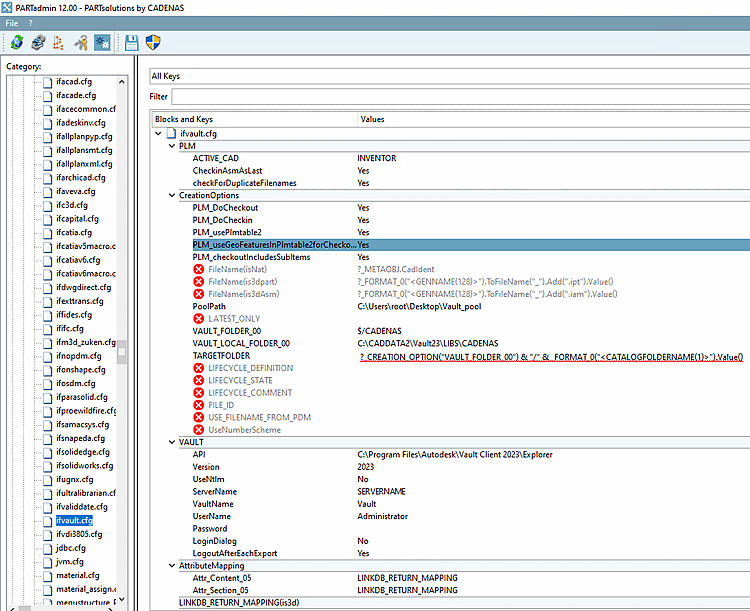
PoolPath=C:\Users\root\Desktop\Vault_pool
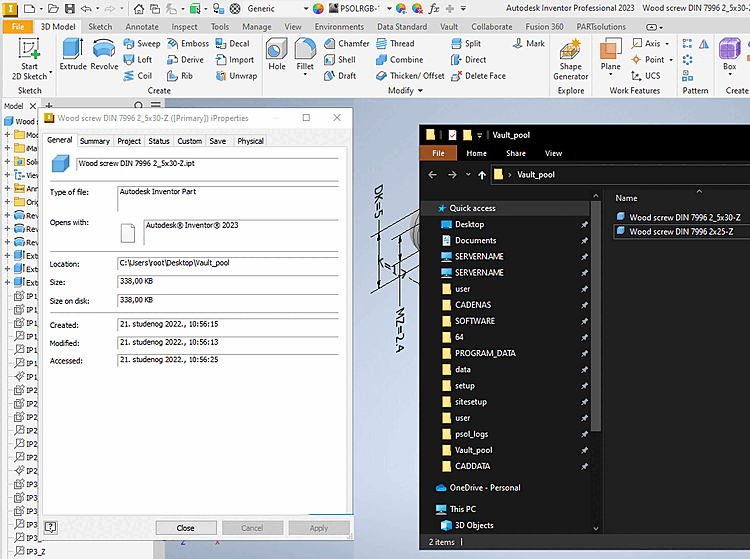
After exporting, the CAD file is located in the local pool path.
The iProperties of the export.
PoolPath=?_CREATION_OPTION("VAULT_LOCAL_FOLDER_00") & "/" & _FORMAT_0("<CATALOGFOLDERNAME(1)>")
 .Value()
VAULT_LOCAL_FOLDER_00=C:\CADDATA2\Vault23\LIBS\CADENAS
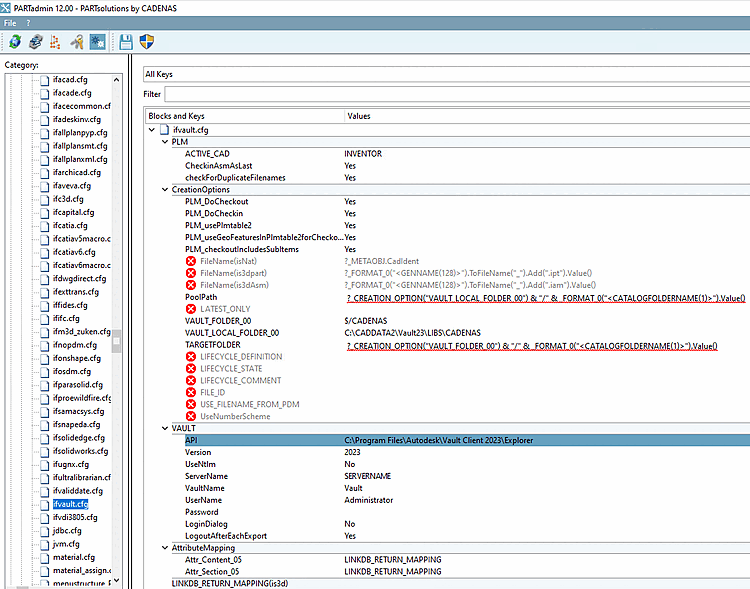
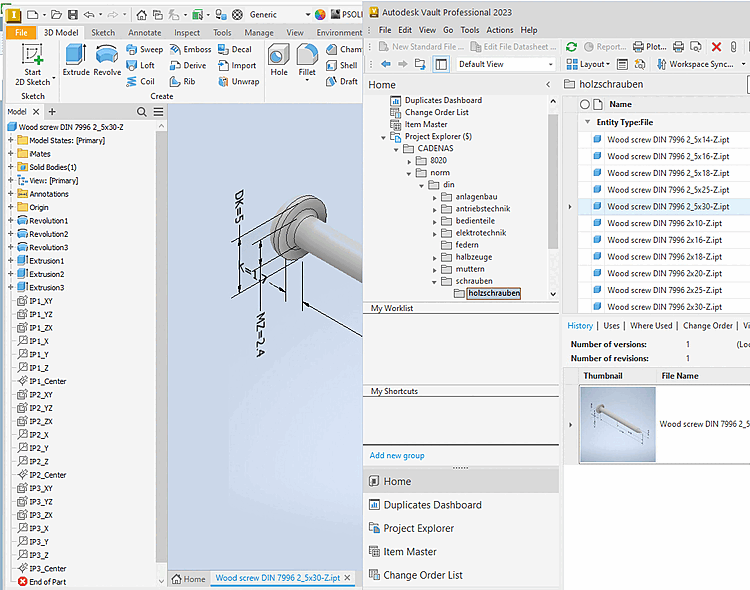
Successfully exported to Vault
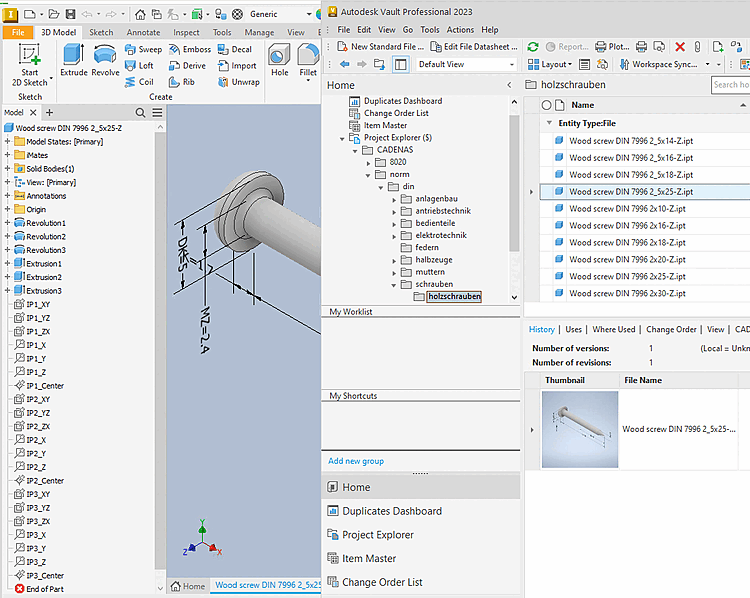
Export iProperties and the CAD file in the pool path
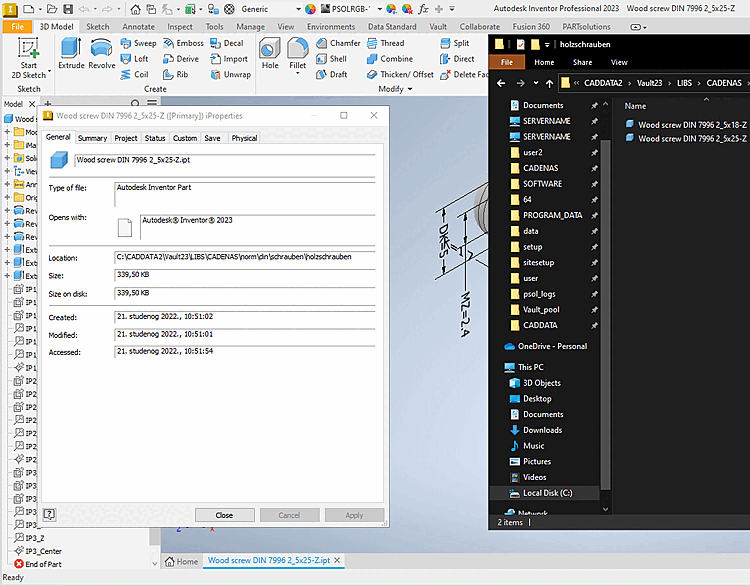
Vault API functionality: WORKSFORME
To avoid the "Save" dialog box for the Vault plug-in and the Vault Data Standard plug-in, a new issue is created.
Customer environments may vary. Therefore, the export must work with virtually all possible settings.
The Inventor+ Vault environment in the VM BINwin10x64_EN_VAULT_2023 - 10.13.18.44 is ready for testing.
Please do not change any settings in Inventor or the Vault client!