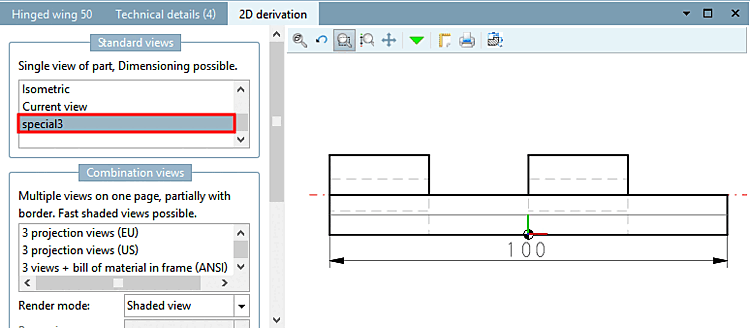
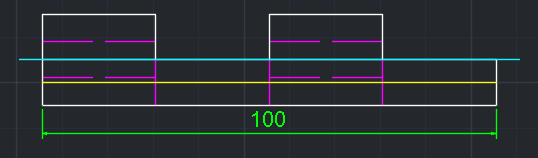
If you want to export special derivations into the CAD system later, then proceed as follows:
Call up PARTdataManager in the 3Dfindit menu via Insert model.
![[Note]](https://webapi.partcommunity.com/service/help/latest/pages/jp/3dfindit/doc/images/note.png)
Note The further procedure depends on the selected setting under Extras menu [Extras] -> Settings... -> Transfer to CAD [Export to CAD]. See Section 1.3.13, “Register page "Transfer to CAD " ” in ENTERPRISE 3Dfindit (Professional) - Administration.
Click on Transfer to CAD directly after selecting the desired component
 .
.-> The Select view to be transferred [Choose view to pass...] dialog box opens.... [Choose view to pass...]
Click on the 2D derivation button
 .
.-> The 2D derivation docking window opens.
!["Select view to be transferred [Choose view to pass...]..." dialog box](https://webapi.partcommunity.com/service/help/latest/pages/jp/3dfindit/doc/resources/img/img_15bd5f856ca046cdb9f1054ad984844d.png)