5.12.3.3.
Automatic class mapping 5.12.3.3.1. Apply suggested classes and features (from Class2Class mapping) in one go |  |
| Prev | Next |
Use case: There are Class2Class mappings (see Section 5.12.15, “
Automatic Class Mapping: Edit...
”.) for the settings [Settings] docking window, on the tab page
Classification, selected in the list box
Classification. After clicking on the button  suggestions
, [Show suggestions] they are displayed in orange in the Project and Traits [Attributes] dialog boxes. Per
Button
suggestions
, [Show suggestions] they are displayed in orange in the Project and Traits [Attributes] dialog boxes. Per
Button  All Attributes
all [Apply all attributes] characteristics of the selected class in
in one go.
All Attributes
all [Apply all attributes] characteristics of the selected class in
in one go.
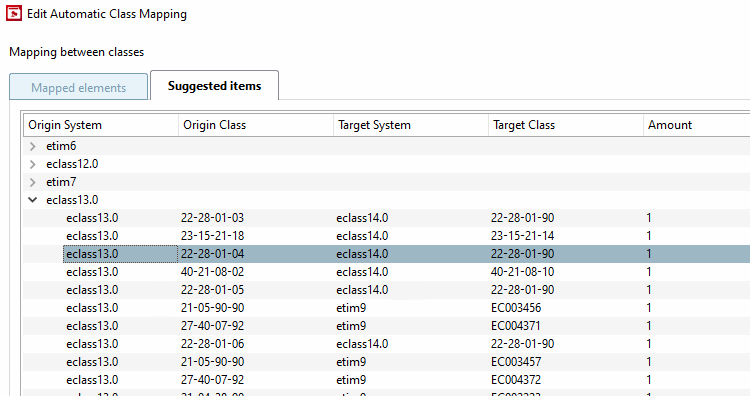
In PARTproject > Extras menu > Automatic class mapping: Edit... [Automatic class mapping: edit...] > Edit automatic class mapping [Edit Automatic Class Mapping] dialog window > Tabbed page Suggested elements [Suggested items] there are mappings to the desired classification (in the following exemplary figure from eclass 13.0 to eclass 14.0).
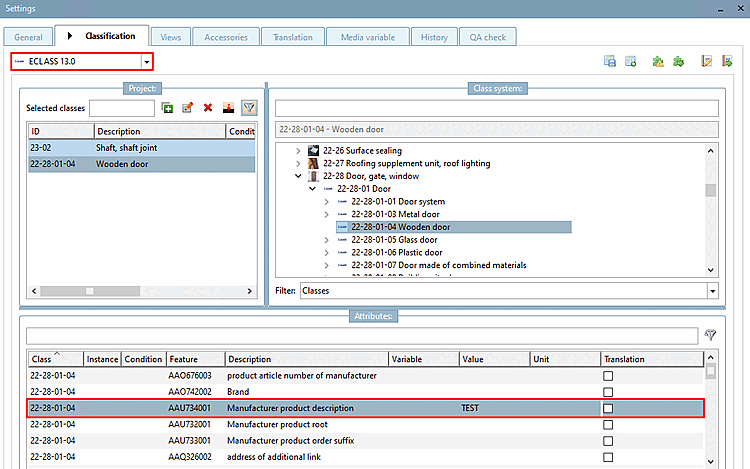
On the Classification Tabbed page, select "ECLASS 13.0" in the list box.
-> Class "22-28-01-04" is assigned to the selected project.
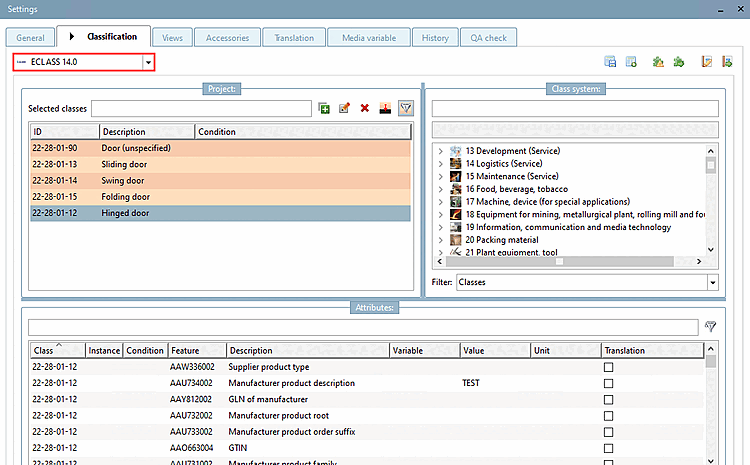
Now select "ECLASS 14.0" in the list field.
-> Mapped classes and features are displayed in orange.
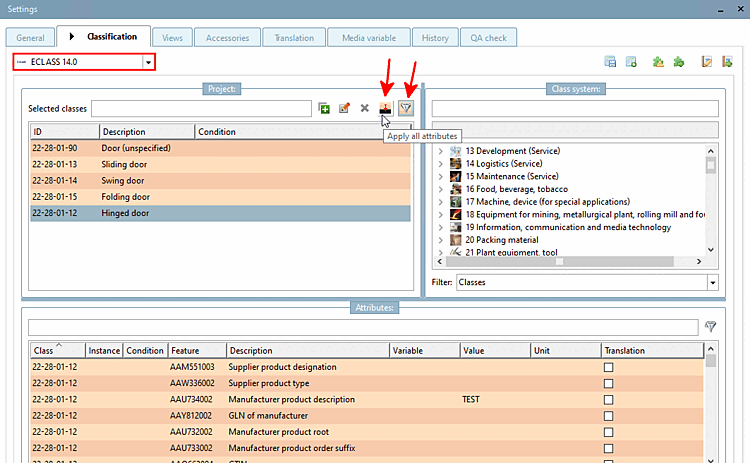
In the Project dialog area, select a class to which you want to transfer the displayed characteristics (here in the example "22-28-01-12 Hinged door").
Click on the Apply all attributes button.
-> The project selected in the index tree is now classified according to the "Hinged door" class and the data is written to the project file by clicking on Save.